My external hard drive suddenly shows “Parameter is incorrect” on Windows 11 and I can’t open the files. I’ve tried reconnecting it and using another USB port, but nothing changed. What’s the safest fix without formatting or losing data?
This kind of error really depends on what caused it, but it usually does not mean your files are gone. A lot of the time Windows just can’t read the file system properly anymore. I’ve seen it happen with external drives where the data was still on the disk, but Windows refused to open it.
The main thing is don’t rush into formatting it, and don’t make CHKDSK your first move if the files matter. CHKDSK can help later, but if the file system is damaged or the drive is starting to fail, it can also make recovery messier. Get the important stuff off first, then try to fix the drive.
Start with the basic checks:
- Use another USB cable.
- Plug the drive straight into a USB port, not through a hub.
- Try it on a different computer.
- Check Disk Management and see whether the drive shows up with the right size.
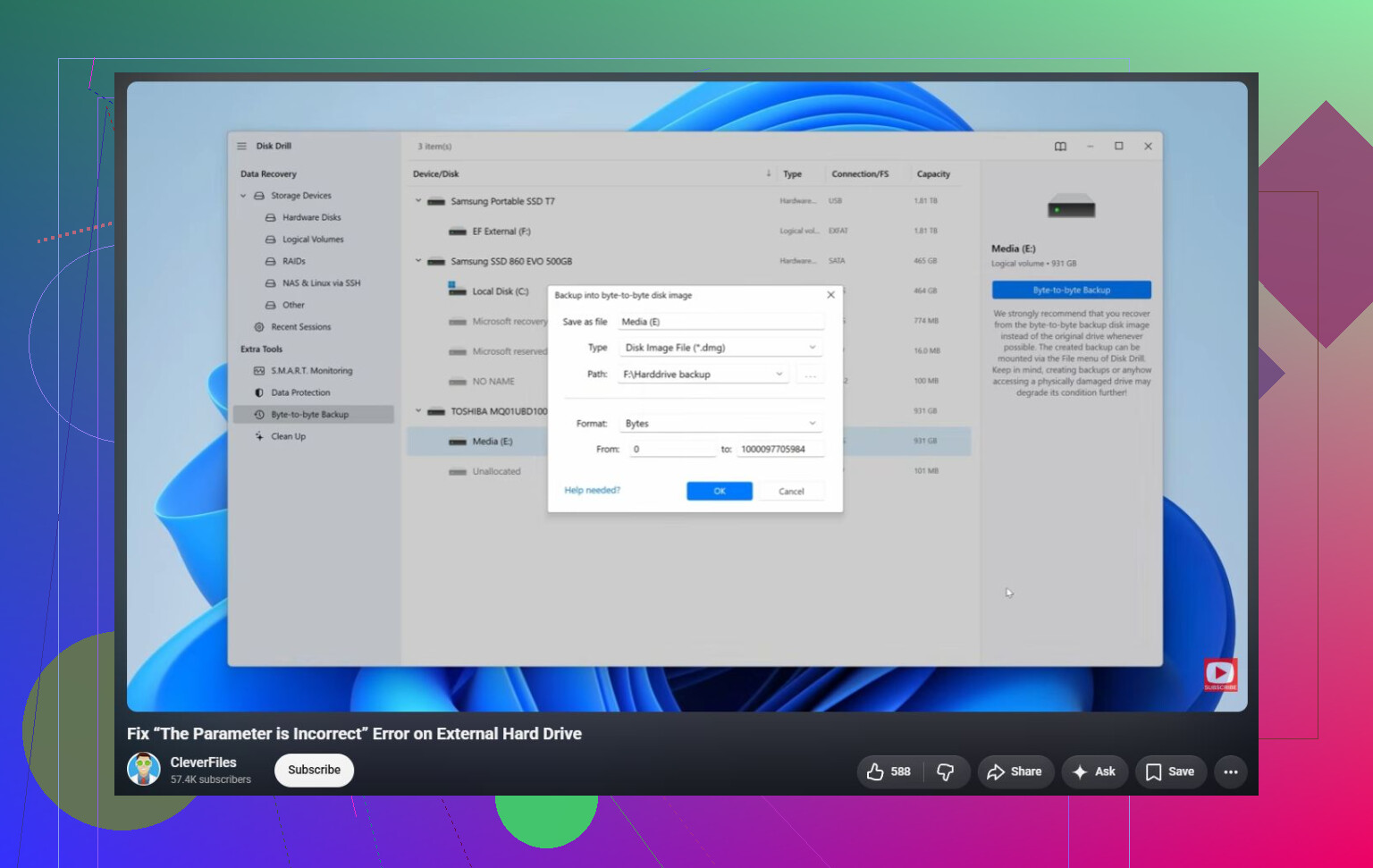
If Windows can still see the drive, recovery software is the safer next step before repairs. Disk Drill is a good option here since it can sometimes scan drives even when Windows gives “The parameter is incorrect.” If the drive is acting flaky, make an image of it first and scan that instead of scanning the physical drive directly. That reduces the chance of stressing a failing disk.
After the files are recovered, then I’d look at repair options:
- Try
chkdsk X: /rif Windows still recognizes the file system. - If the partition shows as RAW, or CHKDSK refuses to run, try TestDisk. In some cases it can repair partition damage without formatting.
- If you already have your data back and the drive still won’t behave, a quick format can clear logical file system problems by creating a new one.
There’s also one odd Windows setting worth checking. If the problem started right after changing regional settings, make sure the decimal separator is set to a period (.). It’s uncommon, but that setting can trigger this error on some systems.
If the drive is clicking, dropping connection, vanishing from Disk Management, or SMART tools show a bunch of reallocated or pending sectors, stop using it. That points more toward hardware failure, and at that stage a recovery lab is usually the better bet.
The annoying trap is that Windows may offer to “fix” the drive before you have copied anything, and that can be the point where recoverable folders turn into fragments. I agree with the caution above about not making CHKDSK the first step. If the files matter, I’d first try reading the drive from a Linux live USB or another machine without repairing it, because sometimes Windows is pickier about a damaged NTFS/exFAT volume than other tools are. If you can copy the important folders that way, do that before touching repair options. If it still won’t read, then image the drive or use recovery software like Disk Drill on the image. Formatting should be the last step, after the data is somewhere else.
Open Disk Management and watch whether the drive keeps the same size and partition layout after you plug it in. If it appears, disappears, comes back as RAW, or shows the wrong capacity, stop treating this like a Windows 11 setting problem. That usually points to a bad cable, weak USB power, failing enclosure, or the drive itself starting to fail.
I mostly agree with not running CHKDSK first, but I’d be even more boring about it: don’t keep double-clicking it in Explorer either. Every attempt can trigger Windows to read the same damaged areas again. If the drive is readable at all, copy the most important files first, not the whole drive in alphabetical order. Grab the stuff you actually care about before trying to make the disk “normal” again.
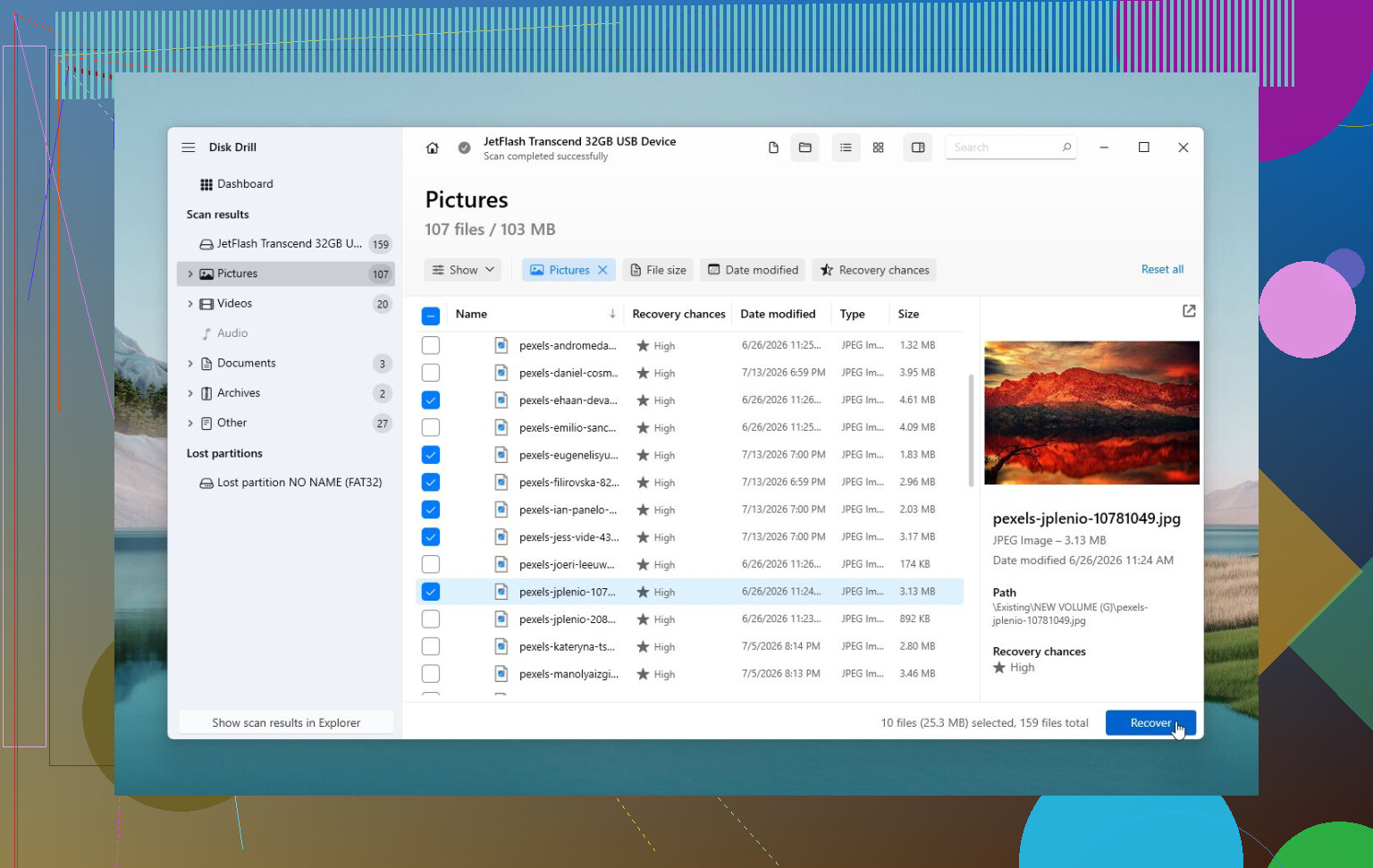
A small thing people miss is the external enclosure. If it’s a desktop external drive with its own power brick, try another compatible power supply only if you’re sure the voltage and polarity match. If it’s a portable USB drive, try a short known-good cable and a rear motherboard USB port on a desktop. If the disk sounds healthy and stays connected, then recovery software such as Disk Drill can be reasonable, preferably scanning an image instead of the original drive. If it clicks, stalls the whole PC, or vanishes while scanning, don’t keep pushing it. At that point the safest fix is not a fix, it’s recovery first and repair or format later.
Whether Windows asks you to initialize the disk matters here. If that popup appears, cancel it, because initializing is not a harmless “repair” and can overwrite partition info. I agree with the recovery-first advice above, but before scanning with anything, make sure you are not accepting any Windows prompt that writes changes to the drive.