My PC crashed unexpectedly, and now one of my hard drive partitions shows up as RAW instead of NTFS, so I can’t open it or access my files. I’m looking for help with safe ways to repair a RAW partition after a crash or recover the data without making things worse.
A RAW partition hit me once, and yeah, it looked bad at first. Windows acted like the drive had turned into blank space. What it usually means is simpler than it looks. The file system got messed up enough so Windows stops recognizing it. Your files might still be sitting there.
I saw this after a rough shutdown on one PC. Another time it happened on an external drive I pulled too fast. Power loss, malware, bad sectors, partition table damage, unsafe removal, all of those show up in the same ugly way.
What I would do, in order:
- Stop writing anything to the drive.
- Pull your files off first.
- Fix the partition, or wipe and rebuild it.
- Put the recovered data back later.
Get the files out first
If you care about the data, start there. Don’t format first. Don’t try random repair commands first either.
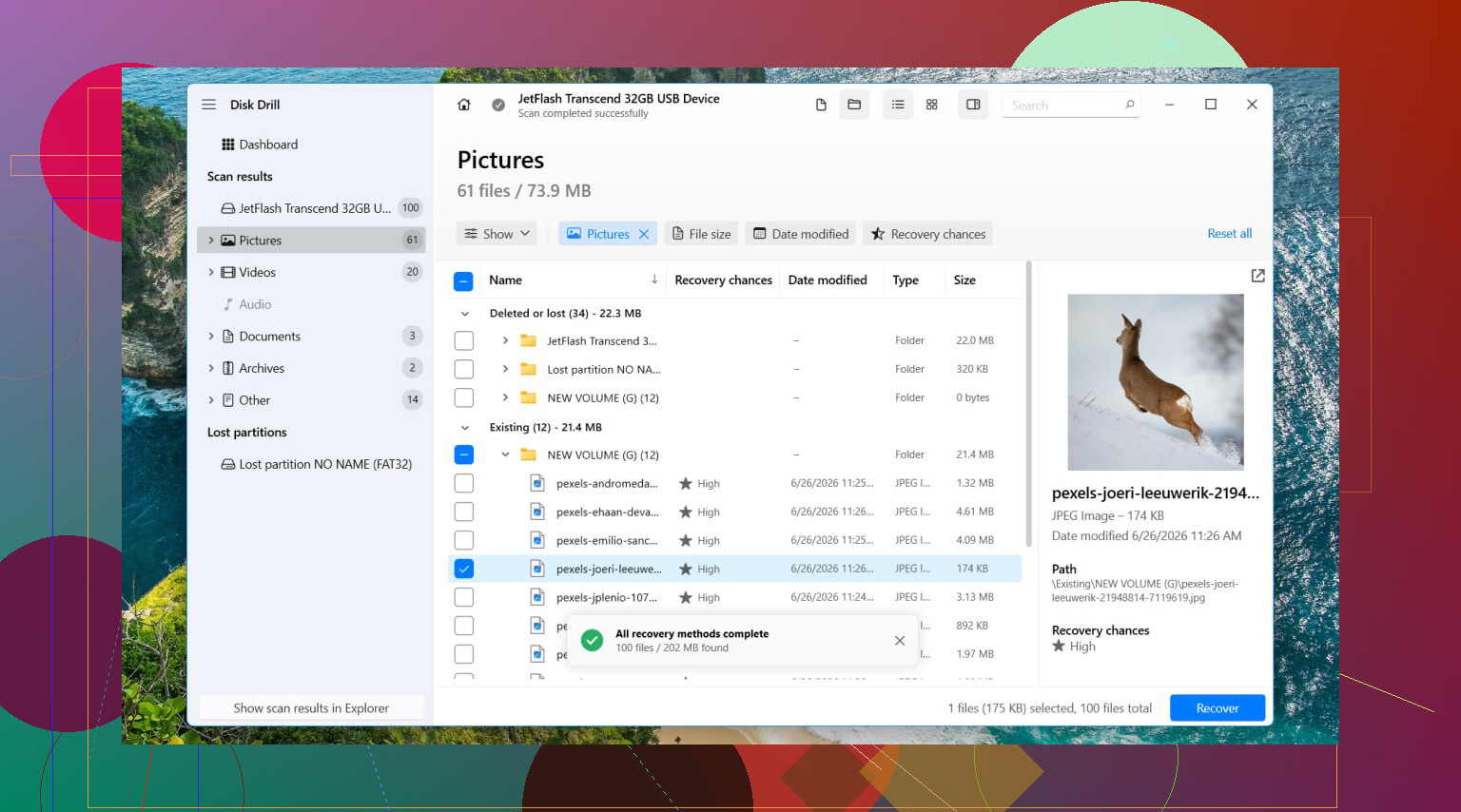
I had the best luck with Disk Drill. What helped in my case was it didn’t depend only on the broken file system. It scanned the drive itself and found stuff Windows pretended was gone.
How I’d do it:
- Install Disk Drill on a different disk. Not on the RAW one.
- Open it and pick the damaged drive or the RAW partition.
- Hit Search for Lost Data.
- If it asks for scan type on an external drive, pick Universal Scan most of the time.
- If the source was a camera card or drone footage, use Advanced Camera Recovery instead. I got cleaner video results that way.
- Let the scan finish. Don’t cut it off early unless the drive is falling apart.
- Open Review found items.
- Preview a few files. I always check photos, docs, or videos before recovering a big batch.
- Select what matters.
- Recover to another drive. Never save back onto the RAW partition.
One typo in the original steps stood out, so I’ll say it cleanly. Install it on another drive. Not the problem one.
If the disk is acting flaky, slow reads, random disconnects, weird pauses, make an image first and scan the image instead of the original hardware. I learned this the hard way on an old laptop HDD. Every extra pass made it worse.
Then deal with the partition
Once the files are safe, then I’d mess with repair.
TestDisk is the usual move if you want to try restoring the partition structure instead of rebuilding from scratch.
Basic flow:
- Download and extract TestDisk.
- Run testdisk_win.
- Choose Create.
- Pick the affected disk.
- Leave the detected partition table type if it looks right.
- Go to Analyse.
- Run Quick Search.
- If it misses the partition, run Deeper Search.
- If the lost partition shows up correctly, select it and choose Write.
- Restart the PC.
Sometimes this works cleanly. Sometimes it does nothing. I’ve had both.
If repair fails, rebuild it
If you don’t care about preserving the old partition layout, or TestDisk doesn’t get you anywhere, I’d stop fighting it and recreate the partition.
Steps:
- Open Disk Management.
- Delete the RAW partition if Windows lets you and if your data is already recovered.
- Create a New Simple Volume.
- Format it with NTFS, or whatever file system you need.
- Copy your files back onto it.
That route is boring, but boring is good when you want the drive usable again.
What I would skip
I would not start with CHKDSK on a RAW partition.
Most of the time Windows won’t run it on RAW anyway. On top of that, repair tools write changes to the file system. If the data matters, doing writes before recovery feels backwards. I don’t like giving a damaged disk extra jobs.
When to stop and stop fast
A few signs mean software recovery is no longer the smart move:
- clicking noises
- the drive disappears and reappears
- detection is inconsistent
- it won’t show up in Disk Management
- reads are painfully slow or freeze
At that point, I’d unplug it and leave it alone. Repeated power cycles and rescans can make things worse. If the files matter, family photos, work docs, stuff you can’t replace, I’d hand it off to a recovery lab instead of pushing more tools at it.
RAW after a crash usually means the file system metadata got trashed, not always the files. I agree with @mikeappsreviewer on one big point, stop using the partition first.
My take is a bit different on the next move. Before any repair attempt, check the drive’s health. If SMART shows bad signs, don’t spend hours poking the partition.
Do this first.
- Open CrystalDiskInfo or another SMART tool.
- Check Reallocated Sectors, Pending Sectors, and Uncorrectable Errors.
- If status is Caution or Bad, clone the disk first. A sector-by-sector image is safer than scanning a failing drive over and over.
If the hardware looks stable, then inspect the partition without writing changes:
- Open Disk Management.
- Confirm the partition size still looks right.
- Open DiskPart, run list disk, list volume, and see if Windows still reports the same offset and size.
- If the size suddenly looks wrong, you might have partition table damage, not only NTFS damage.
One thing I slightly disagree on, TestDisk is strong, but I would not write a found partition back to disk until I’ve mounted or copied data from a clone first. Writing too early is where pepole get burned.
If your goal is data first, Disk Drill is fine for scanning a RAW partition, especially if Explorer shows nothing. If your goal is a safe repair path, clone first, then test on the clone.
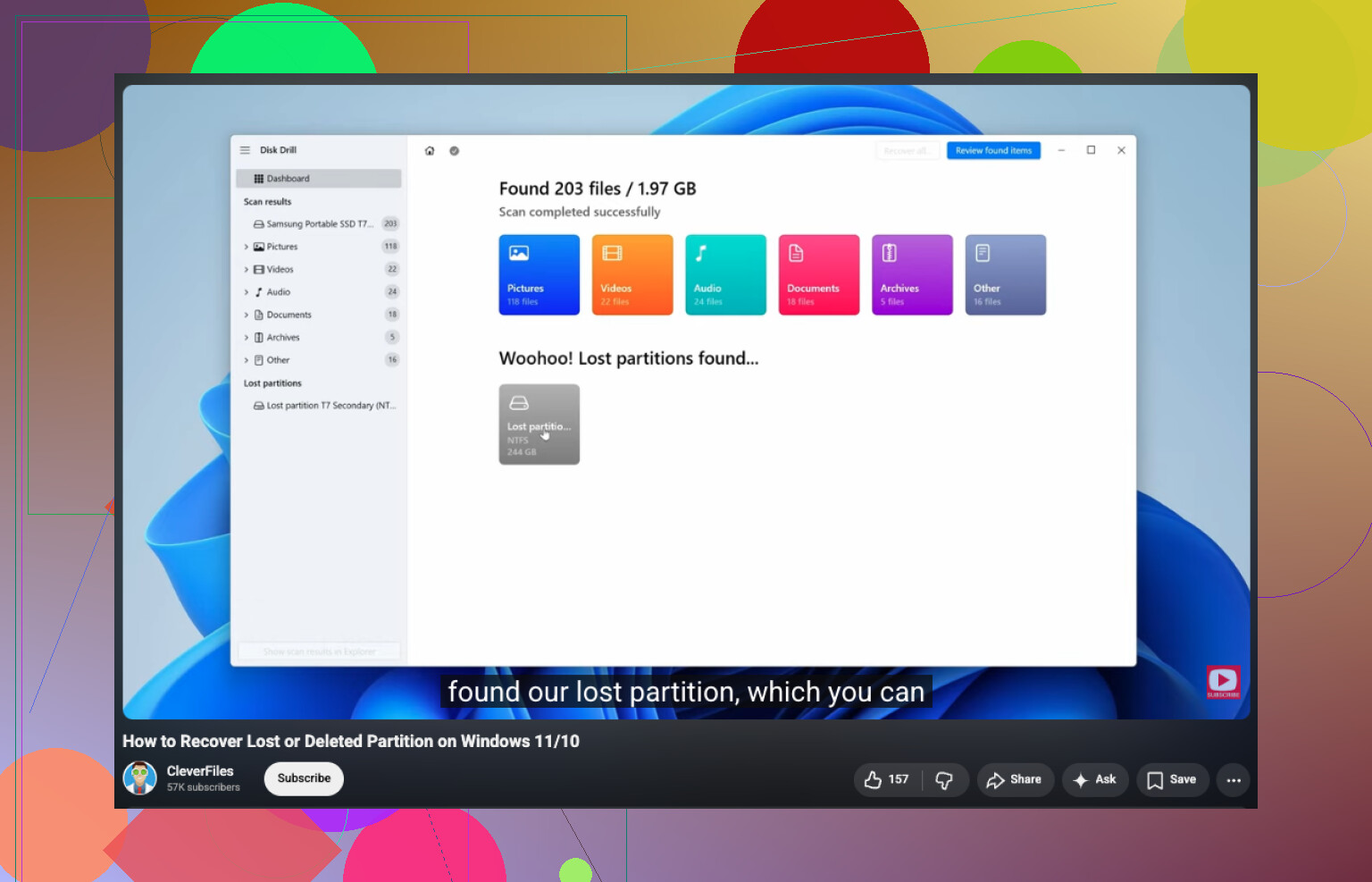
For people searching how to repair a lost or damaged partition after a system crash, this vid is decent:
watch how to repair a lost NTFS partition after a crash
One more thing. If Event Viewer shows disk errors like 7, 51, or 55, pay attention. Error 55 points at file system corruption. Error 7 often points at bad blocks. Different problem, different fix.
If the data matters more than the partition, recover first. If the drive health is bad, stop and clone. If the drive health is clean, then try repair on the clone or rebuild the partition after recovery. Thats the safer order.
I’d add one thing both @mikeappsreviewer and @suenodelbosque only touched lightly: check whether the partition lost only the boot sector or whether the whole NTFS metadata chain is trashed. Those are very different messes.
If the drive is visible with the correct capacity, sometimes the fix is not rebuilding the whole partition at all. In an elevated Command Prompt you can try:
fsutil fsinfo ntfsinfo X:
If Windows can still read some NTFS structures, that tells you a lot. If it totally bombs out, that leans closer to deeper corruption.
Also, before doing any write operation, inspect the partition in a hex viewer or a forensic tool and see whether the NTFS boot signature is still there. If sector 0 of the partition does not show the NTFS header, but the backup boot sector does, that’s often repairable. TestDisk can help there, but I agree with @suenodelbosque that writing changes too early is risky.
One mild disagreement with the “recover first no matter what” approach: if the crash only damaged boot metadata and the disk is healthy, a careful metadata repair on a clone can restore the volume instantly and preserve filenames/folders better than raw carving.
If you just want the practical route, use Disk Drill to scan and export files to another drive first, especially if the partition mounts as RAW in Windows. Then decide whether to repair or just reformat.
Also worth checking:
- SATA/USB cable and port
- Event Viewer for NTFS or disk errors
- BIOS/UEFI still seeing the drive correctly
If you want more case examples, this thread is pretty relevant: RAW external hard drive recovery advice from Reddit
If the drive starts clicking, drops offline, or reads stupidly slow, stop messing with it. Thats where DIY turns into data loss.