I’ve already restarted the TV, reinstalled the Remote App, and confirmed both are on the same network. The TV is on, but the remote app says “Device Not Found” instead of connecting. How can I fix this to control my TV using a phone?
Nine times out of 10, a remote app saying “Device not found” points to the network, not a broken app. I’m late to figuring this out, and I’d been treating the app itself as the obvious suspect. After catching up on the usual causes, I’d start by confirming that the phone and TV are genuinely on the exact same Wi-Fi network, because a router name that looks familiar doesn’t always mean the devices can communicate.
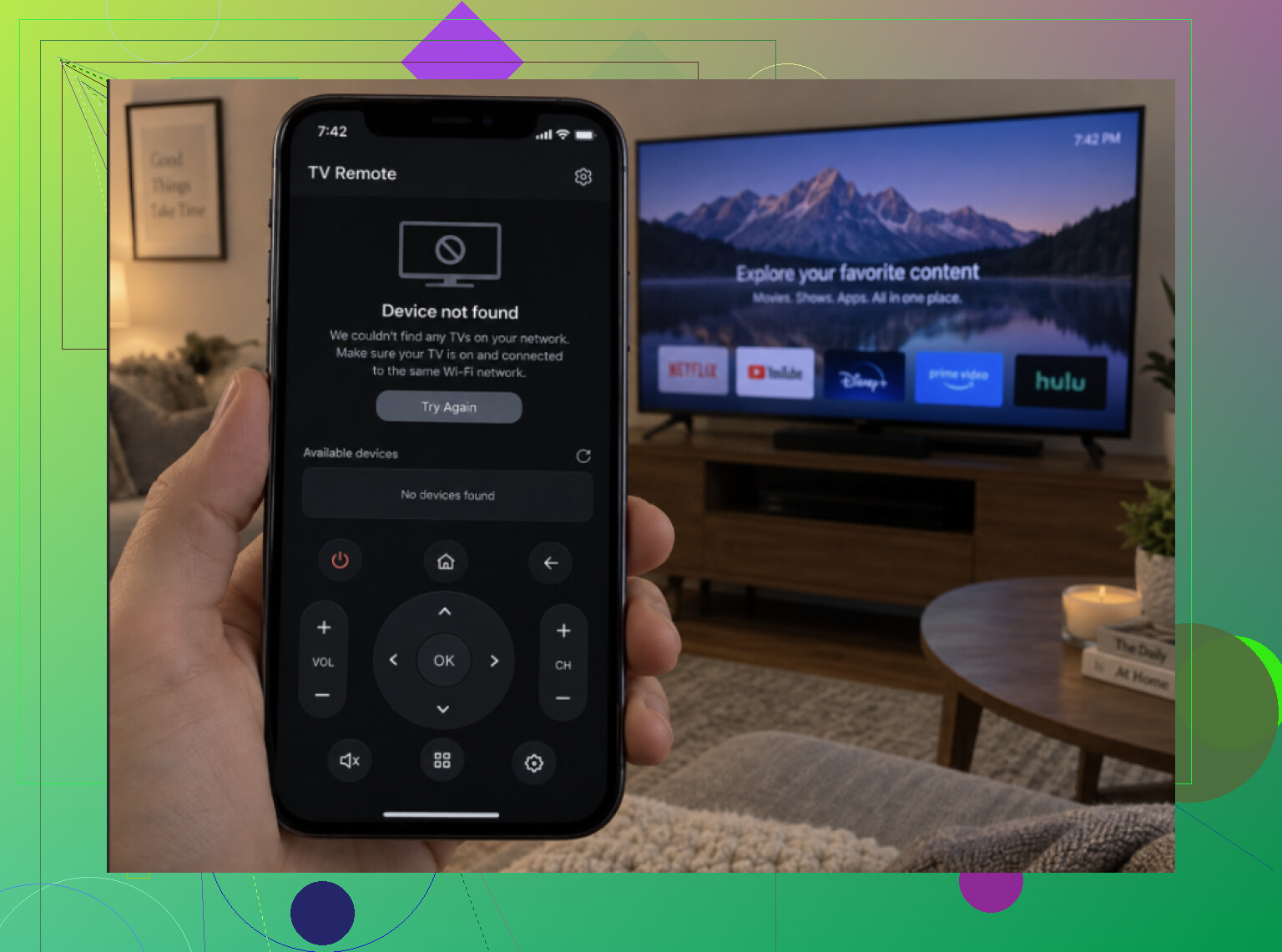
The biggest trap seems to be Wi-Fi bands. A phone connected over 5GHz and a TV using 2.4GHz can sometimes behave as though they’re on separate networks, even when both connections come from the same router. Moving the phone to 2.4GHz is an easy first test. I’d also check whether either device joined a Guest network, whether the phone quietly switched to cellular data, and whether a VPN is active. Mesh setups add another wrinkle since they may place the devices on different nodes or SSIDs, so I’d make sure both are attached to the same one.
Apparently, the TV also needs to be properly awake before scanning. Some models become invisible to the network while they’re in deep standby. Turning the set on with its physical buttons and waiting around 30 seconds before searching again may be enough. That wasn’t obvious to me, since I assumed standby still left every network function available.
If that fails, I’d do the boring reset on both sides. Restart the phone, then power-cycle the television by unplugging it for 30 seconds. Using standby alone may not reset the TV’s network connection, which is the part that matters here. A full unplug fixes a surprisingly large share of discovery failures without changing any settings.
The next thing I’d inspect is whether mobile control is even enabled on the television. Roku puts it under Settings, System, Advanced system settings, Control by mobile apps, where it should be set to Enabled or Permissive. Samsung usually has a remote or mobile connection option under Connection or Device Connection Manager. LG calls its setting Mobile TV On or network standby. Fire TV generally just needs to be awake and connected to the network.
Router isolation is the setting I probably would’ve missed for ages. AP Isolation, also called Client Isolation, prevents devices connected to the same Wi-Fi from talking to one another. If it’s enabled, the phone app won’t discover the television regardless of how many times everything is restarted. It needs to be disabled in the router settings. This is especially common with apartment or landlord-provided routers and on hotel Wi-Fi, which helps explain why controlling hotel TVs through phone apps so often goes nowhere.
Software age can matter too. I’d update both the remote app and the TV firmware, since older versions can interfere with device discovery. If automatic scanning still fails after that, some apps allow a manual connection using the television’s IP address. The address is usually listed somewhere under Settings, Network, and About or Status. Entering it directly can bypass a scan problem when both devices are definitely on the same local network.
Trying a second app is also a useful way to separate an app problem from a network problem. If one app discovers the TV and another doesn’t, the network is probably functioning and the failure is specific to the first app. TVRem supports Samsung, LG, Roku, Fire TV, Android/Google TV, and Apple TV, so it can serve as that comparison rather than being treated as an automatic fix through the TVRem app.
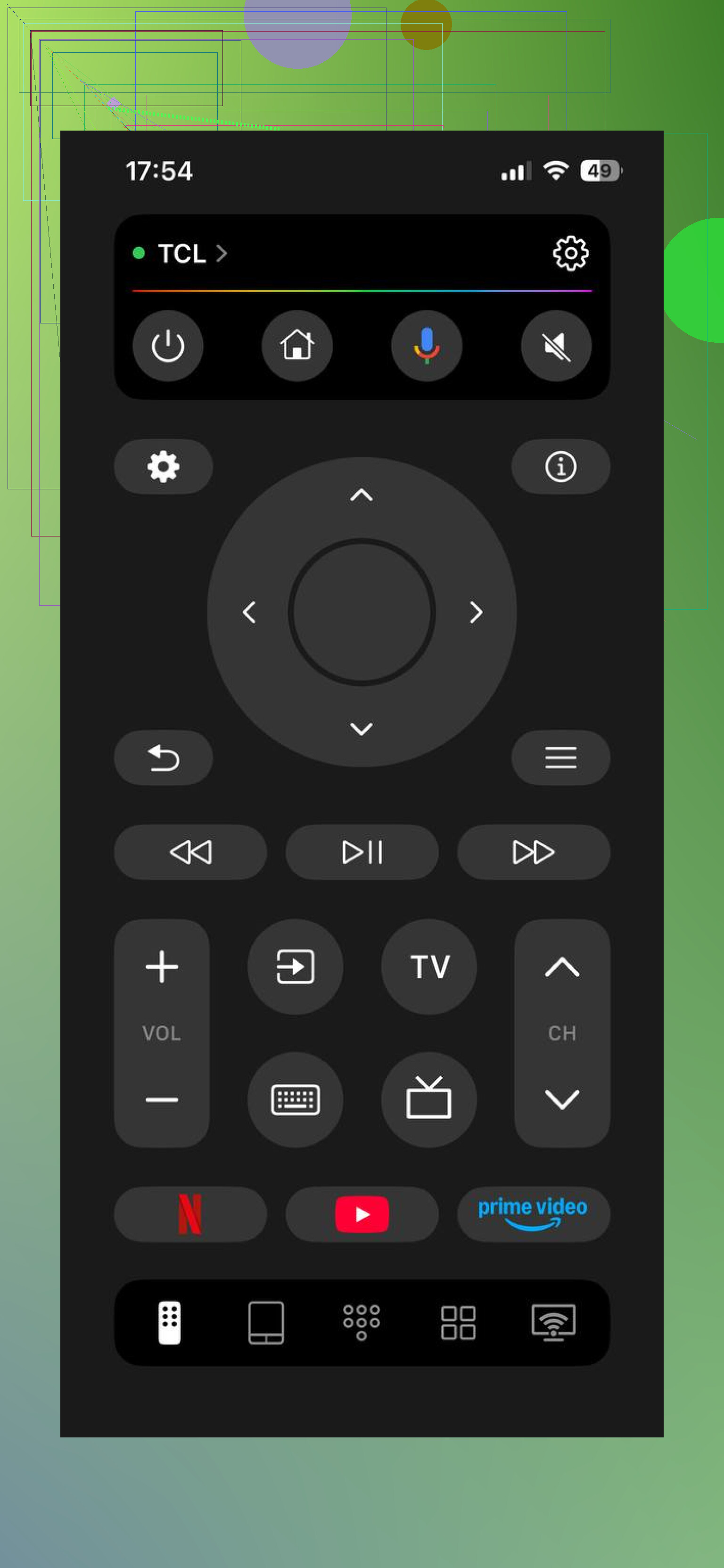
The basic limitation is that all eight checks assume the television is smart, powered on, and connected to Wi-Fi. An older non-smart set has no network device for an app to discover, so it still requires a physical remote. For an eligible TV, the exact failure also matters: finding nothing, seeing the television but failing to connect, or losing a connection that previously worked can point to different causes. What TV brand are you using, and at which of those stages does it fail?
If the TV never appears, check app permissions; if it appears but refuses to connect, that’s usually a pairing issue. On iPhone, enable the remote app under Settings > Privacy & Security > Local Network. On Android, open the app’s permissions and allow Nearby devices or Location if requested. Reinstalling can leave those permissions denied, so the app stays blind even though both devices are on the same Wi-Fi.
Being on different Wi-Fi bands is not automatically the problem. A phone on 5 GHz and a TV on 2.4 GHz should still communicate if the router places both bands on the same LAN. Switching bands may work around a bad router setup, but it is not normally required.
Check the IP addresses shown in the phone’s Wi-Fi details and the TV’s Network Status screen. If one is something like 192.168.1.x and the other is 192.168.50.x, the router has separated them despite the similar network name. This is common with guest Wi-Fi, mesh systems, extenders, and TVs connected by Ethernet. Put both devices on the main router network, then reboot the router itself, not only the TV.
If their addresses are in the same range, delete any saved phone or remote-app entry under the TV’s authorized devices, external device manager, or paired devices menu. A previously denied pairing request can remain blocked after reinstalling the app. Clear that entry, reopen the app, scan again, and accept the connection prompt on the TV screen.
Being in the same IP range still does not prove the router is passing the discovery traffic the app needs. These apps commonly find TVs through multicast broadcasts such as mDNS or SSDP, and some routers block that traffic even though normal internet access works on both devices.
Check the router for settings named Multicast Filtering, IGMP Snooping, Wireless Isolation, Device Isolation, or Block LAN-to-WLAN Traffic. Client isolation should be off. Multicast should generally be allowed. After changing anything, reboot the router and then forget and reconnect the TV’s network connection. Restarting the TV alone may leave the same DHCP lease and network state in place.
A useful test is to connect both devices to a completely different network, such as a hotspot provided by a third phone. If the app immediately sees the TV there, stop reinstalling and resetting things. The original router is the problem. If it remains invisible, then look at the TV’s network-control setting or the app permissions mentioned by @aifox7530.
Avoid factory-resetting the television at this stage. It is a lot of setup to redo and rarely fixes blocked discovery packets. Once connection works, reserving the TV’s IP address in the router can prevent the app from losing it again after future router reboots.
A TV that never appears in any compatible app points to the network; a TV that appears in the official app but not your chosen remote app points to compatibility. Check the TV’s actual operating system, not just the badge on the front. TCL and Hisense sets, for example, may run Roku TV, Google TV, Fire TV, or VIDAA, and each expects a different control protocol.
Look under Settings > System/About, install the official app for that platform, and test again. If the official app connects, stop changing router settings because the original app likely does not support that model. If the official app still finds nothing, then the local-network permission and router multicast checks mentioned above are the right path.
Don’t treat “reinstalled” as a clean reset. iPhone’s Offload App keeps its data, and Android may restore old settings automatically. Fully delete the app on iPhone. On Android, clear its storage and cache before uninstalling. Reinstall it, then manually allow Local Network, Nearby Devices, or Location access as required. @aifox7530 is right that denied permissions can survive the process in ways that make reinstalling pointless.
On the TV, remove any saved phones or denied remote connections from its paired-device list. Then forget the TV’s Wi-Fi network and reconnect it. Open the remote app, scan again, and watch the TV screen for a pairing prompt or PIN. If no compatible app can see it after that, the problem is still the router or TV network-control setting, not the phone app.
Skip the manual IP-entry trick for now. That one gets recommended early because it sounds clever, but if discovery is genuinely broken, typing the TV’s address usually fails too, and then you’re left thinking the app is dead when it isn’t.
Here’s the thing almost nobody in the thread has touched: the phone’s Private Wi-Fi Address feature. Both iPhone and newer Android turn on MAC randomization per network by default. When you reinstall an app or the phone rotates that random address, some routers quietly hand your phone a different treatment than before, and any TV that saved your old phone in its paired list no longer recognizes it. On networks with any kind of MAC-based rule, it can even land you on a different segment while everything still looks like the same SSID. Go into the Wi-Fi network settings on your phone, find Private Address or Randomized MAC for that specific network, and switch it to the fixed/device MAC. Reconnect, then scan again. Costs nothing and takes ten seconds.
@0xdev5 is right that same IP range doesn’t prove the router is passing multicast, and that hotspot test is honestly the fastest way to settle the whole argument. If the TV pops up instantly on a third phone’s hotspot, you’ve got your answer and you can stop poking router menus. Where I’d push back a little is the mesh advice floating around earlier. Forcing 2.4GHz and chasing band steering can turn into a rabbit hole. On a lot of mesh systems the problem isn’t the band at all, it’s that the app’s discovery packets don’t survive the jump between nodes, and no amount of band switching fixes that. Wiring the TV to the main router node, or plugging the phone into the same node the TV sees, tells you more than fiddling with SSIDs.
The realistic expectation part: if this used to work and suddenly stopped after a reinstall, it’s almost always the paired-device list on the TV plus the MAC thing, not a network config that magically changed on its own. Clear the TV’s authorized device list, fix the private address, rescan, and watch the screen for the pairing prompt. If it worked on the hotspot but not at home and you don’t control the router, like an apartment building setup, you may just be stuck. In that case a physical remote or a cheap universal remote is less pain than fighting client isolation you can’t turn off.
Don’t start changing router settings blindly. First compare the remote app with a casting app such as YouTube: if the TV appears as a cast target but remains missing from the remote app, the network is probably fine and the remote app may not support that TV’s operating system or model. If neither app sees it, focus on the TV’s network-control setting, local-network permission, or router isolation. It is not a perfect test because casting and remote control can use different protocols, but it quickly narrows down which side to troubleshoot.
Don’t keep wiping the TV’s paired-device list if the app you’re using is one of the account-tied brand apps. SmartThings for Samsung and LG’s ThinQ don’t just need the same Wi-Fi, they need the phone and the TV signed into the same account, with the set actually registered to it. I’ve seen people burn an hour on router menus when the real problem was the TV logged into an old email or never registered at all. Check that before you touch anything network related.
@cyberpixel5891 and @0xdev5 have the network side nailed, and the hotspot test @0xdev5 described is the one thing I’d do before almost anything else. It answers the whole ‘is it the router or the app’ question in about two minutes. If the TV shows up instantly on a third phone’s hotspot, quit poking at isolation settings and look at the account or permission side instead.
The thing that gets missed on Android specifically is battery optimization. If the system has the remote app throttled in the background, its discovery scan can get killed mid-search and you get ‘Device Not Found’ even though everything else is correct. Go into the app’s battery setting and set it to unrestricted, then rescan. Costs nothing and it’s the kind of quiet failure that survives every reinstall.
Where I’d gently push back on @zerostream3493 is the private address advice. Fixing MAC randomization is worth trying, sure, but on most home routers it changes nothing, and switching your phone to a fixed MAC has its own downside if you care about tracking on other networks. I’d treat it as a last-resort test, not an early step.
Realistic take: if this used to work and died after a reinstall, it’s almost always the account login or a permission that got dropped, not some setting that changed itself. If it never worked and the hotspot test also fails, and you’re on an apartment or landlord router you can’t configure, you’re probably not going to win that fight. A cheap universal remote is less aggravation than arguing with client isolation you can’t switch off.
Try pausing your phone’s VPN before changing more settings. Roku’s support specifically recommends disconnecting from a VPN when using its remote app.
Open your VPN app and tap Disconnect, then close and reopen your TV remote app. Keep your phone connected to your home Wi-Fi and search for the TV agian.
If it connects, repeat the test with the VPN enabled to check whether the problem returns. Try this frist before clearing more data or changing your phone’s private Wi-Fi address.