I’m using an iPhone on the latest 2026 iOS version, and my storage is almost full. Apps feel slow, Safari keeps reloading pages, and some websites won’t load correctly. Older guides online mention steps that don’t match the menus I see now. Can someone walk me through the correct, up‑to‑date way to clear app and browser cache in 2026 without messing up important data?
iOS in 2026 changed a bunch of spots, so a lot of old guides are off. Here is what actually helps with cache and storage now.
-
Check what eats space first
Settings > General > iPhone Storage.
Wait for it to load.
You see: Apps, Photos, System Data, etc.
Use this screen as your base. If System Data is huge, you need to clear app junk. -
Safari cache the proper way
Settings > Safari.
Tap Clear History and Website Data.
Pick “All time” if it asks.
Then scroll to Advanced > Website Data > Remove All Website Data.
Kill Safari from the app switcher.
Reopen it and test a few sites. -
Offload vs delete apps
On the iPhone Storage screen, tap an app.
You get two buttons.
Offload App keeps documents but removes the app binary. Good for big games you rarely open.
Delete App removes everything. Great for buggy social apps that feel slow.
After delete, reinstall from the App Store. This dumps a lot of cached junk.
Apps that respond well to delete + reinstall when slow or bloated:
• Instagram
• TikTok
• Facebook
• Reddit
• Spotify
• Chrome
-
Clear app cache where settings exist
Some apps include their own cache controls. They move these every few iOS versions so it is annoying. Common spots:
Instagram: Profile > Menu > Settings and privacy > clear search history, sometimes “Media and contacts” cleanups.
TikTok: Profile > Menu > Settings and privacy > Cache & Cellular > Free up space.
YouTube: Settings > Data & privacy, then watch and search history. Not pure cache, but helps. -
Photos and messages cleanups
Photos:
Settings > Photos > Optimize iPhone Storage.
This keeps lower resolution versions local and full versions in iCloud.
Also open Photos > Albums > Recently Deleted and clear it.
Messages:
Settings > Messages > Keep Messages > pick 1 Year or 30 Days.
Then in Messages > Settings > iPhone Storage > Messages, clear big video and photo threads. -
Offload big “Other” / System Data
If System Data is huge and nothing fixes it, two options help most:
• Big iOS update via computer using Finder on Mac or iTunes on Windows. This often rebuilds caches and shrinks System Data by a few GB.
• Full backup to iCloud or computer, then Erase All Content and Settings, then restore. Painful, but it cleans years of junk. -
Use a cleanup helper app
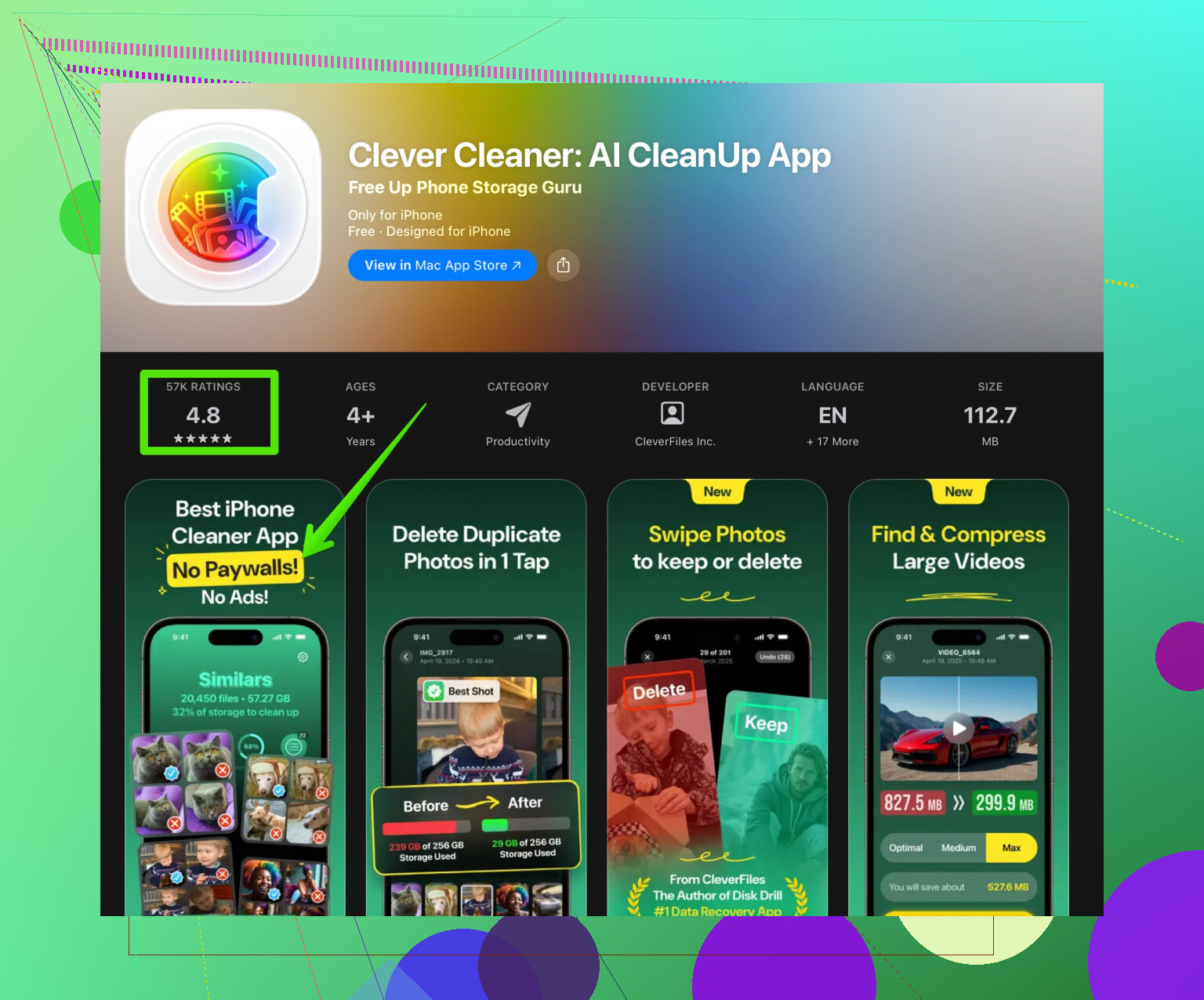
For people who do not want to dig through every menu, a dedicated cleaning app is useful for finding big files, duplicate pics, and similar clutter.
Clever Cleaner App does well with:
• Detecting duplicate photos
• Grouping similar shots so you delete extra ones fast
• Cleaning burst photos, screenshots, screen recordings
• Sorting big videos you forgot about
You can grab it here for fast iPhone cleanup help:
smarter iPhone cleanup with Clever Cleaner App
This kind of app will not dump all app cache at the system level, Apple locks that down, but it clears enough photos and media junk to free multiple GB on most phones.
- Quick “weekly” routine
Takes about 5 to 10 min:
• Clear Safari history and data
• In iPhone Storage, offload or delete any app you have not used in a month
• Run Clever Cleaner App to remove dupes and big media
• Empty Recently Deleted in Photos
After doing this once, your phone should feel smoother, Safari should reload less, and storage pressure warnings should show up less often.
47 Likes
What @cacadordeestrelas said covers most of the obvious iOS switches, so I’ll skip repeating the Settings > Safari > Clear kind of thing. A couple of extra angles that actually make a difference in 2026 iOS:
- Focus on “live” cache, not just storage numbers
A lot of slowness is RAM‑style junk, not just disk space. If apps feel laggy or Safari keeps reloading:
- Hard reboot:
- Vol up → vol down → hold side button until screen goes black and Apple logo comes back.
- This flushes temp stuff that you cannot clear from menus.
- After that, open only the 2–3 apps you really use and see if Safari still randomly reloads.
- Stop background stuff that silently rebuilds cache
Old guides ignore this, but in recent iOS versions background tasks refill cache super fast.
- Go to Settings > General > Background App Refresh.
- Turn it off globally for a day and see if your storage graph stabilizes.
- Or at least kill it for social apps and shopping apps that constantly prefetch media.
This matters more than people think; no point clearing a few GB if half your apps are auto-downloading content again in the background.
- Tweak Safari so it stops hoarding new junk
Instead of clearing Safari every week and losing logins all the time:
- Settings > Safari:
- Turn off “Preload Top Hit.”
- Under “Advanced” > “Experimental Features,” leave the weird dev toggles alone, but disable any extra content blockers or extensions you are not really using. They can cause the “page keeps reloading” mess.
- Also, if you have 3–4 ad blockers or privacy extensions stacked, pick one and remove the rest. Stacked content blockers = weird reload loops.
- Watch for iCloud sync loops
Sometimes the “websites won’t load right” thing is actually iCloud Keychain & iCloud Tabs freaking out between devices.
Try:
- Settings > Your Name > iCloud > iCloud Drive & Safari.
- Briefly toggle Safari off, choose “Keep on My iPhone,” wait 1–2 min, then turn it back on.
If Safari bookmarks / iCloud tabs got corrupted, this often calms it down more than cache wipes.
- Briefly toggle Safari off, choose “Keep on My iPhone,” wait 1–2 min, then turn it back on.
- Message & app media bloat that old guides miss
Cache is not just “cache” in iOS. In 2026 a lot of it hides as media attached to chats:
- WhatsApp: Settings > Storage and Data > Manage Storage. Clear large chats and old videos.
- Telegram, Signal, etc all have their own “Storage / Data” sections where you can auto-remove media older than 3 months.
These grow faster than Safari cache for most people and absolutely wreck performance when storage is almost full.
- When to actually nuke and reinstall vs just “offload”
I slightly disagree with leaning too much on Offload. Offload is great for big games, yes, but if an app is acting weird (crashes, endless loading, glitches):
- Don’t offload it. Fully delete it, then reinstall.
Offloading can leave behind corrupted documents / settings that keep the bug alive. For apps that are misbehaving, delete > reinstall is cleaner than offload.
- Use a cleaner app for stuff iOS never automates
Apple still does a mediocre job with duplicate photos, burst spam and forgotten 4K videos. This is where something like Clever Cleaner App is actually useful, because doing it by hand in Photos is soul‑crushing.
- It helps you:
- Catch duplicate or near‑duplicate shots
- Mass‑clean screenshots, screen recordings, and accidental videos
- Sort by file size so you can kill 5–10 huge clips and instantly free GBs
If you want a direct link, you can grab it here:
smart iPhone cleanup with Clever Cleaner
It will not magically clear every app cache (Apple doesn’t allow that), but cleaning media clutter helps the most when you’re “almost full.”
- “I’m still full and System Data is massive, now what?”
If your System Data stays crazy high even after cleaning Safari, big apps, and media:
- Try a local encrypted backup to a computer, then restore from that backup.
- This is slightly different from a full erase + restore from iCloud.
- Finder / iTunes backup often strips a lot of temporary junk that never makes it into the backup file.
I’d do that before going nuclear with “Erase All Content” unless your phone is also buggy beyond storage.
SEO‑friendly version of your topic for anyone searching this thread later:
If you’re on the latest iOS in 2026 and your iPhone storage is almost full, performance can tank fast. Apps start to lag, Safari keeps reloading pages, and some websites won’t load correctly. A lot of older iPhone cleaning tutorials still reference menus and settings that no longer exist, which makes things even more confusing.
The modern way to clear cache on an iPhone in 2026 focuses on a few key areas: freeing space in iPhone Storage, cleaning Safari’s website data the current way, removing bloated app data by deleting and reinstalling heavy apps, and getting rid of hidden junk like duplicate photos, chat attachments, and large media files. Tools like advanced iPhone cleanup with Clever Cleaner App can speed this up by scanning for unnecessary photos, videos, and other clutter that Apple’s built‑in tools do not surface well.
By combining system settings, app‑specific storage options, and a dedicated cleaner, you can clear cache, fix Safari reload issues, and make your iPhone feel fast again on the latest 2026 iOS version.
What @cacadordeestrelas covered is solid for toggles and background stuff, so I’ll skip their points and hit different angles that actually affect “cache” in 2026 iOS.
1. Treat “Storage Almost Full” as an emergency threshold
Once you’re under about 5–10% free space, iOS gets aggressive: apps reload more, Safari drops tabs, and temporary data behaves weirdly. Your goal is not “a bit more room” but at least several GB free. That alone stabilizes Safari more than any cache button.
2. Attack Photos and Videos with intent, not randomly
Photos is the real cache for most people now, not Safari. Instead of blindly deleting:
- Sort in Photos by Album > Videos and look at the longest clips first. Killing ten 4K clips often frees more than every Safari wipe combined.
- Screenshots and screen recordings behave like silent junk. Use the Screenshots and Screen Recordings albums and purge in bulk.
Manual hunting is tedious which is where a cleaner helps.
3. Smart use of a cleaner app instead of “magic cache” fantasies
Apple does not let third‑party apps nuke other apps’ caches. Any cleaner that claims that is overselling it. Where something like Clever Cleaner App actually makes sense in 2026:
- Pros:
- Flags duplicate and near‑duplicate photos so you are not scrolling for hours.
- Groups similar shots, screenshots, and short accidental videos so you can wipe batches quickly.
- Lets you sort by file size, so you find the 1–2 GB monsters hiding in your camera roll.
- Much faster to clean media clutter than doing it by hand in Photos.
- Cons:
- It will not clear app caches like Instagram or TikTok; iOS blocks that.
- You still need to review suggestions or you might delete photos you actually like.
- Another app installed means a bit more space used, at least initially.
So it is not a one‑tap miracle, but as a photo/video organizer and “big junk finder” it actually moves the needle when your storage is red.
4. Don’t overdo the “delete & reinstall everything” trick
I partially disagree with the idea of always deleting misbehaving apps instead of offloading. In 2026 iOS, a full delete is useful mainly when:
- The app is clearly bugged: crashes on launch, blank screens, stuck logins.
- Its “Documents & Data” size is absurd compared with what it actually does.
Otherwise, offload is underrated. Example: huge games or pro apps that are fine but you rarely open them. Offload keeps their data, frees big chunks, and you avoid re‑logging and reconfiguring everything. Use delete only when there is an actual corruption or glitch, not as a blanket cache strategy.
5. Look at “System Data” behavior over several days
People see “System Data: 20+ GB” and panic. That bucket is a mix of logs, caches, and temporary data that moves. Instead of immediately restoring your phone:
- Free 5–10 GB via media and big apps.
- Use the phone normally for 24–48 hours.
Often System Data slowly shrinks once the system has breathing room. If it stays huge for days and nothing else is clearly wrong, then consider the backup/restore trick that others mentioned, but do that after easier wins.
6. Make Safari work with you instead of purging it weekly
Older guides tell you to constantly “clear all website data.” That helps once, but repeatedly doing it gives you the worst of both worlds:
- You lose logins and cookies.
- Sites have to re‑download everything, which means more bandwidth and slowness.
Instead, only nuke Safari data if: - Specific sites are totally broken.
- The Safari section in iPhone Storage is noticeably huge.
For minor glitches, targeted fixes are better: closing excess tabs, disabling one problematic extension at a time, or temporarily turning off content blockers for a site that keeps failing.
7. Triage by “Apps you actually use” vs “Apps just sitting there”
Before touching caches at all, do this mental filter:
- Row 1: Apps you really use daily or weekly. Deal with those more carefully.
- Row 2: Apps you have not opened in months. These are where you can be ruthless.
In Settings > General > iPhone Storage, sort by size and look at Row 2. Deleting three forgotten video apps or offline maps often frees more room than hours of Safari and Messages micro‑cleanup.
8. Messaging apps: set rules instead of one‑time purges
Agreeing with the focus on chat media, but I’d add: set automation, not just manual clearing. For example:
- In any chat app that supports it, enable “auto delete media older than X months” or “keep media only if saved to camera roll.”
That way you stop the cache from rebuilding so aggressively after you clean it once.
9. When nothing fixes Safari reloads
If Safari keeps reloading even after you have decent free space and have tried the obvious settings:
- Test the same sites on another browser like Firefox Focus or Chrome.
- If they behave fine there, the problem is Safari‑specific and you might temporarily migrate your critical browsing until a future iOS update.
Over time, iOS itself has bugs that no amount of local cache workarounds will fix. Sometimes the best “cleanup” is just avoiding the broken combination of Safari + certain extensions for a while.
- If they behave fine there, the problem is Safari‑specific and you might temporarily migrate your critical browsing until a future iOS update.
In short, in 2026 the “correct way” to clear cache on iPhone is less about hunting for a hidden Clear Cache button and more about: keeping at least several GB free, aggressively pruning photos and videos (possibly with help from something like Clever Cleaner App), using offload vs delete intelligently, and avoiding constant full Safari purges that just recreate the same cache all over again.
Simpler path, set and forget.
- Settings > Photos. Turn on iCloud Photos. Choose Optimize iPhone Storage. Expect 5 to 30 GB back within a day, depends on library size.
- Settings > App Store. Turn on Offload Unused Apps. iOS removes rarely used apps, keeps your data.
- Files > On My iPhone > Downloads. Delete old Safari and app downloads.
- Restart teh iPhone. With 5+ GB free, Safari reloads drop.
If iCloud storage is full, dont wait. Upgrade to 200 GB or 2 TB for headroom.