My external hard drive started showing errors and sometimes won’t mount, but it still spins up. I’m looking for reliable hard drive repair software or disk recovery tools people have actually used successfully before I risk making the drive worse.
The main thing is to get your files off the drive before you start trying to “fix” it. A lot of repair tools can make a bad situation worse if the disk is already unstable.
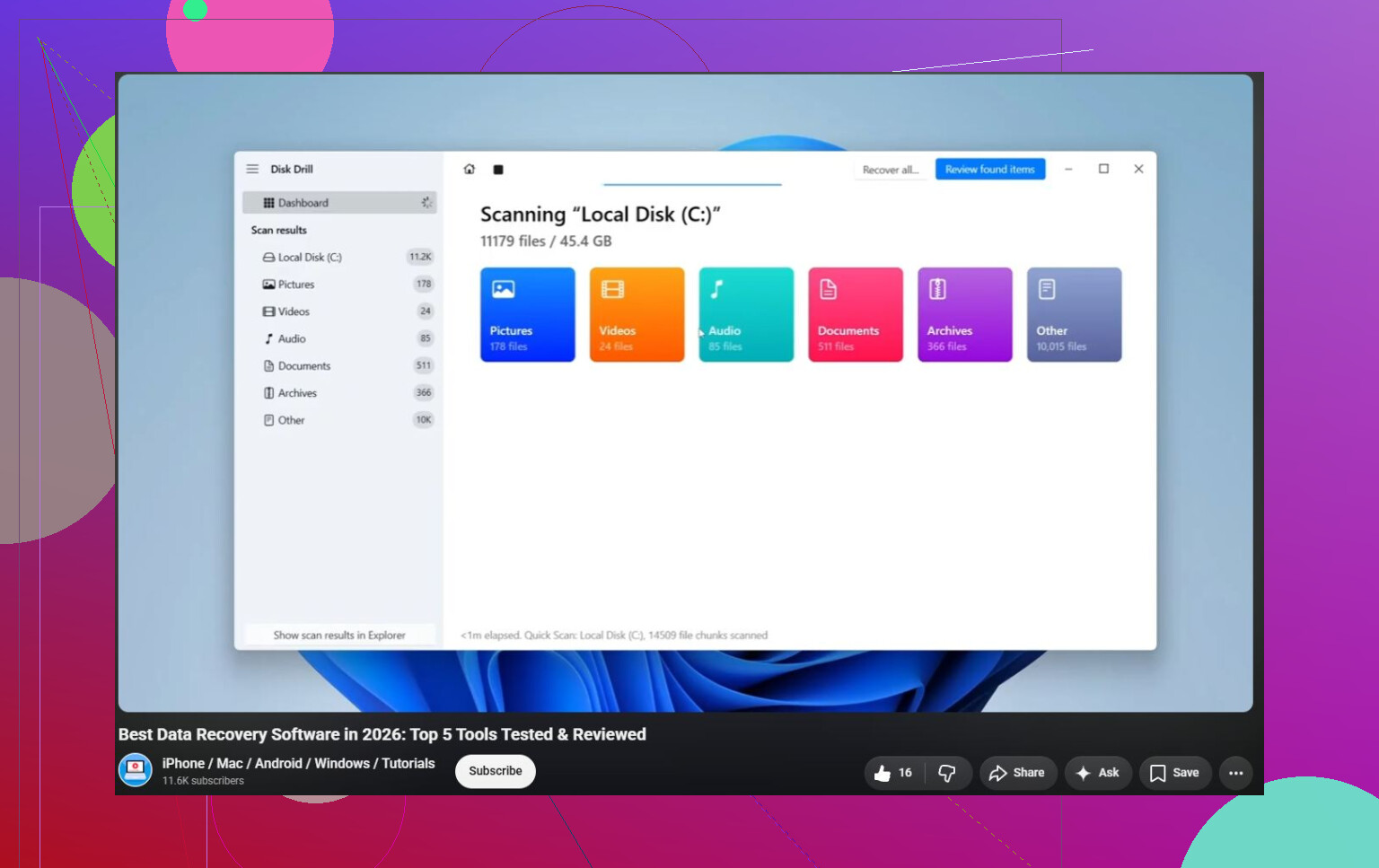
For that reason, I’d probably start with Disk Drill. It’s not some magic repair tool, and that’s fine. Its real value is recovery. Disk Drill can pull data from corrupted, RAW, formatted, and unbootable drives, and it also has S.M.A.R.T. monitoring so you can see if the hardware itself is starting to fail. The disk image feature is especially useful. If the drive is flaky, image it first, then recover from the image instead of hammering the original drive over and over.
I’d also keep a couple other tools around, depending on what’s actually wrong:
- TestDisk is great when the issue is a missing partition, broken partition table, or damaged boot sector. It’s free and very capable, but it’s also text-based and not exactly beginner-friendly. I wouldn’t make it your first stop unless you’re comfortable dealing with partitions.
- Hard Disk Sentinel is more for monitoring than recovery. It reads S.M.A.R.T. data, watches drive temperature, and can warn you when a disk is starting to fail. Useful if you want to catch problems before Windows starts complaining.
Just don’t expect software to fix a physically dying drive. Some warning signs are pretty obvious:
- Clicking, grinding, buzzing, or other weird mechanical noises.
- The drive randomly vanishes from Windows.
- Reads are painfully slow, or the system keeps freezing.
- Bad sector counts keep going up, or S.M.A.R.T. warnings appear.
- Windows keeps asking to repair the disk or throws I/O errors.
If you’re seeing that kind of behavior, stop running repair attempts over and over. Recover or back up whatever matters, then plan on replacing the drive. Once the hardware starts acting unreliable, it usually doesn’t get better.
If the drive isn’t detected at all, is making loud mechanical noises, or has data you truly can’t lose, that’s where DIY gets risky. A professional recovery lab is the safer route. They can work on the electronics, replace damaged parts, or read data from the platters in a clean-room setup. It can get expensive, though. Basic logical recoveries often run around $300–$700, and serious mechanical failures can land in the $1,000–$2,500+ range.
My order would be pretty simple:
- Recover the important files first. Disk Drill would be my first pick.
- Check the drive’s health.
- Only try repairs if the drive seems stable.
- Replace it if there are hardware failure signs.
- Use a recovery service if the disk has physical damage or won’t show up at all.
The connection path matters here: a bad USB cable, loose port, or failing enclosure can look exactly like a dying drive. Before blaming the disk itself, try a different cable, a different USB port, and if it’s a 3.5’ external, make sure the power brick is solid. If it’s a bare SATA drive in a USB enclosure, testing it in another enclosure or directly over SATA can change the whole diagnosis.
I agree with the “recover first, repair later” advice, but I’d be even more stubborn about not running CHKDSK or First Aid right away. Those tools are fine for a healthy drive with a messy file system. On a drive that is dropping out or timing out, they can spend hours writing changes while the hardware gets worse. If the files matter, make an image or clone first, then let recovery software work on that copy. Disk Drill is fine for the friendlier end of that, especially if you want a GUI and don’t want to fight command-line tools.
If you’re comfortable with something uglier but very good at limping through bad reads, GNU ddrescue is the tool people often overlook. It doesn’t “repair” the drive. It tries to copy as much as possible while skipping problem areas and coming back to them later. That’s usually more useful than a repair button. After that, use Disk Drill, R-Studio, DMDE, TestDisk, or whatever recovery tool you prefer on the clone. The original drive should mostly be left alone once it starts acting flaky.
Do not click “initialize,” “format,” or “repair” just because Windows offers it.
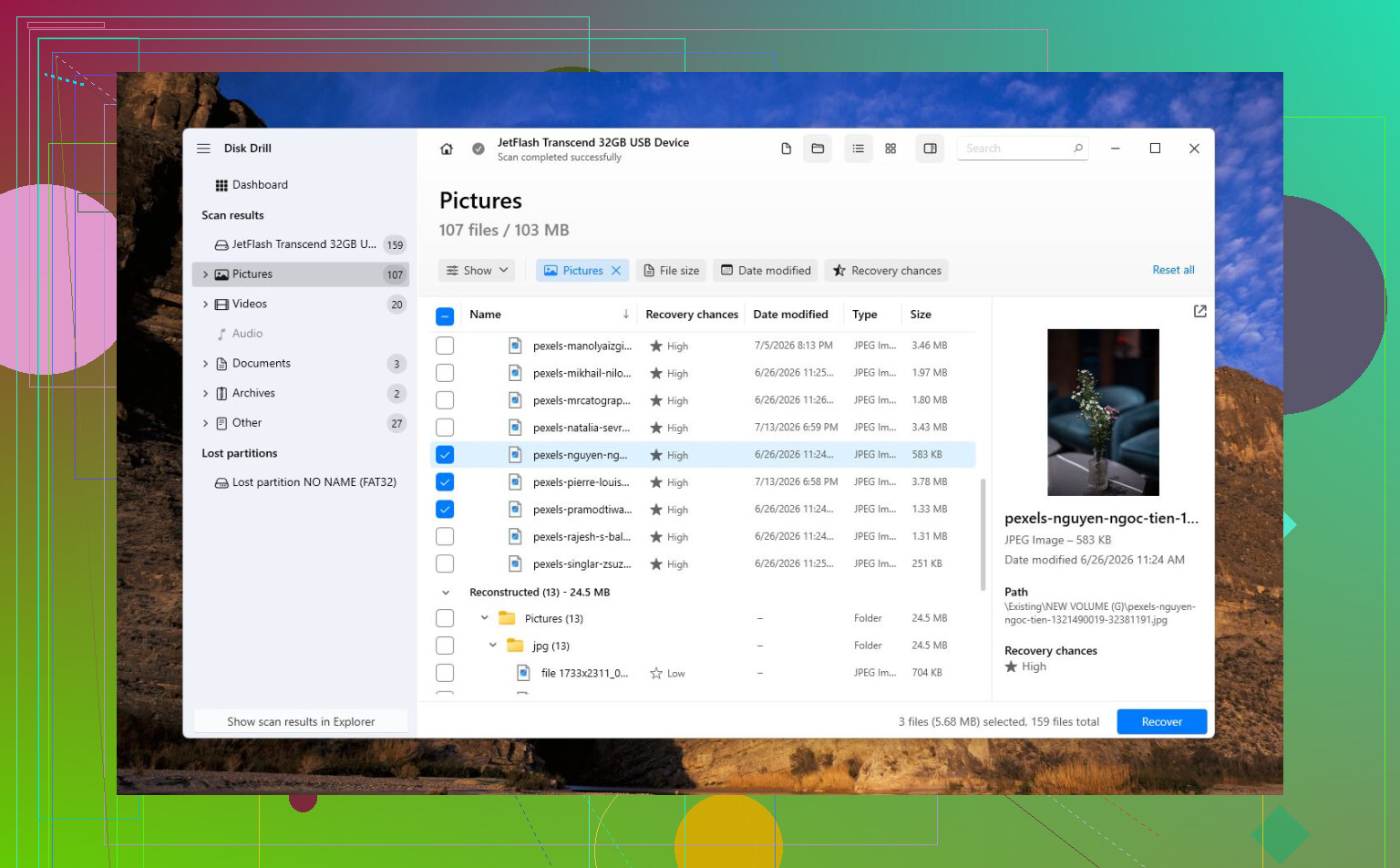
If the drive spins up but won’t mount, treat it like a read-only source until you know more. A lot of people lose recoverable data by trying to make the disk usable again before copying anything off it. If you use Disk Drill, R-Studio, DMDE, etc., make sure the recovered files are being saved to a different drive, not back onto the failing external. Sounds obvious, but recovery software will usually let you pick a destination, and picking the sick drive is a bad day.
My slightly different take: don’t put too much faith in S.M.A.R.T. through USB. Some enclosures pass it through properly, some show partial data, and some show nothing useful. A drive can still be failing even if the health screen looks boring. If the disk keeps disconnecting during scans, I’d stop using GUI recovery tools directly on it and clone/image it first like @sterrenkijker said. That’s the boring answer, but it’s the answer that preserves your options.
For actual software, Disk Drill is fine if you want something approachable and the drive stays connected long enough. DMDE is cheaper and very capable, but the interface feels like it was designed to scare normal people away. TestDisk is great for partition table problems, but I would not point it at a flaky drive unless you already know what you’re changing. None of these are really “repair” tools in the sense people hope for. The win is getting your files off, wiping/replacing the drive, and not trusting that external again.