I accidentally formatted my USB drive and lost important photos and work documents that weren’t backed up anywhere else. I need help figuring out the best USB drive data recovery method or software to restore formatted USB files before anything gets overwritten.
Yes. I’ve pulled files off a formatted USB before, but the window stays open only if you stop using the drive now. If you keep copying stuff onto it, your old data gets replaced bit by bit. Once those blocks are overwritten, recovery is done.
The first thing I’d try to figure out is what kind of format happened.
If the format finished in a few seconds, it was almost surely a Quick Format. That’s the better case. A quick format usually rebuilds the file system and clears the file index, but it does not wipe all the old file data right away. A full format is rougher. On most setups, it writes over the storage, so your odds drop hard.
I would skip the random Command Prompt fixes people post. Same for repair tools people throw around in threads. CHKDSK is for file system errors, not for pulling back files from a formatted USB. I’ve seen it make a messy drive even messier.
What I’d do:
- Stop using the flash drive.
- Put recovery software on your computer’s internal drive, not on the USB.
- Plug in the formatted USB.
- Run a full scan.
- Preview anything important before restoring it.
- Recover files to a different drive, never back to the same USB.
I had decent luck with Disk Drill. It’s one of the easier ones if you haven’t done this before. I picked the USB, ran Universal Scan, waited it out, then sorted through the results. It groups files by type, and the preview tool helped a lot. If a photo opened in preview, or a doc showed readable content, recovery usually worked.
One part I liked more than I expected was disk imaging. If the USB keeps disconnecting, throws errors, or feels unstable, make an image first and scan the image instead of hammering the original drive over and over. I learned this the annoyng way on an old stick that kept dropping mid-scan.
A few things change your odds:
- If you wrote nothing new to the USB after formatting, your chances are better.
- If the file system changed, recovery still might work, but file names and folder structure often come back worse.
- Photos, docs, and video files are usually handled fine by most recovery tools.
If the scan finds files with broken names, don’t freak out. I see this a lot after formatting. Sort by type, size, or date and start there.
Also, let the scan finish. Don’t stop early because you saw a few files pop up in minute three. On one scan I did, the folder I needed didn’t show until much later.
If the USB is not detected at all, keeps disconnecting, or Windows reports the wrong capacity, then this might be more than a format issue. Repeated scan attempts on a failing flash drive are risky. If it stays connected long enough, image it first. If the data matters a lot, I’d stop there and hand it off to a recovery shop.
So yes, no backup does not always mean the files are gone. The big variables are simple:
- Was it a quick format?
- Did anything get written to the drive after?
If it was quick, and you left the USB alone after the mistake, your odds are still decent. Sometimes better than you’d think.
3 Likes
If the USB still mounts and shows the right size, I’d focus on recovery software first, not repair tools. I agree with @mikeappsreviewer on one thing, stop writing to it. After that, I’d split the plan by file value.
For photos and work docs, file carving often works better than people expect after a format. You lose names and folders more often, but JPEG, PNG, PDF, DOCX, XLSX tend to come back if blocks were not overwritten. On flash drives, a quick format usually leaves a lot behind. A full format drops the success rate hard.
My take is a bit different on one point. I would try two scanners if the first pass misses key files. Recovery apps use different signatures and parsers. One tool finding 2,000 files and another finding 2,600 is common. Start with Disk Drill because it handles formatted USB recovery well and the preview step saves time. If results look thin, run a second read-only scan with another tool on the image, not the stick.
Best order:
- Plug the USB in once.
- If it feels unstable, image it first.
- Scan the image.
- Recover to your PC or another external drive.
- Open the restored files and check them.
Skip CHKDSK. It fixes structure. It does not recover formatted files.
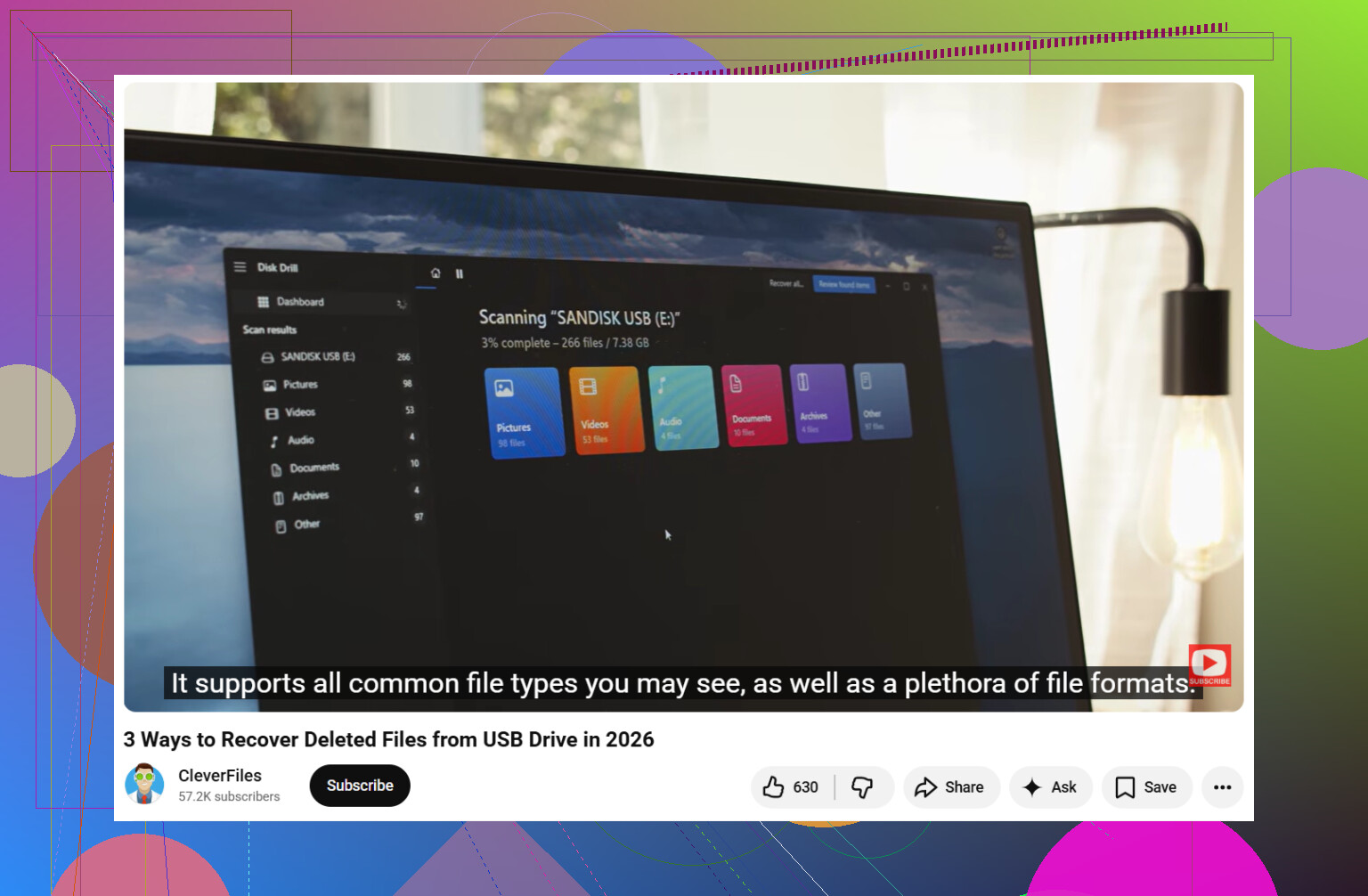
If you want a simple flash drive recovery walkthrough, this video is decent:
step by step USB flash drive data recovery guide
If the USB disconnects, reports 0 bytes, or shows the wrong capacity, stop DIY stuff. That’s where people make it worse fast. Ths part matters a lot.
I mostly agree with @mikeappsreviewer and @espritlibre, but I’d push one extra point: don’t assume “full format = zero chance” every time. On newer Windows versions, behavior can vary depending on device, OS, and how the format was done. It’s usually worse than quick format, yeah, but not always instant game over.
What I’d do is this:
- first, stop using the USB completely
- check if the drive still shows the correct capacity
- if it does, scan it with something that supports formatted USB recovery well, like Disk Drill
- recover files to your computer, not back onto the flash drive
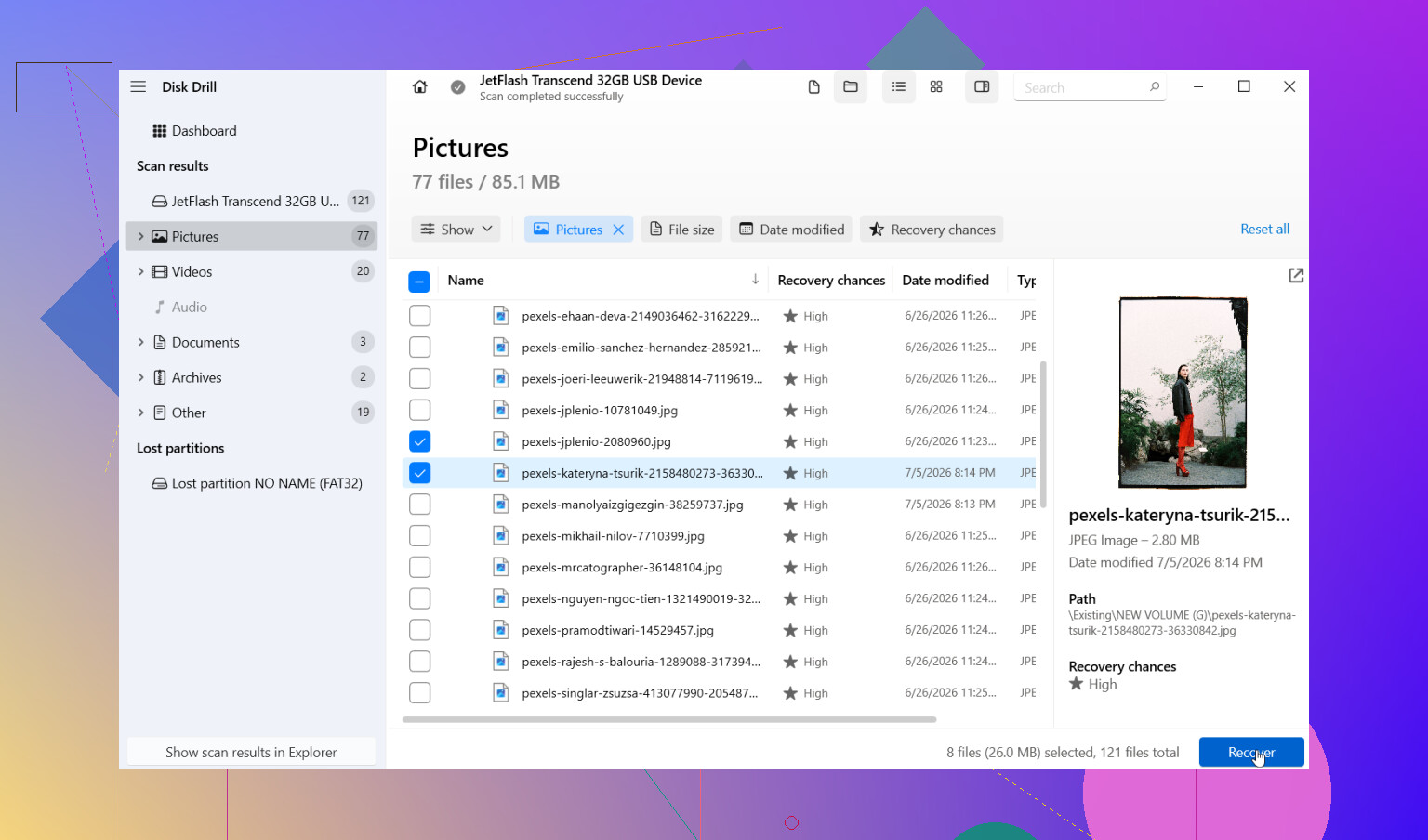
Why Disk Drill? Mostly because it’s easier to sort through recovered photos/docs without wanting to throw your PC out the window. Preview matters a lot. If your JPG/PDF/DOCX previews fine, that’s a solid sign.
One thing people skip: after recovery, actually open the restored files. Don’t just celebrate because filenames appeared. Half of “recovered” files can be corrupted junk if the format got followed by new writes.
Also, if this is a work USB and the files are super important, I’d avoid running five different tools on the original stick. Make one image if possible, then test software against that. Less wear, less risk. Flash drives can be weird and flakey.
If you want a cleaner walkthrough, this is useful:
how to recover files from a formatted USB drive step by step
If the USB shows 0 bytes, keeps disconnecting, or asks to be formatted again and again, stop DIY at that point. That’s where people turn a bad situation into a really dumb one.
I’d add one thing the others only touched lightly: check the recovered files for integrity before you spend hours sorting them. @espritlibre, @codecrafter, and @mikeappsreviewer are right about stopping writes and scanning first, but after a format, you can get a lot of “looks recovered” junk.
My preference is:
- recover a small batch first
- open 10 to 20 photos/docs
- if they’re valid, continue with the big restore
That saves a ton of time.
On software, Disk Drill is a solid first pass for a formatted USB.
Pros:
- easy preview for photos and documents
- good at finding files after quick format
- simple interface
- can work from a drive image
Cons:
- deep scans can return messy filenames
- large result sets take time to review
- not every found file is actually usable
- best features may require paid version depending on what you need
One mild disagreement: I would not automatically run multiple tools right away if the USB is healthy. First image it if the data matters, then compare tools on the image, not the flash drive itself. That keeps wear down.
If the USB shows wrong size, 0 bytes, or drops connection, stop DIY and consider pro recovery. That’s usually not just “formatted files” anymore.