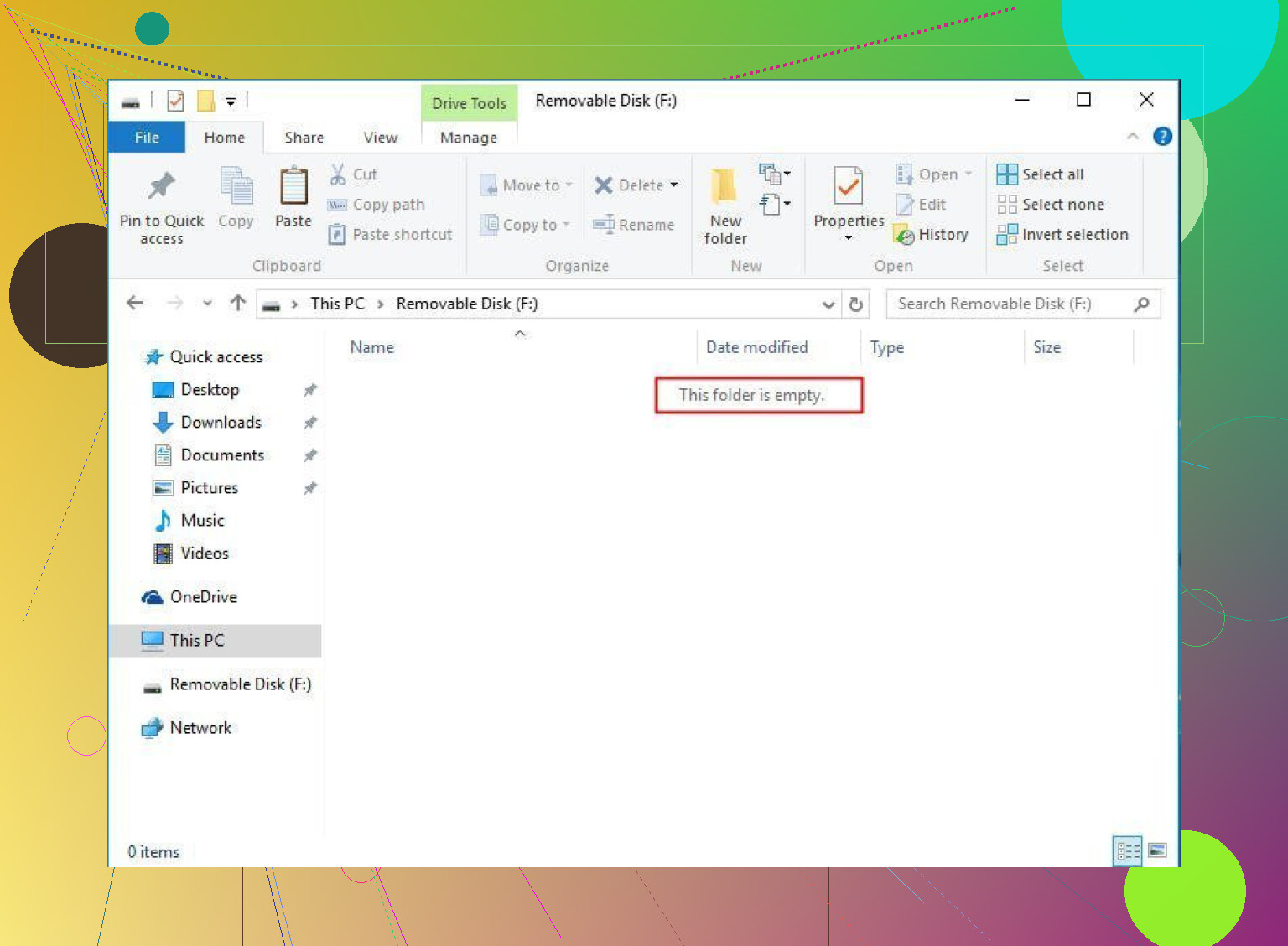
My USB flash drive shows as completely full in Windows even though there are no visible files or folders on it. I already checked for hidden files and tried deleting everything, but the space is still used somehow. I need help figuring out what’s taking up the storage and how to safely fix this without losing important data.
Happens a lot with USB sticks. Windows shows no files, but space is gone. Here is what to check and do.
- Check hidden and system files properly
You said you checked hidden files, but Windows hides system stuff by default.
Do this:
• Open File Explorer
• View → Options → Change folder and search options
• Go to View tab
• Turn on “Show hidden files, folders, and drives”
• Uncheck “Hide protected operating system files”
• Click OK
Now open the drive again. See if there is a weird folder like “$RECYCLE.BIN”, “System Volume Information”, or a ton of random files. Delete what you can.
-
Look at what Windows thinks is on the drive
Right click the drive → Properties → Tools → “Check” (error checking).
Run it and let Windows fix file system errors.
Sometimes the file system breaks and the space stays “used” by orphaned data. -
Use Disk Management to check the partition
Press Win + X → Disk Management.
Find your USB drive in the bottom list.
Common issues:
• You see one small partition and a lot of “Unallocated” space
Then the drive got repartitioned.
Fix: Right click the USB volume → Delete volume, then right click the unallocated space → New Simple Volume → format as exFAT or FAT32.
• You see the full size, but still full
Then the file system is corrupt or the flash drive is fake.
- Check for a fake or dying USB drive
Fake drives show as 64 GB or 128 GB, but only store 4 or 8 GB.
When they fail, they start “eating” data and show weird size behavior.
You can test it with a capacity test tool like H2testw or F3.
If the test fails, do not trust the drive for anything important.
- Format the drive properly
If you do not need the files any more, a clean format fixes most stuff.
• Right click the drive in File Explorer
• Click Format
• File system: exFAT for large files, FAT32 for small drives
• Uncheck Quick Format to do a deeper format
• Click Start
If Windows refuses to format, try Disk Management and delete the volume first, then create a new one.
- If you still need the lost files
If you think something important got wiped or hidden, use data recovery software before more writes hit the drive.
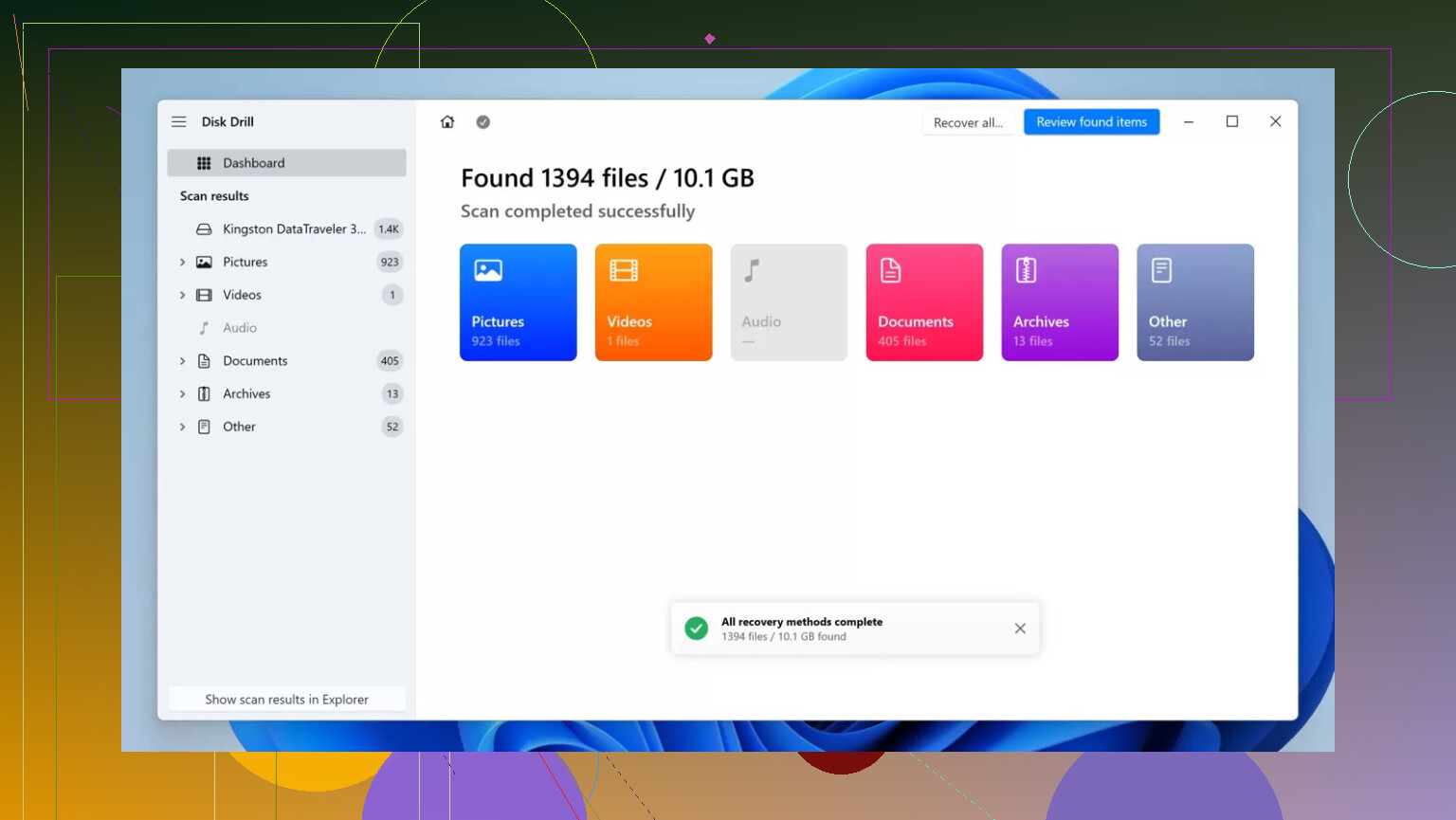
Disk Drill is solid for this. Install it on your PC, not on the USB drive.
Run a scan on the USB stick, let it find deleted or hidden files, and recover them to a different disk.
-
Rare case, bad controller or firmware
Some cheap drives have bad controllers. They report wrong size, corrupt the file system, and cause the “full but empty” issue.
There is no stable fix for that. Replace the drive. -
A quick note on naming and usage
When you shop or search, look for something like “reliable high speed USB flash storage drive guide” and stick to known brands.
Avoid random no‑name sticks from marketplaces with suspiciously low prices.
If none of the above helps and the drive still shows full after a full delete and format, treat it as dead and replace it. They are cheap, your time is not.
Happens more often than it should, and not always for the reasons people think.
@cacadordeestrelas already covered the usual suspects (hidden/system files, bad partitioning, fake capacity, etc.), so I’ll skip rehashing all that step by step and look at a few angles that often get missed:
1. “Empty” but still reserved space (allocation units & slack)
Even if you delete everything, the file system itself takes space. That’s normal, but sometimes a small USB with a weird cluster size can waste a surprising chunk.
To check that this isn’t just normal overhead:
- Press
Win + R, typecmd, hit Enter. - Run:
(replacedir X: /a /sX:with your USB letter)
Look at the “bytes free” at the bottom. If it says something tiny like a few MB free on a 32 GB stick, and dir only shows a few KB of files, that’s not normal overhead. That’s file system damage or a lying controller.
2. Space eaten by a previous non‑Windows file system
If this USB was ever used in a TV, router, camera, or Linux/Mac system, it might have a partition layout or file system Windows doesn’t fully understand.
You might see “empty” in Explorer but the space is effectively locked by that foreign structure.
What I’d do differently from what most people say:
Instead of just a format, wipe the partition table entirely:
Win + R→diskpart→ Enter.- In DiskPart:
list disk
select disk N   (make sure N is the USB, double‑check size!)
clean
create partition primary
format fs=exfat quick
assign
exit
clean is more aggressive than regular formatting in Disk Management. If that doesn’t give you full capacity, the stick is basically toast or fake.
3. Fake capacity vs. dying NAND: know which one you have
I slightly disagree with treating all weird‑size behavior as “fake drive” right away. I’ve seen legit brand drives with worn‑out NAND do the same “full but empty” trick.
Rough rule of thumb:
- If it’s a no‑name, super cheap, suspicious size (like 1 TB USB from a random online seller), assume fake capacity.
- If it’s from a known brand but old or heavily used, assume NAND wear / bad sectors.
Use a capacity and surface test like H2testw or F3, as mentioned. If the test reports mismatched size or tons of write/read errors, stop trusting it immediately.
4. File system metadata bloated or corrupted
Sometimes the directory tree is empty but the file allocation tables / metadata think there are massive files “somewhere.” Windows cleans a lot of this with chkdsk, but not always.
Try this:
chkdsk X: /f /r
/r does a surface scan and can take a long time, but it will try to map out bad sectors and clean up orphaned data. If after this the drive still shows nearly full, assume hardware trouble.
5. If you care about the lost data before nuking the drive
You mentioned you tried deleting everything. If something important might have been there and you suspect corruption instead of a simple “I dragged files to Recycle Bin,” do data recovery first, not last.
Tools like Disk Drill are actually decent for USB drives:
- Install Disk Drill on your computer, not on the USB.
- Run a deep scan on the USB.
- Recover to a different disk, never back to that same stick.
If Disk Drill can’t get anything meaningful, and diskpart clean + format still leaves you with wrong capacity or instant “full,” the stick has gone to the big silicon farm in the sky.
6. When it’s not worth the fight
If you’ve:
- Run
chkdsk /f /r - Done a
diskpart cleanand full reformat - Verified capacity with a tool like H2testw/F3
and the results are still:
- Wrong size
- “Full” right after a fresh format
- Random file corruption
…then don’t overthink it. The controller or NAND is done. Toss it. USB sticks are consumables, not heirlooms.
7. For Mac users stumbling on this with the same problem
If someone hits this thread from macOS with the same “USB is full but empty” issue, the process is similar: check Disk Utility, erase and repartition, then run recovery if needed.
For a clearer walkthrough on getting your data back, this video is actually useful:
How to safely recover files from a USB drive on Mac
That covers scanning the drive and pulling files off before you go nuclear with a reformat.
Bottom line: if a full clean with diskpart and a capacity test fail, stop trusting the USB. It’s not “mysteriously full,” it’s lying to you or physically damaged.
If Explorer shows “empty” but the drive is full and you already did the hidden/system‑file check that @reveurdenuit and @cacadordeestrelas described, I’d stop poking at it from the GUI and look at two less talked‑about angles:
1. Check if Windows is misreading the file system type
Sometimes a USB gets formatted with something odd (like a partial RAW state or remnants of another file system) and Windows mounts it “just enough” to show a drive letter, but its accounting is nonsense.
Quick check:
- Open PowerShell as admin.
- Run:
ReplaceGet-Volume -DriveLetter XXwith your USB letter.
Look at:
FileSystemSizevsSizeRemaining
If FileSystem is blank, RAW, or something unexpected while Explorer still opens it, that usually means the file system is half broken. In that situation, regular formatting sometimes keeps the bad metadata around.
What I would do differently from the standard “just format” advice: try a full format to a different file system first (for example NTFS), then format again to what you actually want (exFAT or FAT32). Changing file systems twice can wipe more leftover structure than a single quick format.
If even after that, Get-Volume still shows almost no SizeRemaining, the controller or flash is lying.
2. Test write behavior, not just capacity
Capacity tools like the ones mentioned earlier are good, but they only tell part of the story. A lot of flaky USBs will:
- Accept a format
- Report correct size
- Then “fill up” instantly as soon as you start writing real data
Basic real‑world test:
- Format the stick.
- Copy a single large file (like a 4–8 GB video or ISO) onto it.
- Safely remove the drive, unplug, plug in again.
- Verify:
- Does the file still open and play fully?
- Does the used space match the file size?
If the file is corrupted, missing, or the used space jumps to “full” while only one file exists, you are dealing with failing NAND or a dodgy controller, even if the nominal capacity “tests” fine.
At that point, it is not worth trying to “fix” it, only to pull off any data you still care about and retire the stick.
About using Disk Drill here
Since this looks a lot like file system damage or hardware issues, a recovery first / nuke second workflow makes sense.
Pros of Disk Drill in this scenario
- Very good at scanning corrupted USB volumes and finding files that are no longer listed in the directory tree.
- Simple interface compared to some of the more hardcore recovery tools.
- Can work around cases where Windows thinks the drive is RAW or wants to format it.
Cons to be aware of
- Free version has limits on how much data you can recover.
- If the USB controller is truly failing, no tool (including Disk Drill) can guarantee complete recovery.
- It can take a long time on a misbehaving stick, and heavy scanning can stress marginal hardware.
If you decide to use it:
- Install Disk Drill on your computer, not on the USB.
- Recover to a different disk, never back to the same flash drive.
Competitors exist of course, and both @reveurdenuit and @cacadordeestrelas already pointed to some alternative tools and workflows. Disk Drill just tends to be a solid middle ground between ease of use and decent depth of scanning for this specific “USB full but empty” symptom.
Bottom line:
If a full reformat to a different file system, followed by a second format back, still leaves you with nonsensical free space, and a simple large‑file copy test fails, do data recovery with something like Disk Drill and then stop using that USB for anything important. The problem is almost certainly in the hardware, not in Windows.
Try a file-system repair before formatting twice. CHKDSK repairs logical errors, offering a simpler first step.
Recover any important files to another drive frist.
Open Command Prompt as administrator and enter chkdsk X: /f, replacing X with your USB’s drive letter. Close any windows or apps using the USB before running it. Windows will check the file system and fix errors it finds.
After it finishes, safely eject your USB, reconnect it, and check its free space agian.
Careful running chkdsk /r on a stick you think might be dying. If the controller is already flaky, a full surface scan can be the thing that finishes it off, and chkdsk sometimes ‘repairs’ by tossing orphaned data into FOUND.000 folders as nameless .chk files, which is exactly the stuff you were hoping to get back. So if there’s anything you care about, pull it before you let @silvercloud or @reveurdenuit’s chkdsk step touch it, not after.
The other thing nobody’s flagged: a lot of these ‘full but empty’ sticks are just write-protected or stuck in read-only mode, and Windows still reports the old used space from before. Worth checking for a tiny physical switch on the side, or running diskpart and looking at the readonly attribute, before you assume corruption or fake capacity.
Disk Drill is the one I still open for the recovery pass here. My one gripe is the deep scan tends to hand you a giant pile of files with generic names and no folder structure, so you end up guessing what’s what. Fine if you just need that one video back, annoying if you had a whole organized drive.