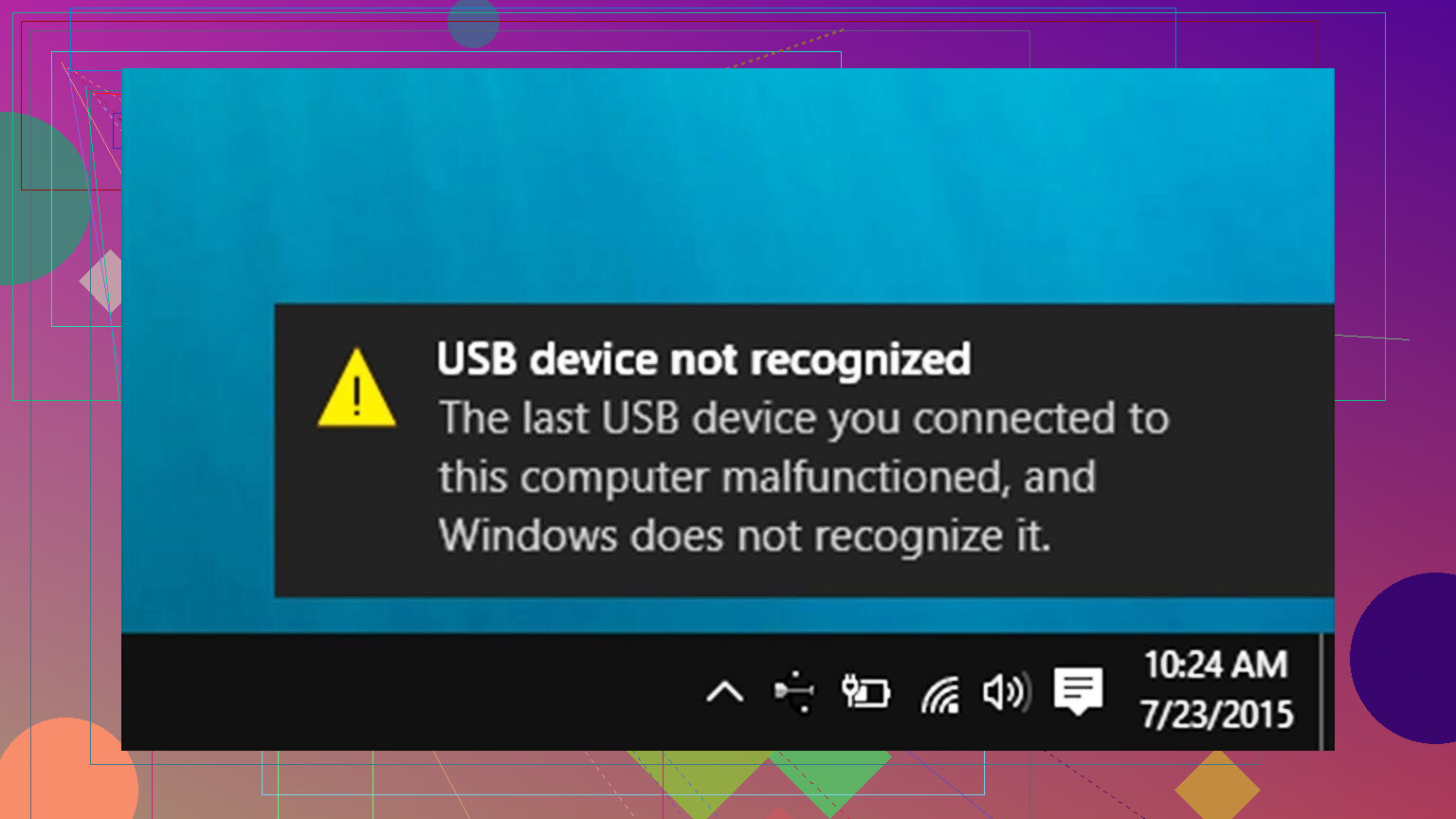
Windows just stopped recognizing my USB device that used to work fine, and now I keep getting a “USB device not recognized” error. I’ve tried different ports and cables, but nothing changes. What could be causing this, and what steps can I take to fix the USB not recognized issue on my PC?
Had this happen on my Windows 11 desktop a few months ago. That random USB connect / disconnect sound every few minutes, no popups, nothing in front of me, and it made it really hard to focus.
What finally stopped it for me:
- I opened Device Manager.
- Expanded “Universal Serial Bus controllers”.
- Anything with a yellow warning icon, I right‑clicked and uninstalled.
- Then I went to View → Show hidden devices.
- Under Universal Serial Bus controllers again, I removed every greyed‑out USB device and controller I did not recognize or no longer used.
- Rebooted the PC.
After that restart, the sound stopped completely.
On a different machine I had a dumber cause. One of the front USB ports had a tiny broken USB plug tip stuck in the port. Windows kept seeing it as something “half connected”, so it kept trying to read it as a device. Worth taking a flashlight and checking each port for bent pins, metal bits, or dust clumps. I have pulled lint out of ports with a wooden toothpick more than once.
If Device Manager cleanup does nothing for you, there are some long threads over here that helped me narrow down an older laptop’s issue:
https://discussion.7datarecovery.com/
People there have logged a lot of weird USB and hardware recognition problems, with screenshots and event logs.
One more thing that worked on a friend’s PC:
- Do a full shutdown, not restart.
- Unplug the power cable from the wall or PSU switch.
- Hold the power button for about 30 seconds.
- Plug it back in and start normally.
That seems to clear the USB controller state on some boards. It sounds like superstition, but I have seen it fix flaky USB behavior more times than I expected.
USB going from fine to “USB device not recognized” with multiple ports and cables usually means one of four things:
- The device firmware glitched
- Windows driver stack broke
- USB power/overcurrent issue
- The drive is dying but still “electrically” visible
Since you already tried ports and cables, I would look at these, in this order:
-
Check if Windows sees anything at a low level
- Plug the device in.
- Open Disk Management: Win + X → Disk Management.
- Look for a disk with no drive letter, “Unknown”, or “Not initialized”.
- If it shows up there but not in Explorer, this is a partition or filesystem issue, not a connection issue.
Do not format if you need data.
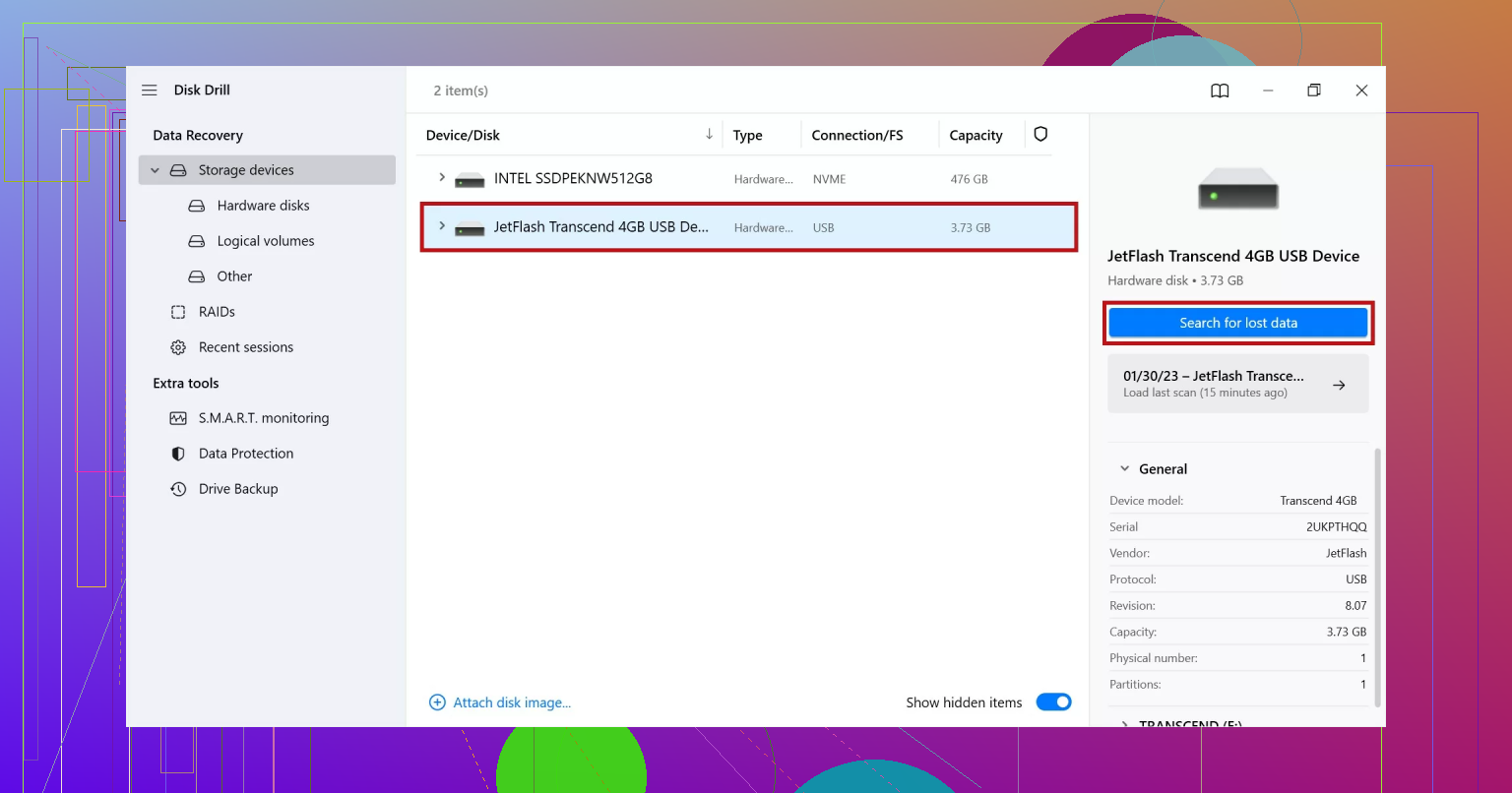
At this point, a data recovery tool like Disk Drill is relevant. It scans at sector level and recovers files even when Windows shows “device not recognized” or insists on formatting.
-
Check Event Viewer for better error text
- Win + X → Event Viewer.
- Go to Windows Logs → System.
- Filter by “Kernel-PnP”, “Disk”, “storahci”, “usbhub”, “USBHUB3”, or “usbstor”.
- Look for messages right when you plug in the device.
Common patterns: - “Device Descriptor Request Failed” → Often bad cable, bad USB port on the device, or failing controller.
- “The driver detected a controller error on \Device\HarddiskX” → Drive electronics issue.
- “Resetting port” or repeated connect / disconnect → power or flaky controller.
-
Power and USB controller limits
- If this is a 2.5’ external HDD, plug it directly into a rear USB port, not through a hub.
- If available, test on a powered USB hub with its own power brick.
- Disable “USB selective suspend”:
Control Panel → Power Options → Change plan settings → Change advanced power settings → USB settings → USB selective suspend setting → Disabled.
This stops Windows from putting your USB port half to sleep.
Here I partly disagree with @mikeappsreviewer: ripping out every hidden device in Device Manager can help, but without checking power and event logs first you end up guessing.
-
Driver stack reset without full uninstall spam
- Open Device Manager.
- Under “Universal Serial Bus controllers”, right click each “USB Root Hub” or “USB Root Hub (USB 3.0)” and select Properties.
- On the Power Management tab, uncheck “Allow the computer to turn off this device to save power”.
- Then, still in Device Manager, right click the specific “Unknown USB Device (Device Descriptor Request Failed)” entry and choose “Disable device”, then “Enable device”.
This sometimes clears the error without tearing out every controller.
If that fails, update the chipset and USB drivers from your motherboard or laptop vendor site. Do not rely only on Windows Update for this.
-
Test the USB device on a different computer and OS
- Plug the device into another Windows machine.
- If possible, test on a Mac or Linux live USB.
- If it fails on all of them, the device controller is likely gone.
- If it only fails on your Windows install, the issue is your OS or drivers.
-
If Windows wants to format or shows an empty drive
You mentioned “USB device not recognized”, but in many cases the message flips to “You need to format the disk” or the drive comes up empty later.
When the drive mounts yet shows no files, you are in data recovery territory, not hardware debug.
For that case, a helpful guide topic is:how to repair a USB flash drive that shows no files in Windows, recover data safely, and fix file system errors without losing data
For a step by step visual walkthrough on fixing a USB drive and recovering invisible files, you can check this video:
Fix missing files on a USB drive and recover dataTools like Disk Drill are built for this situation. You plug the USB in, scan the raw device, then recover files to another disk. Do not write anything to the problematic USB while doing this.
-
When the device is probably dead
Strong signs of hardware failure:- Clicks, beeps, or repeated spin up and spin down on a HDD enclosure.
- Drive shows in Device Manager under “Disk drives” with a generic name, but any access hangs the system.
- Repeated “Device Descriptor Request Failed” on multiple computers with multiple cables.
In that state, each extra power cycle adds risk. If the data matters a lot, stop testing and think about professional recovery.
So, quick plan for you:
- Check Disk Management and Event Viewer.
- Turn off USB selective suspend and hub power saving.
- Update chipset and USB drivers.
- Test on another machine or OS.
- If the drive is visible anywhere but empty or asks for format, switch to Disk Drill or a similar data recovery tool before trying repairs.
Couple of extra angles that @mikeappsreviewer and @caminantenocturno didn’t hit directly:
-
Check if the USB controller itself is crashing
Sometimes the whole USB host controller borks and Windows throws “USB device not recognized” for anything you plug in. Quick test:- Plug in a totally different type of device: keyboard, mouse, simple USB stick.
- If everything suddenly has issues on that same group of ports, it’s not the drive, it’s the controller.
- On desktops, the rear ports often belong to different controllers than some front ports. If “back ports bad, front ports fine,” that hints at a controller or motherboard issue, not the device.
-
BIOS / UEFI USB settings
Windows can only do so much if the firmware is misconfigured. I’ve seen random “USB not recognized” start right after a BIOS update or a power failure. Check:- Reboot → go into BIOS/UEFI.
- Look for settings like:
- Legacy USB Support
- XHCI hand‑off
- USB configuration / USB compatibility mode
Try:
- Enabling legacy support if it’s off, or
- Turning XHCI hand‑off on/off and testing.
Sometimes a bad combo of these settings makes certain USB 2/3 devices flaky only in Windows.
-
Hidden USB filters & security software
Not super common, but some security tools, encryption drivers, phone‑sync suites, etc, install “filter drivers” over USB/storage. When those go corrupt, Windows throws “device not recognized” even though the hardware is fine. Signs:- The device worked perfectly right up until you installed / updated some security suite, phone software, or disk utility.
- It works fine on another PC.
What to try: - Temporarily uninstall recent security / USB‑related apps, reboot, test again.
- In an elevated Command Prompt:
sfc /scannow- After that,
DISM /Online /Cleanup-Image /RestoreHealth
That can repair broken drivers or system files in the USB stack.
-
Bad enclosure / adapter instead of bad drive
If this is an external HDD/SSD or a SATA drive in a USB enclosure:- The cheap little USB‑to‑SATA bridge fails far more often than the actual disk.
Try: - Open the enclosure (if possible) and connect the bare drive directly to a desktop SATA port, or to a different USB enclosure/dock.
- If the bare drive works, then your original USB bridge board is toast.
This scenario often looks exactly like what you’re seeing: “USB device not recognized” on every port, every cable.
- The cheap little USB‑to‑SATA bridge fails far more often than the actual disk.
-
Static / ESD “ghost” problems
I know this sounds voodoo, but I’ve seen USB devices get into a weird state after a static shock or a brownout:- Completely unplug the problematic USB device.
- Leave it unplugged for a few minutes.
- If it has any removable cable, disconnect that too.
- Then plug it into a different machine first and see if it enumerates there.
If it only recovers after a long unpower, you probably had some controller latchup.
-
When it is the device and you want the data
If the device shows up only occasionally, or with random errors, and you care about what’s on it, you’re in the “grab the data first, fix later” phase.- Do not format when Windows asks.
- On a Windows PC where the drive at least appears intermittently, use a data recovery tool that can scan the raw device.
This is exactly where something like Disk Drill is useful: it scans at sector level and can pull files off a flaky USB stick or external drive even when Windows screams “USB device not recognized” or nags you to format. Just make sure you recover to a different disk, not back onto the broken USB.
-
Mac-side issues (if you ever plug it into macOS)
Since lots of us swap the same USB drive between Windows and Mac, sometimes macOS is the only place the thing still half‑works. If the drive is visible on Mac but not on Windows, or vice versa, you might want a step‑by‑step guide on Mac recognition issues like:
USB flash drive not showing up properly on a Mac and how to get it working again
That covers things like Finder visibility, Disk Utility, and mount problems on macOS, which can help you verify if the problem is platform‑specific or truly hardware.
So, putting it together with what @mikeappsreviewer and @caminantenocturno already said:
- You already did ports and cables.
- They covered Device Manager cleanup, power options, and deep event log checks.
- Next I’d focus on: BIOS USB settings, testing for a bad enclosure/adapter, removing any weird USB‑related software, and using a tool like Disk Drill before you let Windows format or “fix” anything if you still need the files.
If none of that changes behavior, and the device fails on multiple machines/OSes, then yeah… the controller on that USB device has probably given up the ghost, and each extra plug/unplug is just rolling the dice on whether it fully dies or stays barely readable long enough to extract data.
Short version: at this point you need to split the problem into “is the USB controller/path bad” vs “is the storage itself dying,” and then decide whether your priority is fixing the stick/drive or salvaging data once.
A few angles that complement what @caminantenocturno, @mike34 and @mikeappsreviewer already covered:
-
Rule out a flaky USB speed negotiation issue
This is subtle and often missed. Some devices misbehave only at USB 3.x speeds. Try forcing a slower mode:- Plug the device into a clearly marked USB 2.0 port if your machine has them.
- Or put a small USB 2.0 hub between the PC and the device.
If it suddenly works in that “slow lane,” your controller and the device’s controller are not playing nicely at high speed. That hints at marginal hardware, not just drivers.
-
Vendor‑specific tools & firmware
If this is a branded flash drive or external SSD/HDD, check the manufacturer’s support page for:- “Repair,” “low‑level format,” or “reinitialization” utilities.
- Firmware updates for the enclosure / drive.
Sometimes the firmware on the USB controller corrupts and you get the classic “USB device not recognized” even though power is fine.
Caveat: most of those tools are destructive, so if you care about the files, run recovery first and only then try a vendor repair.
-
Look specifically at USB VID/PID behavior
One disagreement with the “just clear Device Manager ghosts” idea: blindly nuking all hidden USB devices can hide useful clues. Instead, when the device is connected:- Open Device Manager → right click the unknown USB device → Properties → Details tab.
- Choose “Hardware Ids” or “Device instance path.”
- If you briefly see a valid Vendor ID / Product ID and then it disappears or flips to something generic, that points to a controller that powers up, identifies, then crashes. That is usually hardware on its last legs, not a pure Windows bug.
-
Temperature & usage pattern
If the error started after large file copies, gaming sessions, or hot weather, consider thermal issues:- Touch the USB device after a minute; if it is extremely warm, the internal controller might be thermal throttling or shutting down.
- In that case, do short sessions only. Plug in, copy essential data first, unplug, let it cool.
Once critical files are off, then you can experiment with reformatting or repair tools.
-
Data recovery vs “making the drive healthy”
This is where a lot of people go in the wrong order. If you still need the data, prioritize reading over “fixing.”- Do not run multiple “repair” tools back to back.
- Do not format when Windows asks, even with Quick Format.
- Instead, use a data recovery app that scans the device at sector level and writes recovered files to a different disk.
Here Disk Drill fits nicely:
- Pros:
- Friendly UI and wizard flow, so you do not have to learn forensic‑style tools.
- Can scan a raw USB device even when Windows reports it as unformatted or insists it must be formatted.
- Good at piecing together common file types (documents, photos, videos) from damaged filesystems.
- Cons:
- Deep scans on a failing USB drive are slow and can stress already weak hardware.
- Full feature set is paid, so you should first use the free scan to check if it actually sees your files.
- Like any software solution, if the controller is completely dead, it cannot resurrect hardware; it can only work with what the OS can at least partially see.
Competitors that others often talk about on these forums include tools mentioned indirectly by @caminantenocturno, @mike34 and @mikeappsreviewer, ranging from more manual, forensic‑style utilities to simpler “one button” recovery apps. They all share the same hard limit: no software can fix a USB controller that does not respond at all.
-
Decide when to stop “home attempts”
Signs you should stop plugging / unplugging and consider professional recovery if the data is critical:- The device is only detected sporadically, and each time for a shorter window.
- Event logs or SMART (when you can read it) show increasing I/O or CRC errors.
- You hear new mechanical noises from an external HDD enclosure.
In those cases, even a long Disk Drill deep scan can be too much stress. Your goal shifts from “fix the device” to “preserve what remains” with as few power cycles as possible.
So, your next moves could be:
- Test it forced as USB 2.0 through a slower port or hub.
- If it appears even briefly, grab what you can with a recovery tool like Disk Drill, saving the output elsewhere.
- Only after data is safe, try vendor firmware / repair utilities or aggressive low‑level formatting.
If it never shows up on any machine, not even as an unknown USB device, the controller is probably gone and software options are essentially exhausted.
Try reducing your USB load before changing drivers. Microsoft lists other connected devices drawing power as one reason a USB-C device fails to work.
Unplug unused USB accessories, including webcams, controllers, and phone charging cables. Keep your keyboard and mouse connected, then reconnect the problem device.
If it works, reconnect your accessories one at a time and check after each addition. Leave the accessory associated with the error unplugged for now.
This gives you a seperate test without deleting drivers or touching your files. Dont buy recovery software before trying it.
The 30-second power drain trick @mikeappsreviewer swears by does work, but there’s a reason it keeps coming back for people. Windows by default doesn’t fully shut down. With Fast Startup on, it saves the current driver and USB controller state to a file and reloads it on the next boot. So if your USB stack is in a bad state, a normal shutdown just reloads the bad state. That’s why holding the power button to fully drain the board fixes it, and that’s also why it comes back a week later.
If you want that fix to actually stick, turn off Fast Startup. It’s under Control Panel, Power Options, Choose what the power buttons do, then untick Turn on fast startup. After that a regular shutdown behaves like the real cold boot you did by hand. I’d try this before ripping out hidden devices in Device Manager, because it’s one checkbox and it fixes a recurring version of this exact error.
Where I’d push back a bit on the thread: everyone jumped between ‘it’s the controller’ and ‘it’s the drive,’ but intermittent recognition after the machine’s been running a while often tracks with heat or a tired power rail, like @boswandelaar hinted. If it enumerates fine on a cold boot and fails after an hour, that’s not a driver problem you’ll fix in Device Manager.
On the data side, since Disk Drill keeps coming up for the recovery part, here’s the bit worth knowing that nobody flagged: it can make a byte-level image of the flaky drive first, and then you point the scan at the image instead of the real device. That matters a lot with hardware that only shows up for short windows. You grab one full read while it’s cooperating, unplug it, and do all your slow deep scanning against the copy. No more power-cycling a dying stick forty times. That alone is the reason I’d reach for it over tools that only scan live hardware.
Simple rule for the order:
- Cold boot test first to see if it’s thermal or state related.
- Fast Startup off so your fixes don’t reset.
- If data matters, image the drive once, then scan the image, not the drive.
If it never appears on any machine even as an unknown device, you’re done. Software can’t talk to a controller that won’t answer.