The TV won’t show up in Screen Mirroring while I’m trying to show photos from my iPhone. Both devices are connected to the same Wi-Fi network. I restarted the phone and TV, then opened Screen Mirroring again. The list still stays empty. I can view the photos on the phone without a problem. What should I check to figure out whether the TV supports this or something is blocking the connection?
And a black screen doesn’t necessarily mean the connection failed. I’m behind on this topic, and that’s one distinction I’m catching up on: copyright-protected apps can block mirrored video even when the setup is otherwise working. I’d check that before spending time changing settings.
I’m sorting the three routes by what might get in my way: app restrictions, a cable across the room, or wireless compatibility. None seems to remove every limitation.
The cable tradeoff makes sense to me
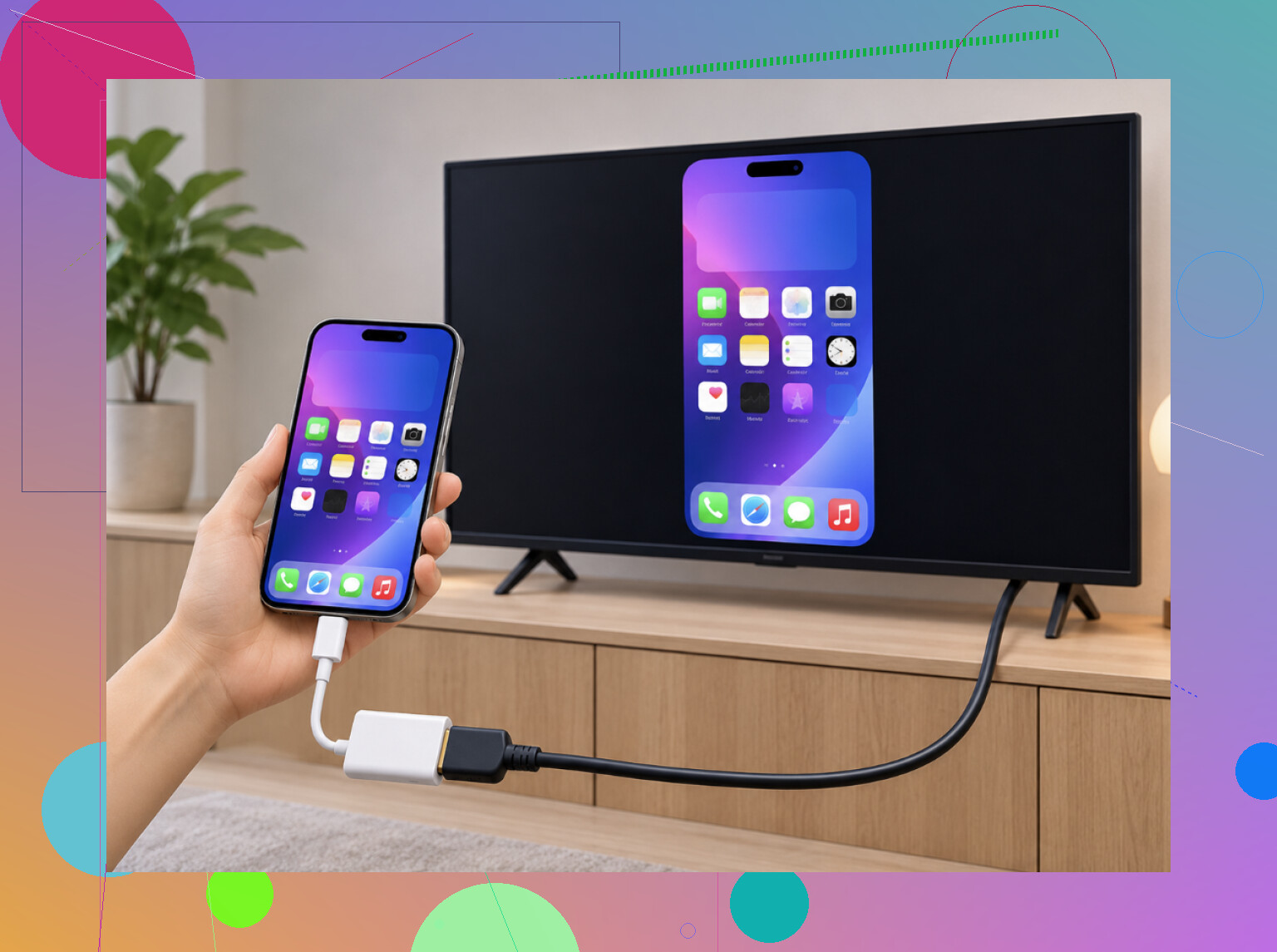
If I didn’t have Wi-Fi, or avoiding lag mattered most, I’d lean toward HDMI as the most reliable option. The phone model determines what I’d need: an iPhone 15 or newer uses USB-C, so that means a USB-C to HDMI adapter or cable. For an iPhone 14 or older with Lightning, it’s Apple’s Lightning Digital AV Adapter. Cheap third-party adapters can stop working after iOS updates, which makes them less appealing to me.
The connection itself sounds straightforward: plug the adapter into the iPhone, run HDMI to the TV, and select that HDMI input. Mirroring starts automatically.
What gives me pause isn’t the setup. It’s being tethered to the TV, plus the fact that some streaming apps, including Netflix, block video through the adapter. A wired connection doesn’t get around every playback restriction.
Wireless is where I needed to catch up
Before choosing either wireless route, I’d make sure the TV and iPhone were on the same Wi-Fi network. With separate 2.4 GHz and 5 GHz networks, that means selecting the same one on both devices. For lag, the suggested fixes are restarting the router or moving closer to it, with 5 GHz usually working better.
I’d still check built-in AirPlay before installing anything. Many newer Samsung, LG, Sony, and Vizio smart TVs support it. On the iPhone, open Control Center, choose Screen Mirroring, select the TV, and enter the displayed code if prompted.
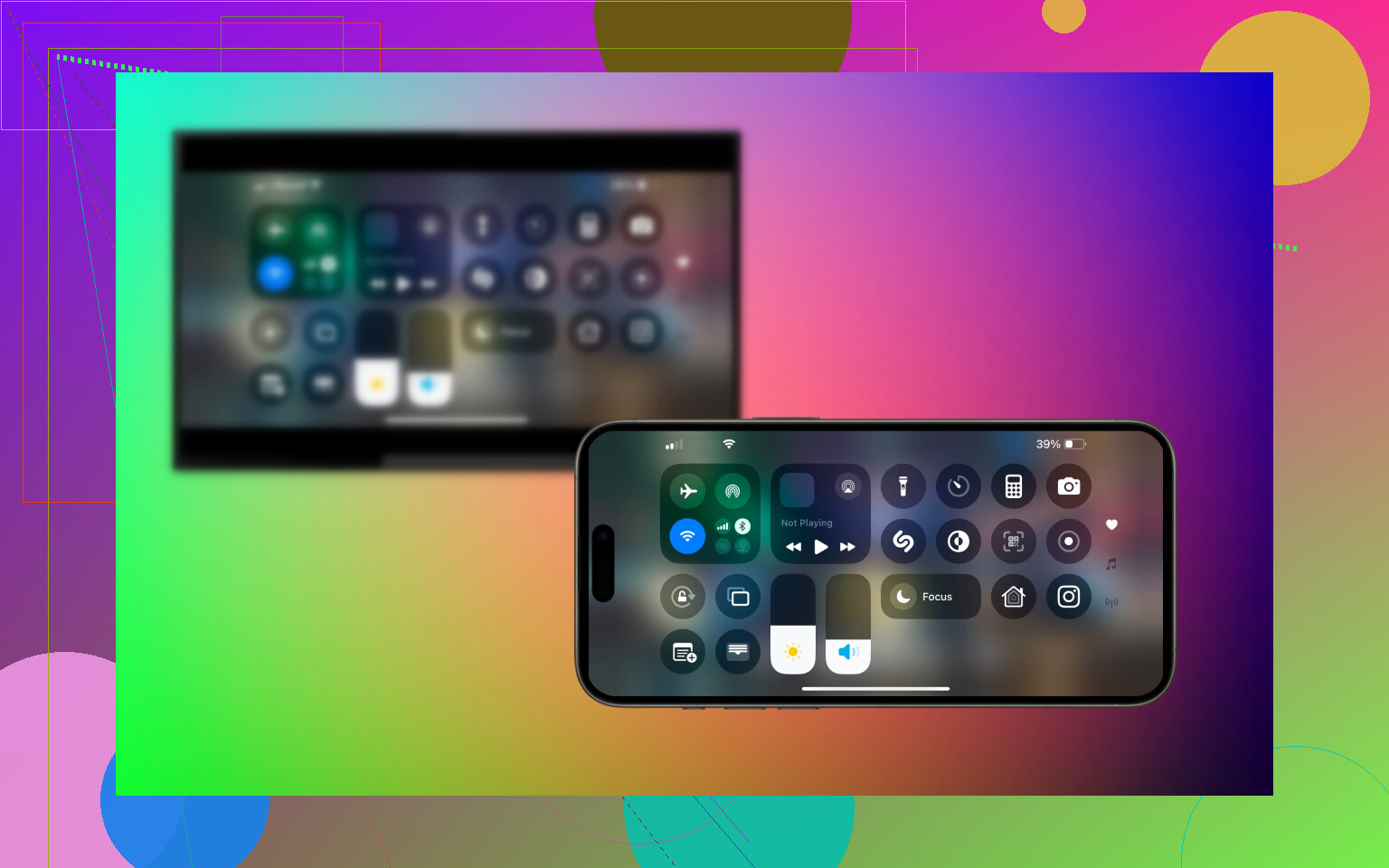
A missing TV would make me check AirPlay support first. Lack of support is a common issue with Chromecast, Roku, Fire TV, and older smart TVs, though I’d want to check the particular model rather than assume.
The app alternative I’m catching up on supports Chromecast and Google TV, Roku, Fire TV, and most DLNA smart TVs, including Samsung, LG, Sony, Philips, and Panasonic. That’s the compatibility described for the DoCast mirroring app.
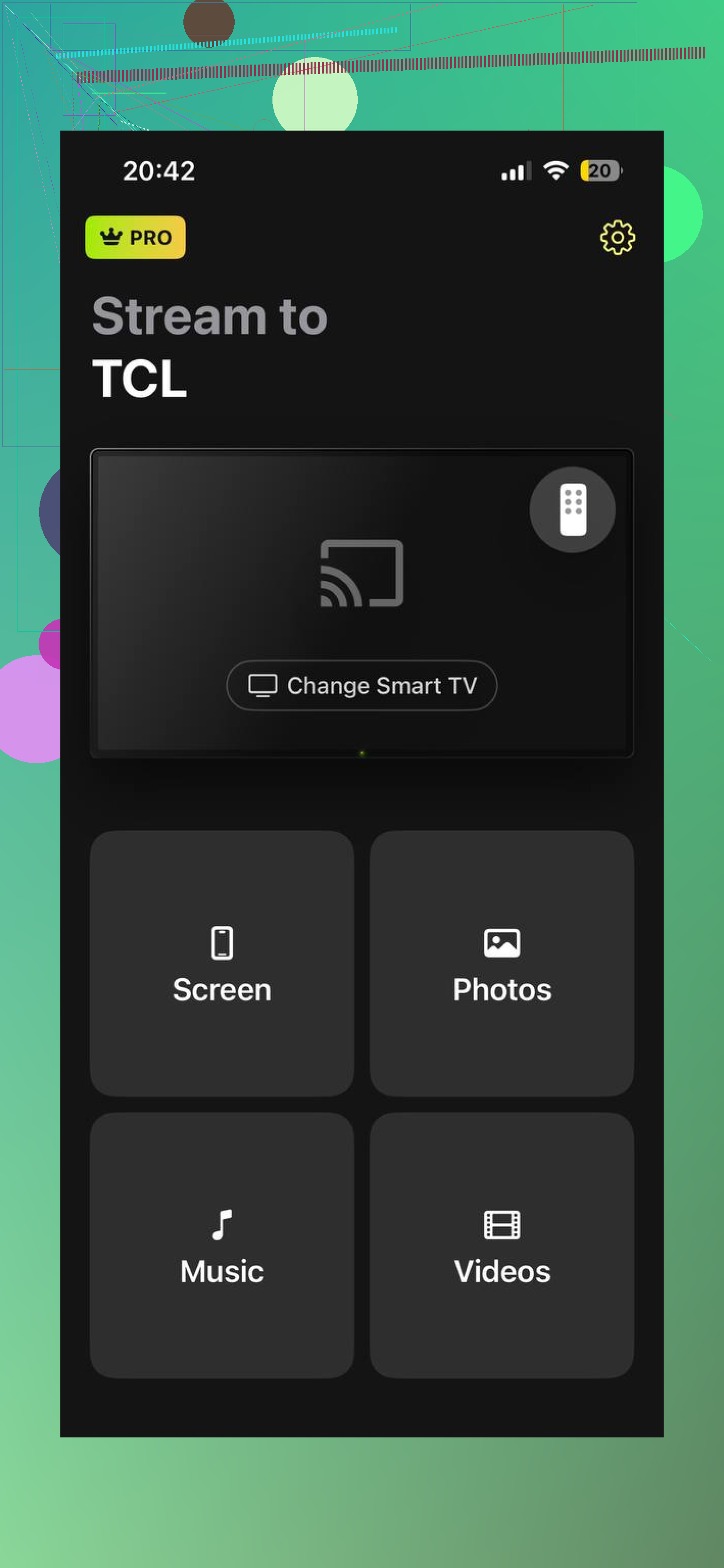
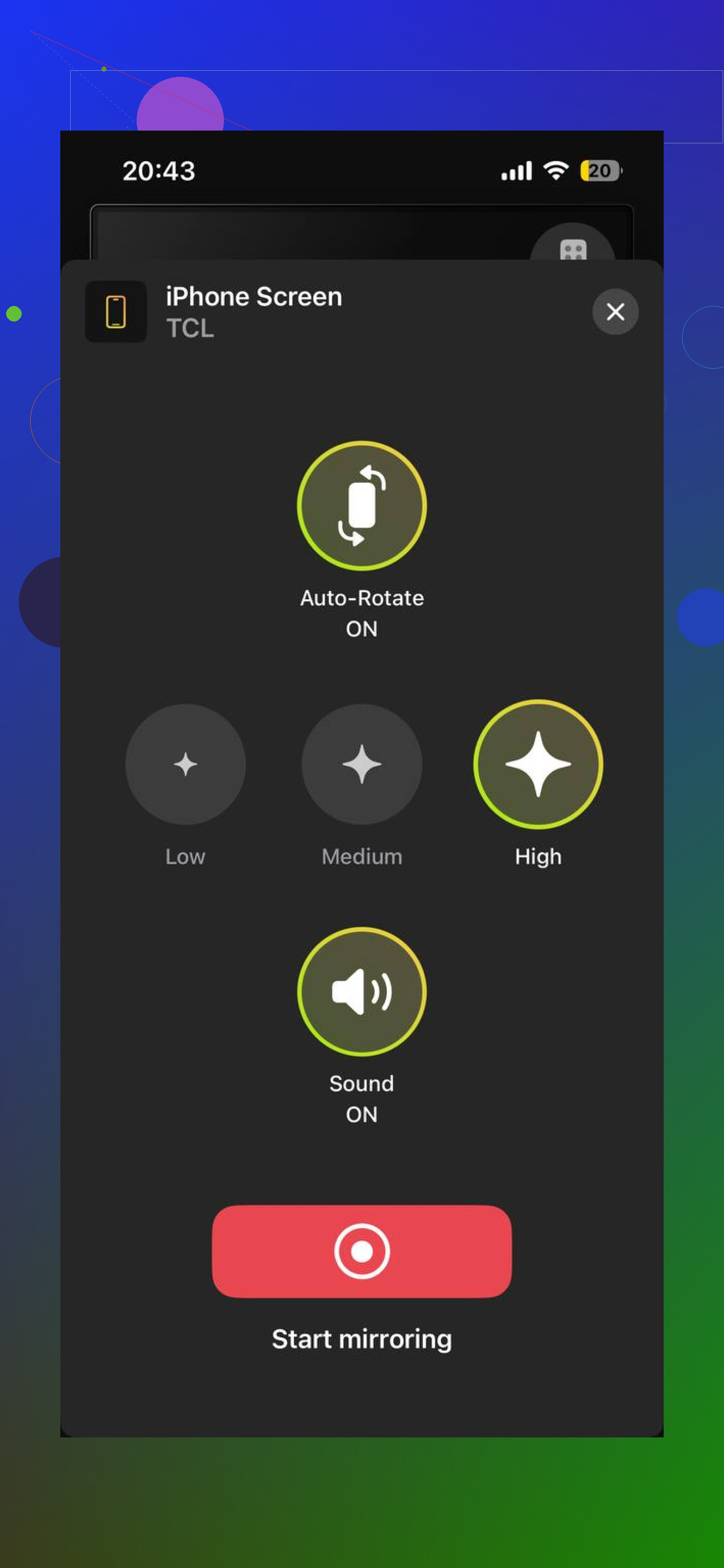
It scans Wi-Fi for the TV, then lets you tap Start mirroring. Before starting, you can choose quality, enable auto-rotate to follow the phone’s orientation, and decide whether sound goes to the TV. Those controls are covered in the DoCast overview.
If your TV is AirPlay enabled, then I would move onto checking your router. If they’re on the same Wi-Fi they may still have a setting called AP isolation or client isolation which will stop them connecting to each other whilst allowing them to still connect to the internet. This can be an issue on your own home network.
Don’t worry about the video protection issue mentioned above yet. As you are trying to display photos, you haven’t even got to choosing your TV. Next I would check the AirPlay settings on your TV. Then check your router for device isolation. Don’t install any apps yet. For example, Samsung have specific troubleshooting steps that mention checking if the TV has Airplay enabled. What brand/model is your TV?
Sometimes they can be different though. This can be confusing as the names are very similar. Some TVs will use this name to describe their Miracast compatibility, but the Screen Mirroring button on your iPhone won’t work with this. For example, Sony make it clear that this feature is separate to connecting to Apple devices.
That’s the detail I’d check before touching the router settings @henry suggested. If you’ve selected a mirroring input on the TV and it’s sitting there waiting for a phone, don’t assume you’re in the correct mode. Look specifically for “Apple AirPlay” in the TV’s settings or its model-specific manual. Your iPhone’s built-in mirroring needs an AirPlay-compatible receiver, rather than just any TV that advertises wireless screen sharing.
If we’ve confirmed that AirPlay is available on your TV and turned on, then we’ll want to borrow another iPhone or iPad and ensure these are connected to your home network. We’ll want to check they can see your TV under the Screen Mirroring option. If this new device can see your TV then we know the issue lies with your phone. If the other device can’t see your TV then we’ll want to look more into your TV and network settings. This will not confirm what the actual issue is but will give you a direction to look at.
For actually sharing your photos, you can share them using Photos > Share > AirPlay. This doesn’t require you to mirror your whole screen, however you will need to have an AirPlay connection.
Ensure there are no active VPNs and then test if the TV works with Airplay. If you have confirmed your TV works with AirPlay then the next thing to do is turn off any VPN or Network Filtering apps on your iPhone. These will cause issues with communications to local devices. Even if you are sharing the same Wi-Fi network it is still possible.
I’d hold off on @henry’s router checks long enough to try this with everything else unchanged. On your home Wi-Fi, disconnect the VPN through its app, then reopen Screen Mirroring. If you use a security or filtering app, temporarily pause its network protection for the test rather than uninstalling anything. Apple recommends testing with those features turned off when troubleshooting this kind of connection problem.
If you can see the TV, then you will have a much greater reason to look into the app settings rather than your router. Re-enable your protection and see if the TV can be seen. If there is no difference, then simply re-enable whatever you had disabled and continue. You should not disable the protection, as this will not help your test.
A great tip to add to this is; if another iPhone can see the TV, you will know that it is definitely your phone to look into. However, this does not automatically mean you need to reset your Wi-Fi settings. Check what is running on your phone.
Have you ever had this combination on your iPhone and TV or is it the first time? If you have had it before, it’ll make a difference. If they have stopped appearing or have never appeared they look exactly the same on this blank list. It seems like we can’t have any helpful error messages!
If you have used this before, try looking at what has changed since last time. Maybe you had a new router, new Wi-Fi connection, new settings on your TV or new software on one of your devices. This will give some indication that maybe there was an update causing issues. Try changing only one setting to the most relevant suggestion from the thread. You may find that you have multiple settings to change to get your photos up on screen but you won’t know what was the right thing to change.
If it has never worked, I’m with @bluenode4179 on confirming actual AirPlay support before digging through router settings. I’d hold off on resets either way. Your next reply would be much more useful with the TV’s model, whether this setup ever worked, and what changed since its last successful connection. That gives people something narrower to chase than “wireless being wireless.”
Don’t split up your Wi-Fi bands just to chase this. Small correction to @node_tom42: the phone and TV can use different bands, provided they share a local network that allows discovery traffic between them. Matching bands is a troubleshooting test, not an AirPlay requirement.
No one has actually asked if you are using a mesh or single router, which is what really matters here. Airplay will broadcast a search request for your TV using mDNS (bonjour), but many mesh systems and new routers mess this up. If you have features like smart connect, band steering or device optimisation turned on they may block the search request from being passed between nodes even though it is apparent that both devices have internet. This will result in exactly the issue you are experiencing; empty list, everything looks ok.
@crystaladmin3197 is right that matching bands isn’t an AirPlay requirement, but I’d add the caveat that on a mesh, the phone and TV landing on different nodes can be the actual problem, not the bands themselves. If you’ve got satellite units, try getting both the phone and TV talking to the same physical unit as a test. That’s a cleaner test than splitting your network.
Some TVs will only publish AirPlay when they are fully awake with the correct input. A few will have a standby/eco mode where they switch off the wireless radio for AirPlay but keep smart features enabled. Try waking it up, leave it on the home screen for a minute and then try opening up Screen Mirroring.
Since you are just looking to mirror photos, you can skip the full screen mirroring for now. Open up Photos and click share then AirPlay. If your TV appears here but not in Screen Mirroring then AirPlay is functioning and your problem is more specific than assumed by people. If it does not appear here either then it is a network issue or an issue with the Airplay button on your TV. As above, it would be helpful to know your model and if it has ever worked before.