I recently switched to a Mac for software development and I’m feeling a bit lost about which tools I should install to be productive. I’m looking for recommendations on the best Mac apps for programmers, including code editors, terminal tools, productivity apps, and anything that helps with debugging or system monitoring. Which must-have Mac developer tools do you rely on daily, and why do you prefer them over alternatives?
The Mac Dev Stuff I Didn’t End Up Uninstalling In 2026
I went through that phase where you install every shiny tool people hype up on Twitter, Hacker News, random blogs, etc. Two weeks later, half of them are gone, a few are broken, and one is still mysteriously launching on startup like a ghost from a previous life.
What’s left on my machine now is basically what survived that purge: tools that quietly do their job and don’t slow down my coding.
Editors, Terminals, And Other Things I Stare At All Day
I’m not loyal to software. If it wastes my time, it’s gone. These are the ones that stuck around.
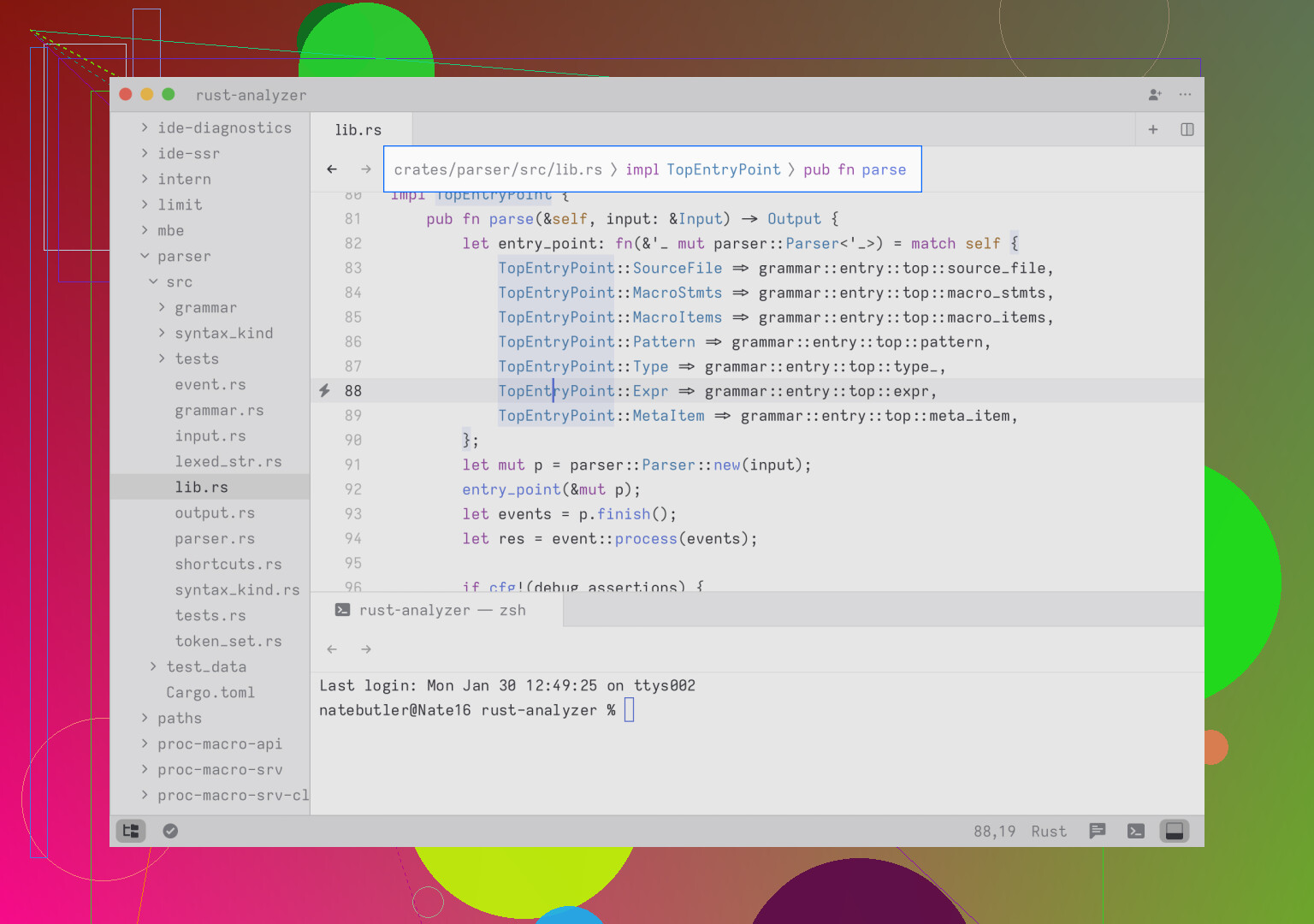
Zed
I was firmly living in VS Code world, with like 40 extensions and a settings.json that was basically a manifesto. Then I opened a big monorepo in Zed and felt like my laptop took a deep breath and relaxed.
- It’s written in Rust and it shows when you hit a huge codebase.
- That “slight delay that you kind of ignore” in Electron apps? It’s just not there.
- Fans stayed quiet opening a repo that usually makes VS Code sound like it is preparing for takeoff.
I’m still not saying “I’ve completely moved off VS Code,” but Zed is the one I reach for when I know I’m going to live in a project for hours and don’t want to feel like I’m pushing a fridge uphill.
Warp
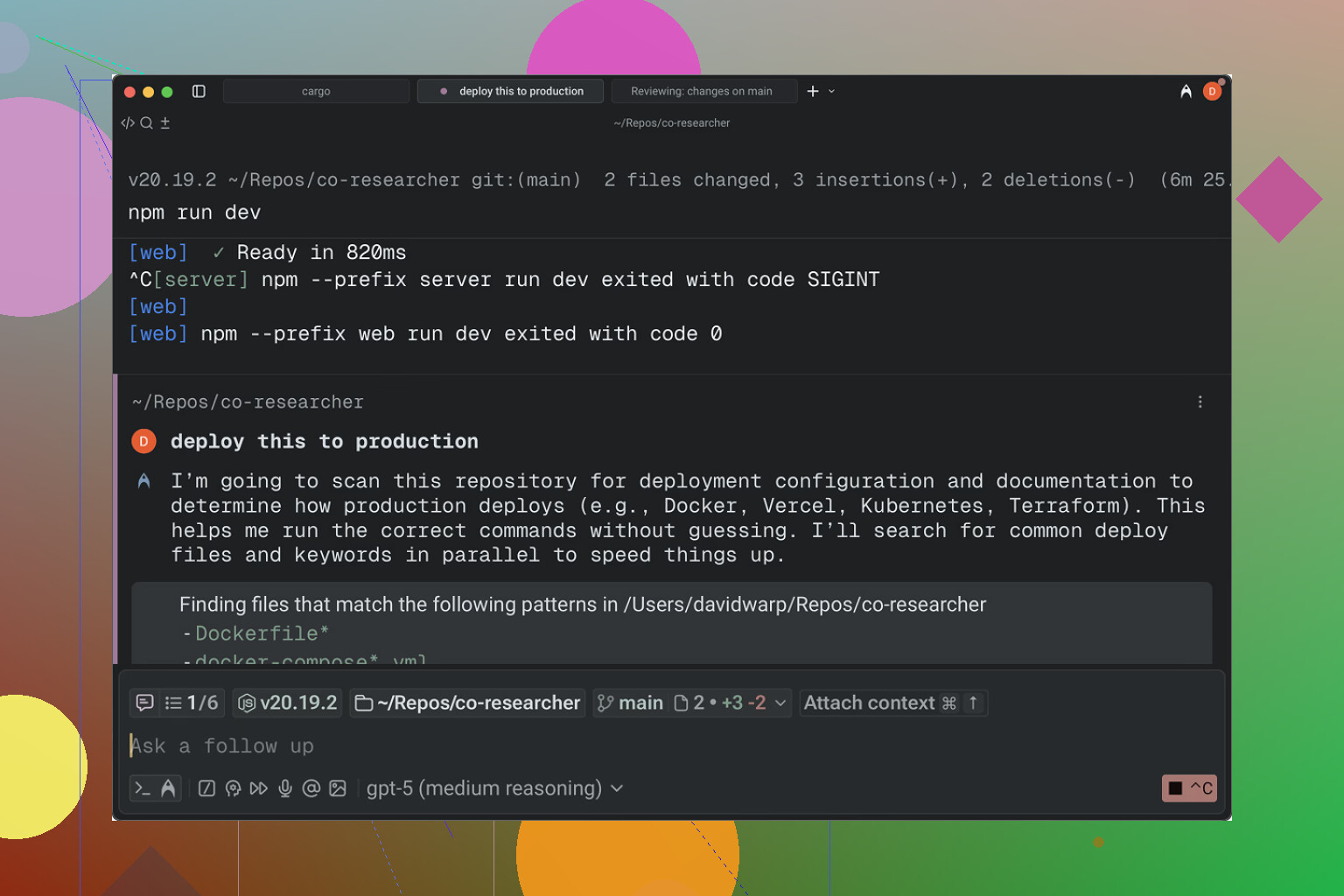
Warp is the first terminal that made me stop thinking of the terminal as a dumb box that prints text.
- You can click the cursor around like you are editing a doc instead of playing “hold arrow key for 5 seconds.”
- Commands are grouped into blocks, so scrolling history doesn’t feel like digging through log vomit.
- The AI suggestions are actually useful. Example: I can never remember the exact incantation of
docker-composeflags. It just pops up something like, “Did you mean this?” and 9/10 times, yeah, I did.
At first it felt like I was cheating or over-automating, but now I just see it as offloading the boring trivia to the machine instead of my brain.
Raycast
Site: https://www.raycast.com/
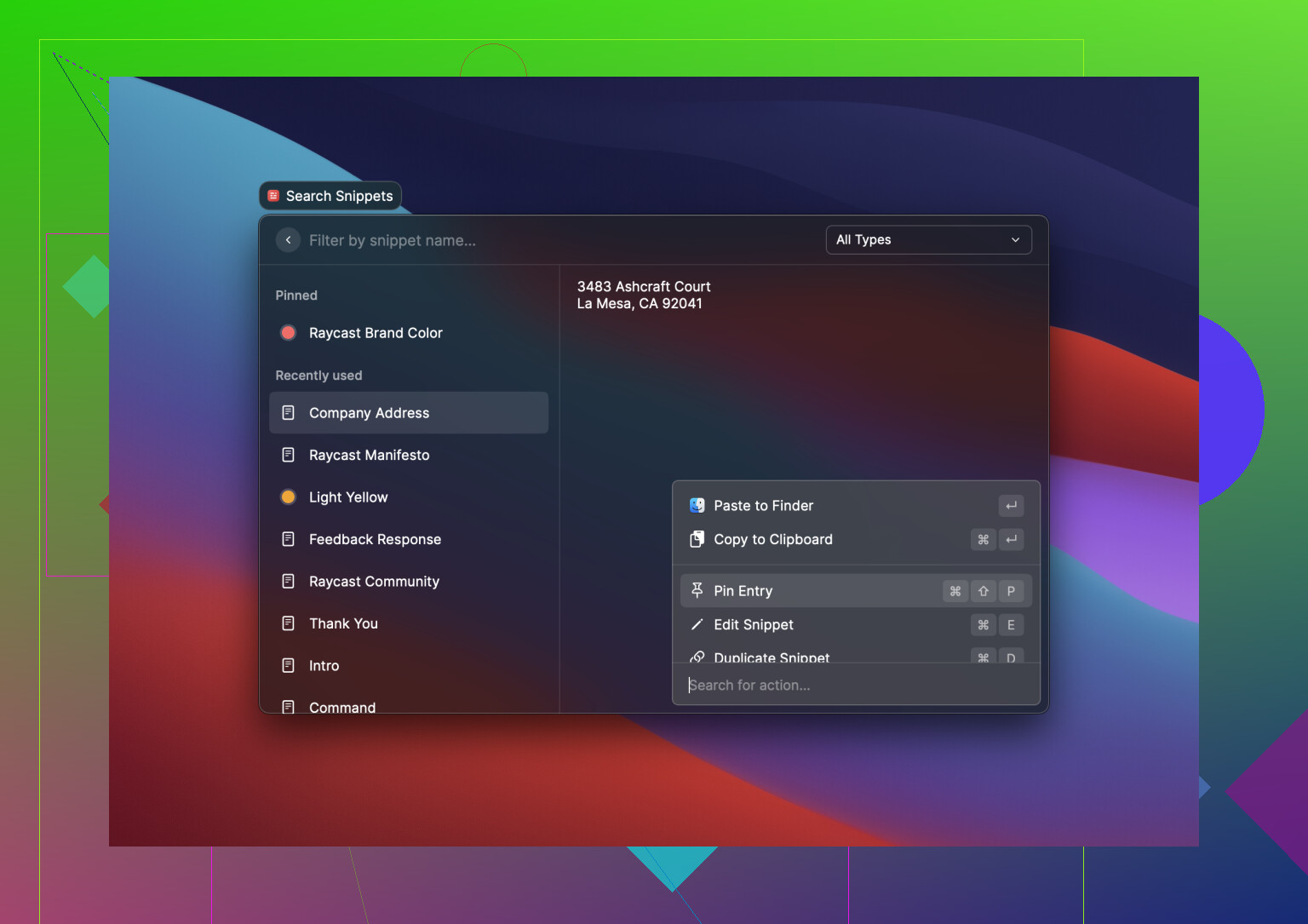
Spotlight is basically a glorified app launcher. Raycast turned that little “Cmd + Space” habit into half my workflow.
What I use it for:
- Clipboard history, because copying something and then overwriting it accidentally is my natural talent.
- Window management, so I don’t have to drag stuff around like it’s 2009.
- Killing runaway processes faster than digging through Activity Monitor.
- I also grabbed a script that toggles my local database on and off with a single hotkey. No more clicking through a UI or typing the same service commands over and over.
At some point I realized I hadn’t used Spotlight in weeks. It’s still there, but honestly it may as well not be.
OrbStack
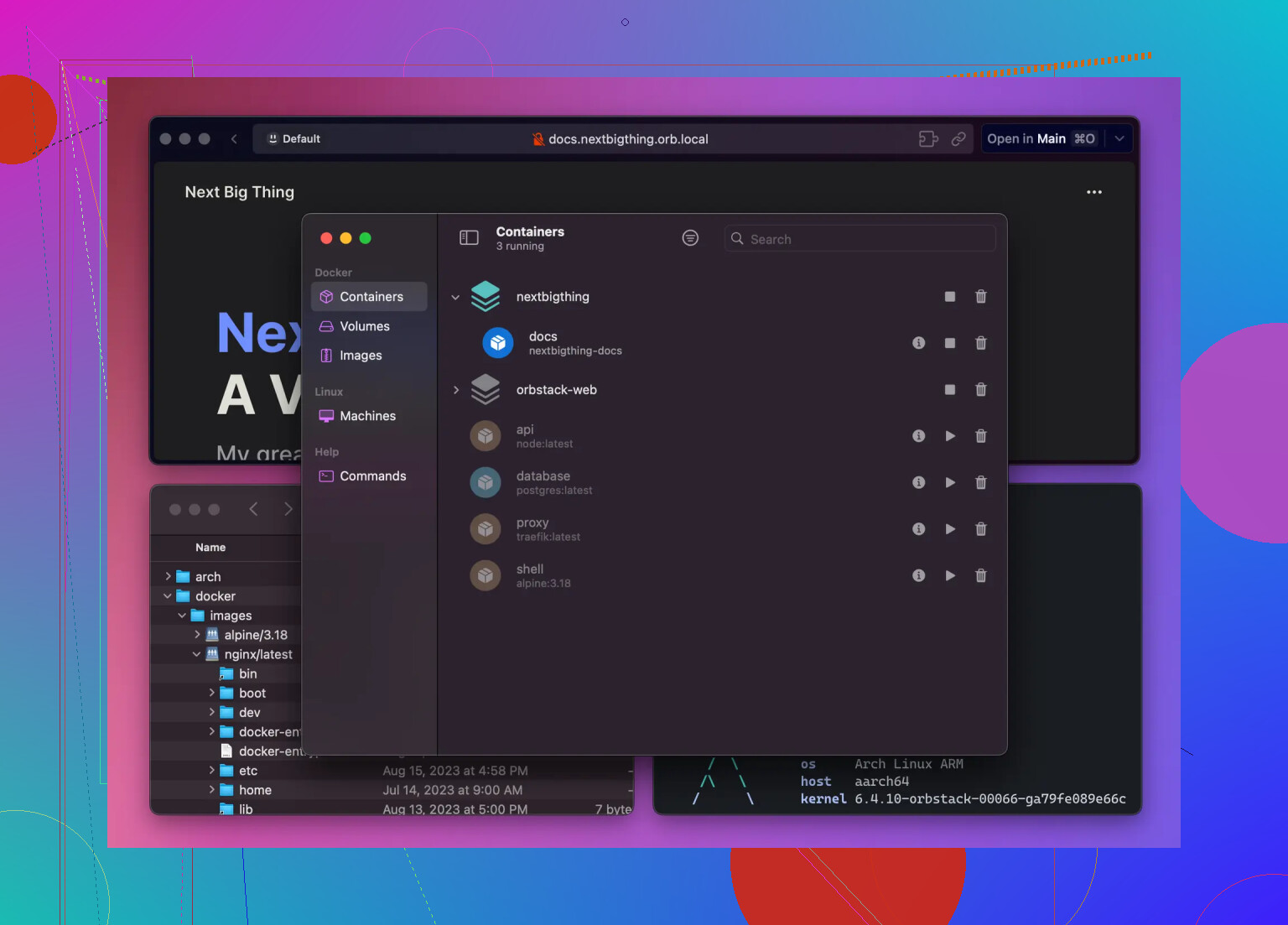
Docker Desktop was the noisy roommate of my system: always running, always hungry, never paying rent.
Swapping it for OrbStack was one of those changes I only made because my fans were constantly spinning like a jet. After switching:
- CPU usage dropped.
- Battery stopped evaporating every time I touched containers.
- The machine actually felt like a laptop again instead of a space heater.
Whatever trick they are using under the hood to make Docker feel this lightweight, I did not question it. I just left it installed and never looked back.
How I Stopped Letting Cloud Sync Apps Eat My Mac
At one point I had:
- Dropbox
- Google Drive
- Some S3 sync tool
- Plus a random “official” client for a private SFTP
All of them wanted to sync. All of them wanted to index. All of them wanted to run at startup. My MacBook started acting like it was 10 years old, and all I did was “use the cloud.”
So I changed the approach entirely.
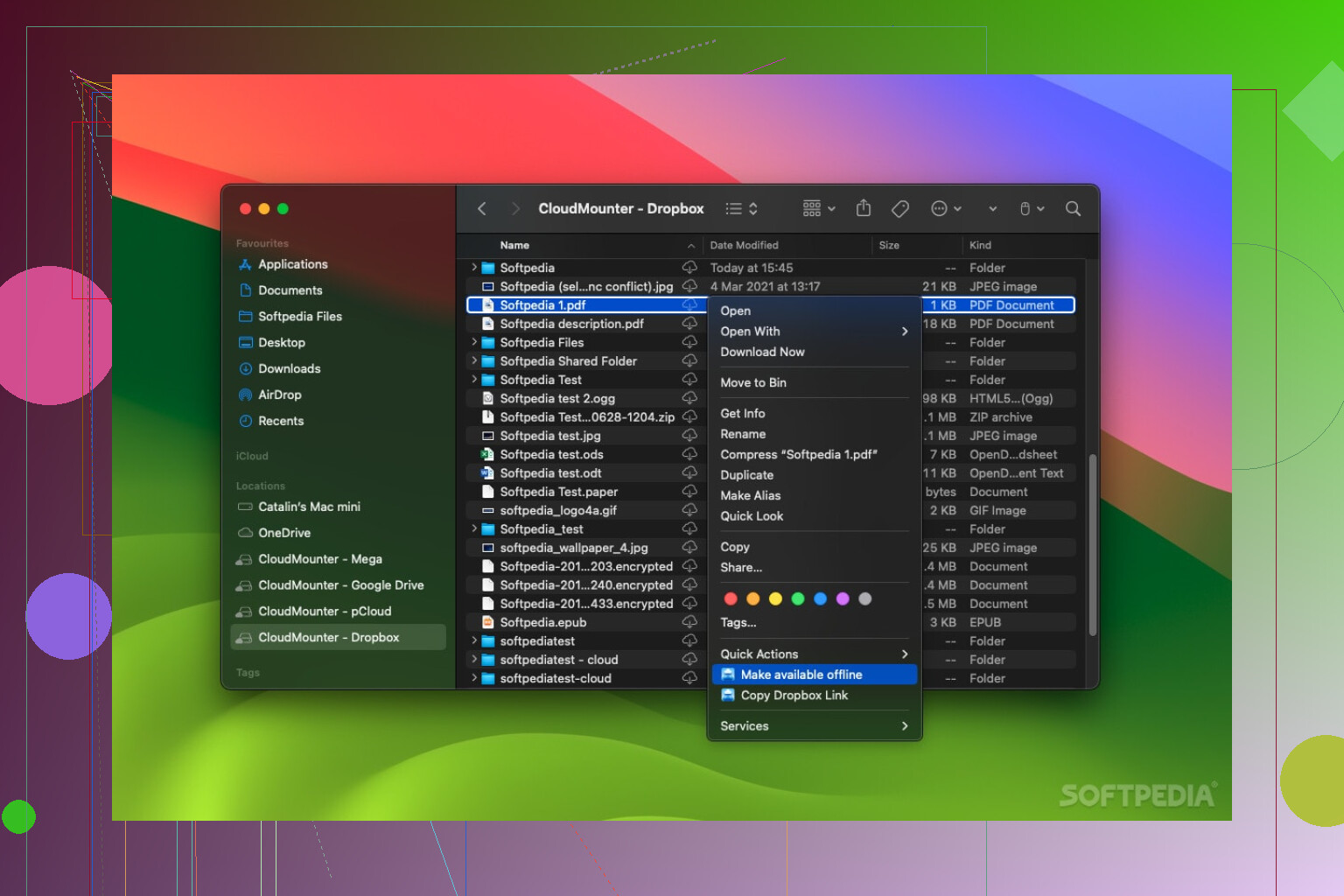
CloudMounter
Instead of running 4 different background sync apps, I nuked them and replaced them with one thing: CloudMounter.
What it does is pretty simple but incredibly useful:
- It mounts cloud storage as if it were an external drive.
- S3 buckets? They show up like another volume in Finder.
- SFTP servers? Same.
- Google Drive? Also just another “disk.”
No separate menubar icons, no unique sync behaviors, no weird offline caching logic from five different vendors. Just “this folder is in the cloud now, treat it like a drive.”
Commander One
Finder is OK for normal human stuff like browsing Downloads or scrolling photos. It falls apart when you are moving build artifacts, logs, random dist folders, and piles of ZIPs.
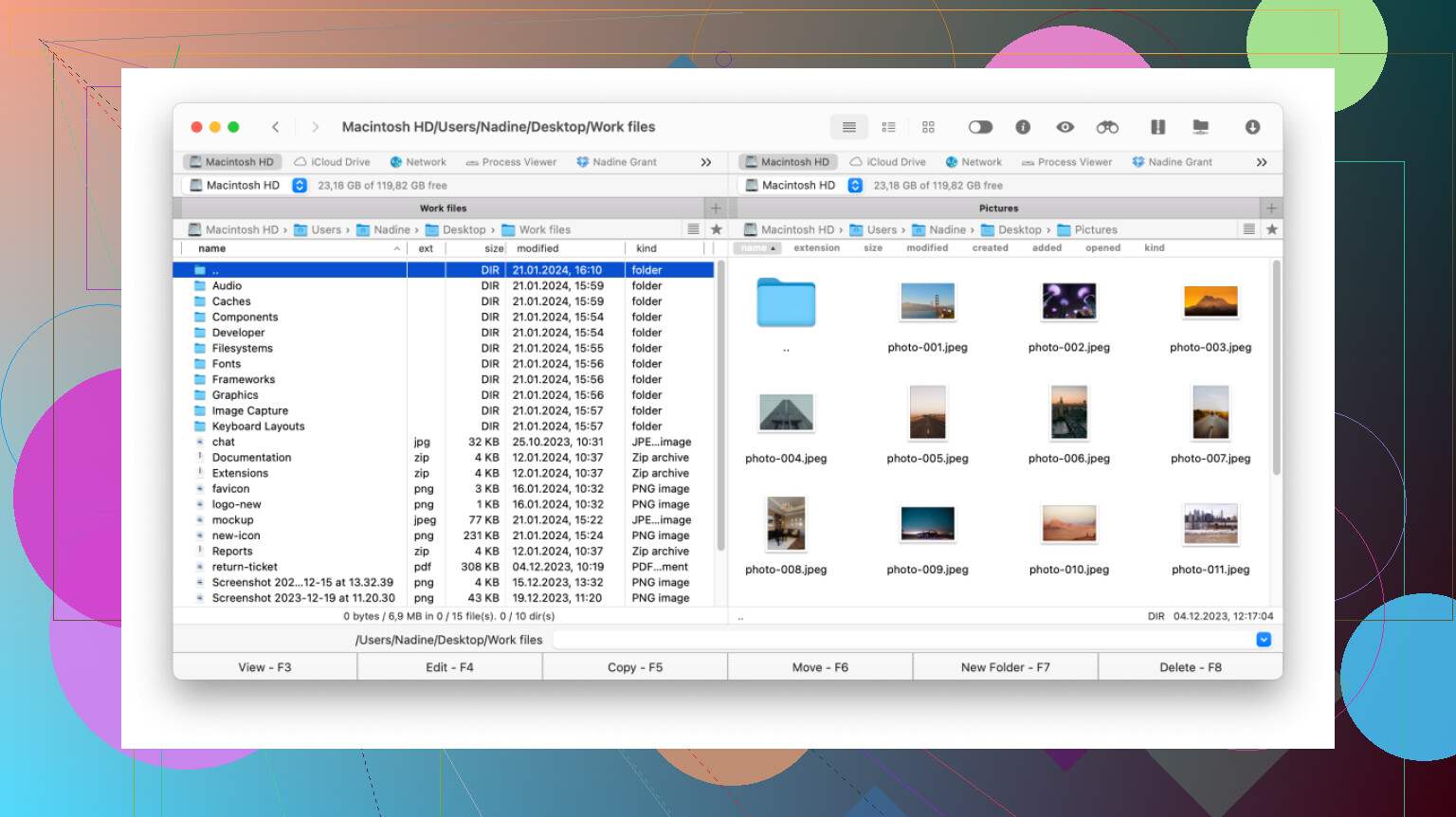
I missed the old dual-pane file managers where you can see source on one side and destination on the other. Commander One brought that back:
- Left side: project folder or build output.
- Right side: mounted S3, a server over SFTP, or just another directory.
- Copy / move / rename without playing Finder-window-Tetris.
It’s not “pretty” in the same way Apple tries to make everything pretty, but for dev work, it feels practical. It made file operations feel less like wrestling and more like “do it and move on.”
Of My Setup
If you want a similar vibe where tools get out of your way instead of trying to be the main character:
- Editor: Zed for big projects or when you want speed over plugin hoarding.
- Terminal: Warp when you’re tired of pretending the terminal has to suck.
- Launcher / Swiss army knife: Raycast instead of Spotlight.
- Containers: OrbStack so Docker doesn’t torch your CPU.
- Cloud mounts: CloudMounter instead of 4 separate sync clients.
- File manager: Commander One when Finder stops cutting it.
It’s not some perfect “ultimate dev stack,” it’s just the stuff that survived long enough to still be on my Mac in 2026. If you feel like exploring further, you’ll find plenty of other spots sharing similar recommendations.
@mikeappsreviewer covered a pretty opinionated “minimalist” stack. I’m a bit more boring and traditional, so I’ll throw in a different angle that might fit better if you’re just landing on macOS.
1. Editor / IDE
-
Visual Studio Code
Yeah, everyone mentions it, but for a new Mac user it’s still the easiest win. Tons of extensions, works for basically every language, and the Git integration is good enough that you don’t have to memorize everygitflag on day one.
I don’t fully agree that you need to flee Electron for perf. On a half‑decent Mac, VS Code is fine unless you’re opening some cursed mega‑monorepo. -
JetBrains IDEs (IntelliJ, WebStorm, PyCharm, etc.)
If you live in Java, Kotlin, or serious TypeScript/Python, a JetBrains IDE will straight up carry you. Autocomplete, refactors, code inspections that actually catch bugs. They are heavier than Zed, sure, but they save a lot of brain cycles.
2. Terminal
Warp is nice, but if you want something closer to “standard dev muscle memory”:
- iTerm2
Rock solid, crazy configurable, split panes, profiles, triggers, tmux integration.
Pair it with Homebrew and a decent shell setup:brewfor installing everything CLIzsh+ Oh My Zsh or Starship prompt for quality of life
That combo will probably matter more than which fancy terminal UI you pick.
3. Package & env management
Huge for not trashing your Mac:
-
Homebrew
Install almost anything:brew install node,brew install git,brew install postgresql, etc. If you’re new to macOS dev and you don’t use Homebrew, you’ll end up in dependency hell pretty fast. -
asdf or fnm / nvm
For managing Node, Python, Ruby, etc. versions per project. Way more important than arguing about which editor you use.
4. Git & diff tools
-
Fork or Tower
Nice graphical Git clients if you want to actually see branches, diffs, and history without living in the CLI 24/7. I still commit via terminal but use a GUI to untangle messy history and do interactive rebases without sweating. -
Kaleidoscope or Meld
Great visual diff / merge tools. Makes conflict resolution not feel like dental surgery.
5. Docker & containers
@mikeappsreviewer is spot on about Docker Desktop being a resource hog. OrbStack is good. If you want something as simple as possible though:
- Colima (via Homebrew)
All CLI, no fancy UI, but super lightweight. If you’re comfortable in terminal, Colima + Docker CLI is enough and you avoid yet another resident menubar app.
6. File management
Finder is… fine until you’re juggling build outputs, archives, remote servers, etc.
- Commander One
If you like dual‑pane file managers, Commander One on Mac is exactly the thing. Left pane: your project ordistfolder. Right pane: another directory, or a remote server. Copy / move / compare without five overlapping Finder windows. It especially shines when working with logs, release artifacts, and moving stuff to staging servers. Really does fill the “power user file manager” gap that stock macOS never bothered to solve.
7. Productivity / glue apps
I do agree on the “one launcher to rule them all” idea, but:
-
Alfred
If Raycast feels like a bit too much at first, Alfred with a few workflows is a lean alternative. Quick app launching, clipboard history, snippets, basic scripts. Less shiny, more battle‑tested. -
Rectangle
Simple, free window manager. Keyboard shortcuts to snap windows left/right/center, full screen, etc. Instantly better than dragging windows around like it’s 2010. -
Stats or iStat Menus
Lightweight way to keep an eye on CPU, RAM, network. Pretty useful when you’re trying to figure out “is it my app or Docker or Chrome killing this machine?”
8. Notes & docs
- Obsidian or Notion
For dev notes, snippets, architecture sketches. Mac doesn’t really matter here, but having a place to stash “how I set up this environment” will save you next time you wipe or switch machines.
If you’re just starting on Mac and feeling lost, I’d honestly begin with:
- Homebrew
- VS Code
- iTerm2 + zsh config
- Docker solution of your choice (OrbStack or Colima)
- Commander One for heavier file work
- Rectangle for window snapping
Once that’s in place, then experiment with stuff like Zed, Warp, Raycast, etc. instead of installing everything at once and not knowing what’s actually helping you ship code.
You’ll get a ton of “install everything” replies, and folks like @mikeappsreviewer already covered a pretty opinionated stack. I agree with some of it (Raycast, OrbStack) but I’d actually start a bit more boring and practical so you don’t end up with a Franken-mac.
Here’s what’s stayed on my machine after a bunch of trial / uninstall cycles:
1. Editors & IDEs
1.1 VS Code or JetBrains (pick one primary)
Zed is great performance-wise, but if you’re coming from Windows/Linux you’ll probably feel more at home with:
-
VS Code
- Great for web / JS / TS / Python / Go.
- Tons of extensions, remote dev, containers, etc.
- Sync your settings so macOS doesn’t feel “new editor + new OS” at the same time.
-
JetBrains IDEs (IntelliJ / WebStorm / PyCharm / GoLand)
- If you work on large codebases with heavy refactoring, JB still has the best refactor / navigation tools.
- More RAM hungry than Zed, but often saves time on “actually changing code safely,” not just opening files fast.
Personally I keep both: JetBrains for “serious” work, VS Code for quick edits and scratch projects.
2. Terminal & Shell
I like Warp conceptually, but I still find classic terminals more reliable for weird toolchains.
-
iTerm2
- Not pretty, but rock solid.
- Split panes, profiles, triggers, great search, etc.
- Plays nice with basically everything, including old CLI tools that sometimes glitch in GPU/AI-heavy terminals.
-
Shell: zsh + plugin manager
- You already have
zshby default. Add:oh-my-zshorzinit/antidotefor faster plugin loading- Plugins like
zsh-autosuggestions,zsh-syntax-highlighting
- This gets you 80% of the “AI-ish” command memory without relying on a proprietary terminal.
- You already have
3. Package & Env Management
This is where a lot of new Mac devs trip.
-
Homebrew
- The de facto package manager:
brew install git node python@3.x fd ripgrepetc. - Use it for CLI tools and non–App Store GUI apps.
- The de facto package manager:
-
Language specific stuff
- Node:
fnmornvm - Python:
pyenv+uvorpipx - Ruby:
rbenvorasdf - Ensures you don’t nuke the system Python that macOS uses.
- Node:
4. Containers & Dev Services
Here I’m with @mikeappsreviewer: Docker Desktop on mac can be a space heater.
- OrbStack
- Lighter-weight Docker replacement.
- Nice integration with mac networking.
- If you run Postgres, Redis, etc. locally, it keeps the machine sane.
If you are not using containers heavily, don’t install any Docker yet. It’s very easy to add later and very good at wasting resources if you don’t need it.
5. Search & Navigation
Spotlight is fine, but not “dev fine”.
- Raycast
- Launch apps, run scripts, clipboard history.
- I use it for:
- Quickly killing stuck processes
- Running small shell scripts / Node scripts
- Window snapping so I don’t drag stuff around.
- It can easily replace 3 or 4 “little utility” apps if you configure it a bit.
6. File Management & Cloud
Finder is okay until you start moving build artifacts, logs and random ZIPs around. Here I 100% agree with the recommendation:
- Commander One
- Dual‑pane, keyboard driven, feels like an actual tool not a photo browser.
- Extremely handy for:
- Copying
dist/orbuild/folders to servers or external drives - Comparing two directories
- Cleaning up old project cruft fast
- Copying
- If you do anything with SFTP or remote storage, having Commander One + a mounted cloud drive is a really productive combo.
For cloud:
- CloudMounter
- Instead of running every vendor sync app, just mount S3 / SFTP / Google Drive as disks.
- Pairs nicely with Commander One for “local to cloud” workflows.
7. Browsers & Dev Tools
- Chrome or Chromium-based
- DevTools are still the most complete for front‑end debugging.
- Safari
- Good to test WebKit quirks and performance on macOS.
- Firefox Developer Edition
- If you do a lot of CSS and layout work, Firefox dev tools are still very nice.
You don’t need all 3, but having at least 2 engines (WebKit + Chromium) is useful.
8. Productivity & Quality of Life
A couple that quietly make dev work nicer:
-
Rectangle
- Keyboard-driven window snapping (left half, right half, top, etc.).
- Super lightweight and avoids the “where did that window go” dance.
-
KeyCastr or Presentify
- If you pair program, stream, or record demos, showing keystrokes and clicks is helpful.
-
Amphetamine
- Small utility to keep your Mac awake while long builds or migrations are running.
9. Git & Diff Tools
CLI git is great, but a good visual diff saves your eyes.
- Fork or Sourcetree
- I prefer Fork: fast, clear history graph, easy staging per hunk / line.
- Beyond Compare or Kaleidoscope
- For serious merge conflicts and directory diffs.
You can wire these into your git config as difftool / mergetool so they pop automatically.
10. Minimal “starter pack” for you
If you want to avoid the “install 30 things and regret 20,” I’d start with:
- VS Code
- iTerm2 + zsh plugins
- Homebrew
- OrbStack (only if you need Docker)
- Raycast
- Commander One
- Rectangle
Use that for a month. Anything you find yourself complaining about regularly, fix with a new tool. Anything that just “seems cool,” skip until you feel actual pain.
Mac dev workflows age like closets: if you don’t prune, you end up buried in stuff you forgot you installed.
Skip the giant “ultimate setup” for a second. You already got plenty of big lists from others, so here’s a slightly sideways take: focus on how you move around projects and files, not just which editor you click first.
1. Treat file ops as part of your dev tooling
Everyone mentioned Commander One already, but they undersold what it does for workflow when you live in repos all day.
Commander One pros:
- Dual pane is perfect for:
- Left: repo / build output
- Right: “deploy target” folder, mounted server, or an archive area
- Keyboard centric, so shuffling log folders, node_modules trash, dist folders, etc becomes muscle memory
- Integrates nicely when you pair it with cloud mounts or network shares
- Handles big directory trees better than Finder during cleanups
Commander One cons:
- UI feels dated compared to native macOS apps
- Learning curve if you are used to single-pane + mouse-driven Finder
- Not ideal for “pretty” media browsing or casual use
- Another app to keep in muscle memory if you already use a Git GUI with built-in file views
If you resonate with @mikeappsreviewer’s love for cutting friction, Commander One is the “I’m actually doing work” sidekick. If you like a more conservative setup like @cacadordeestrelas suggested, it still plugs in without clashing with their more classic tools.
Competitors in spirit would be:
- Fork or similar Git clients for diffs and staging, but they are repo focused, not general file ops
- Finder with a window tiling tool, which works but gets annoying for repetitive tasks
2. Don’t over-index on the editor wars
You already saw people push Zed, VS Code, JetBrains. My slightly contrarian view: spend less time optimizing the editor and more time fixing:
- Search: use a good ripgrep / fd setup and bind it in your editor
- Project entry: scripts to bootstrap environments per project quickly
- File management: Commander One or a similar tool for the constant “clean build, ship artifacts, inspect logs” loop
Once those flows are smooth, any half decent editor suddenly feels fine.
3. Suggested minimal add-ons that complement what you already heard
Since others already gave you the “install Homebrew, pick a terminal, pick an editor” speech, I’d add:
- A dedicated diff / merge tool wired into git config
- Some lightweight “keep awake” tool for long-running jobs
- One automation surface, like Raycast or similar, to quickly wrap repetitive project scripts
Everything else, delay until you actually feel pain.
So: keep your stack small, let your repos and workflows tell you what is missing, and consider Commander One not as a “Finder replacement” but as a dev-only file operations console that earns its place once you start juggling builds, logs and cloud targets regularly.