I keep hearing about cloud storage for backing up files, sharing documents, and syncing photos across devices, but I’m still not clear on what it really is or how it works behind the scenes. I’m worried about security, costs, and which service to pick for personal and small business use. Can someone break down the basics of cloud storage, how data is stored and accessed, and what I should look for when choosing a provider?
I’ve been through the ringer with almost every service out there, from the early days of Dropbox to managing massive backups on specialized servers. It can definitely feel like a lot to take in at first, but once you strip away the marketing speak, it’s pretty straightforward.
What is cloud storage is and how it works
At its simplest, cloud storage just means your files are living on a high-end hard drive in a data center owned by someone else instead of just on your own laptop or phone. When you “upload” something, you’re sending a copy over the internet to their servers.
The reason everyone uses it now is that it acts as a safety net. If you spill coffee on your laptop today, you don’t lose your wedding photos or your tax returns because the “source of truth” is that remote server. Most services also sync a copy back down to your devices so you can work offline, but the main benefit is being able to get to your stuff from any computer, anywhere.
The main types of cloud storage
You’ll generally run into four different “flavors” of this stuff:
Personal storage is what most of us need. Think Google Drive or iCloud. It’s a folder on your computer that automatically mirrors everything to the web. It’s built for one person to keep their life organized.
Business storage is for teams. Services like SharePoint or Box have way more “boss” controls. You can see who edited what, lock people out of certain folders, and keep an audit trail. It’s overkill for a single person but essential for an office.
Object storage is the “industrial” version. Amazon S3 and Backblaze B2 are the big names here. You don’t get a pretty folder to browse; instead, it’s meant for huge amounts of data, like website assets or massive system backups. It’s cheap, but it’s not very “friendly” to use on its own.
Self-hosted storage is privacy-focused. With tools like Nextcloud, you run the software on your own hardware or a private server you rent. Your files never sit on a big tech company’s drive, but you’re responsible for making sure the server doesn’t crash.
The services worth knowing about
Google Drive
Google Drive gives you 15 GB for free, which sounds like a lot until you realize it’s shared with your Gmail and your Google Photos. If you live in Google Docs, it is the most logical choice, but it can get cluttered fast.
Dropbox
Dropbox is the old reliable. Their sync is still the fastest and most dependable I’ve used. If you change one sentence in a huge PDF, it only syncs that one sentence, not the whole file. They only give you 2 GB for free now, though, which is pretty cheap.
OneDrive
OneDrive is the best value if you already pay for Microsoft 365 (Word, Excel, etc.), because you get 1 TB included. It’s built right into Windows, which is convenient, though the Mac app can be a little moody sometimes.
pCloud
pCloud is a bit of an outlier but worth checking out because they offer a “lifetime” plan. You pay one flat fee (around $399 for 2 TB as of 2026) and you never pay a monthly sub again. It’s great for people who hate being “subscription-ed” to death.
The problem with using multiple services
The real headache starts when you realize you have 15 GB at Google, 1 TB at work on OneDrive, and maybe some old projects on Dropbox. You end up with five different apps running in your menu bar, eating up your RAM and your battery, and you can never remember where you saved that one receipt.
I eventually hit a wall with all those separate apps and started using CloudMounter instead. It basically tricks your computer into thinking all those cloud accounts are just regular external hard drives.
Whether it’s Google Drive, Dropbox, or even a technical server like Amazon S3 or an FTP site, they all just show up in your Finder or File Explorer as folders. You can drag a file from your work OneDrive straight into your personal Dropbox without ever opening a web browser.
The best part is that it doesn’t download everything to your computer. You can see all 2 TB of your files, but they stay in the cloud until you actually double-click to open one. It saves a massive amount of disk space and keeps your computer from slowing down under the weight of five different sync programs.
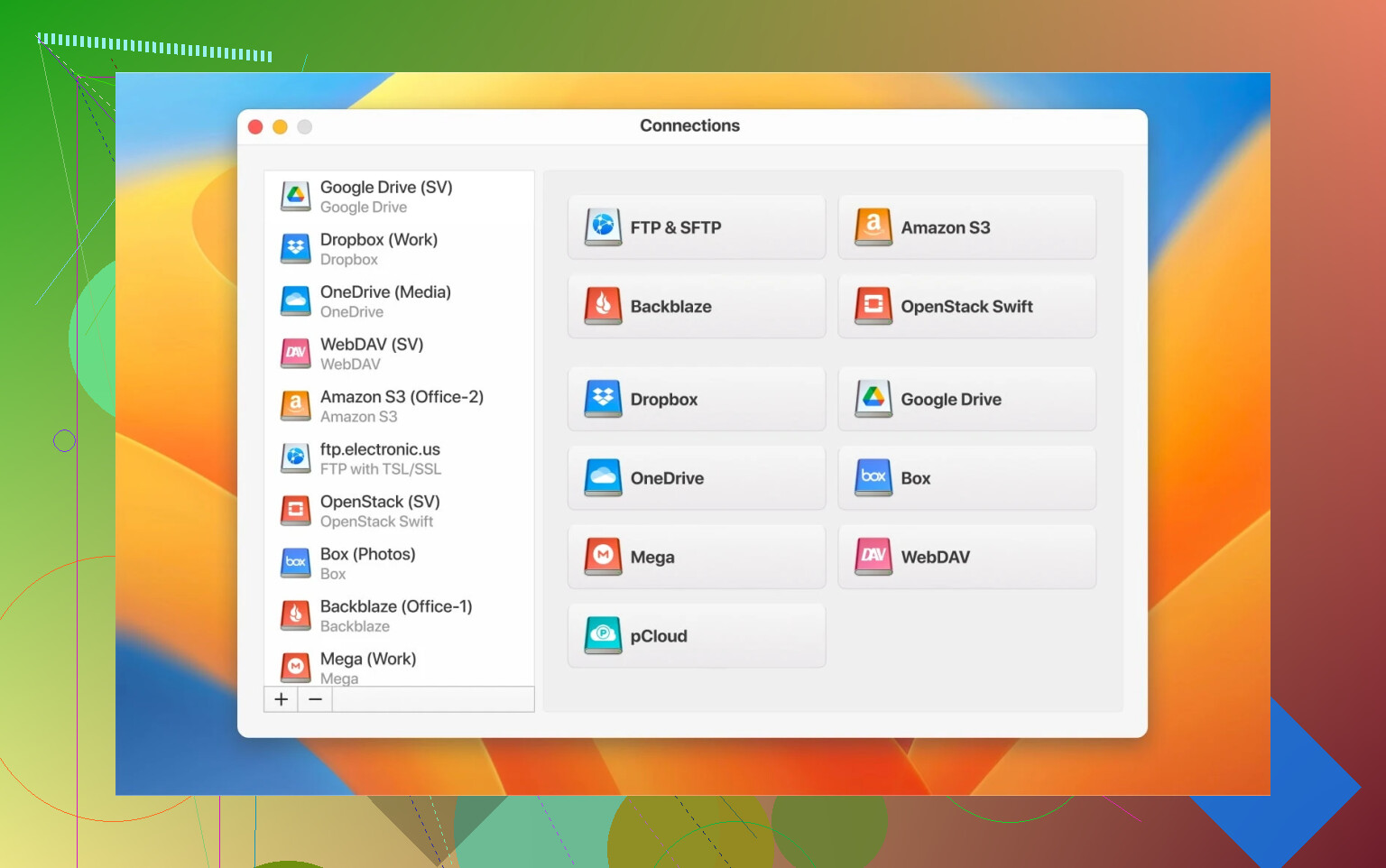
Cloud storage is a necessity these days, but don’t feel like you have to marry one service. Most of us end up with a bit of everything. If you find yourself juggling more than two accounts, save yourself the frustration and look into something like CloudMounter to keep it all in one place.
Think of “the cloud” as rented storage in someone else’s data center that you reach over the internet. Not mystical at all, just remote disks in big secure buildings.
Adding to what @mikeappsreviewer said, here is what happens behind the scenes and how your concerns fit in.
-
What happens when you upload a file
• Your device breaks the file into chunks.
• It sends those chunks over an encrypted connection (TLS) to the provider.
• The provider writes the data to multiple disks in one or more data centers for redundancy.
• Metadata gets stored too, like file name, size, timestamps, permissions.
• Some services keep old versions so you can roll back. -
How syncing works
• A small app runs on your device.
• It watches certain folders for changes using the OS file events.
• When a file changes, it sends only the changed blocks, not the whole file. This is why Dropbox feels fast.
• On other devices, the same app asks the server “what changed since last time” and downloads those diffs.
• Conflict handling is crude. If two devices edit at once, you get “conflicted copy” files. -
Sharing and permissions
• When you “share” a file, the service creates a record that says “user X can read or write this path.”
• For link sharing, it creates a token in the URL and maps it to that file.
• Good hygiene:
- Turn off link sharing when you are done.
- Prefer sharing to specific accounts, not public links.
- Review shared files monthly.
- Security and privacy, blunt version
• Security has two parts: transport and storage.
- Transport: HTTPS/TLS, which is strong enough for normal use.
- Storage: data is usually encrypted at rest on their disks.
• The important bit: in most consumer services, the provider holds the keys. They can access your data if forced by law or if their admins abuse access.
• If you want stronger privacy: - Use client side encryption tools (Cryptomator, Boxcryptor Classic, etc.).
- Or use services that offer “zero knowledge” options.
- Use strong unique passwords and a password manager.
- Turn on two factor auth for every account.
- Risk of losing data
• Providers handle:
- Disk failures with RAID or replication.
- Data center failures with geo replication.
• Your main risks: - Accidental deletion that you do not notice before the trash retention window expires.
- Ransomware that encrypts files and syncs that mess to the cloud.
• Practical steps: - Turn on version history and learn how to restore older versions.
- Keep one separate offline backup for truly critical stuff. External drive, encrypted.
- Be careful with “sync only this folder” options if you move folders around.
- What I partially disagree with from the other reply
• @mikeappsreviewer is right that mixing many services gets messy.
My small disagreement is about treating cloud as the “source of truth” for everything.
For irreplaceable data, I prefer a 3 layer setup:
- Local copy on your main device.
- Cloud copy for sync and quick restore.
- Offline backup that is not permanently connected.
This protects you better from sync mistakes and ransomware.
- Choosing a service approach
Think in terms of use cases rather than brands.
• Photos from phone:
- iPhone: iCloud Photos is easiest.
- Android: Google Photos.
• Documents and school or office work: - Use what matches your tools. Google Drive for Docs, OneDrive for Office.
• Long term archive: - Backblaze Personal Backup or similar backup service.
- For techier setups, object storage like Backblaze B2 or Amazon S3, but that needs extra tools.
• Strong privacy: - Self hosted options like Nextcloud with client side encryption, if you are ready to manage servers.
- Tools to manage multiple clouds
Here I fully agree with them on the pain of 3 or 4 sync apps.
If you already have Google Drive, OneDrive, Dropbox, etc., something like CloudMounter helps.
• It mounts your cloud accounts as network drives in Finder or File Explorer.
• Files stay online until you open them, so your disk does not fill up.
• You move data between services through one interface.
Even for a non technical user that is often simpler than juggling each vendor app.
If you start from scratch and you want to keep things simple, pick one provider for sync and sharing, plus one backup strategy, and stick with it.
If you already feel stuck with multiple accounts, a “cloud manager” like CloudMounter plus one good offline backup gives you control without much extra brain load.
Think of cloud storage as “files on other people’s computers, wired together really well, with rules.” @mikeappsreviewer and @sterrenkijker already nailed the basics and the plumbing, so I’ll hit the stuff you’re actually worried about: security, privacy, and whether this is a trap for your data.
1. What “the cloud” really is in practice
Physically, it’s:
- Big rooms full of servers in data centers
- Your files split into chunks and copied to multiple disks
- Very fast internet pipes in and out
Logically, it’s:
- A giant database that says:
“File X belongs to account Y, is in folder Z, and these people can open it.”
So when you:
- Back up files: your computer sync app just sends copies to that database and marks them as “yours.”
- Share a doc: it just updates permissions on the record. Often no extra copy is made.
- Sync photos: your phone keeps firing small uploads as you take pics; your laptop or tablet asks “what’s new?” and downloads those.
No magic, just storage + metadata + permissions.
2. Where I slightly disagree with the “source of truth” idea
Both @mikeappsreviewer and @sterrenkijker talk about cloud being the main “source of truth.” I only half agree.
What I like:
- If your laptop dies, cloud saves you.
- Easy access from anywhere.
What I don’t like as the only source:
- Human screwups sync perfectly too. Delete a folder by mistake? That deletion happily syncs everywhere.
- Ransomware can encrypt your stuff and those encrypted versions can sync up.
So I’d frame it as:
- Cloud = primary working copy and sharing hub
- External drive (encrypted) = “oh no, everything is on fire” copy
That way you are not at the mercy of a single account or a single mistake.
3. Security: how safe is this really?
Stripping the jargon:
In transit:
- Files move over HTTPS/TLS, same tech as online banking.
- That part is generally solid unless your device is already compromised.
At rest on their servers:
- Your data is usually encrypted on disk.
- But the company holds the keys for standard consumer plans.
- That means:
- They can access files if required by law.
- Admins could screw up or abuse access (rare, but possible).
If you want to step it up:
- Use client-side encryption for sensitive stuff
- Tools like Cryptomator put files in an encrypted “vault” before upload.
- Turn on 2FA on every account. This is non-negotiable now.
- Use a password manager, never reuse passwords.
For 90% of people, the bigger risk is phishing, weak passwords, or losing access, not some Hollywood hacker breaking TLS.
4. What about privacy?
Security protects against outsiders. Privacy is about what the company itself does.
- Free or “smart” services might scan content for:
- Spam, malware, illegal content
- Product features, like searching inside PDFs or surfacing memories in photos
- Read the part of their policy about “data processing” and “data for advertising.” Boring, but this is where the tradeoffs live.
If that creeps you out:
- Avoid tying absolutely everything to one megacorp account.
- For truly sensitive docs (legal, medical, very private stuff) store them encrypted before they even hit the cloud.
5. Is it easy to get locked in?
Kind of, yes, and this is the part people gloss over.
Lock-in happens because:
- Each provider has its own sharing links, permission system, and extras like real-time collaboration.
- Moving terabytes between services is slow and annoying.
- Colleagues or family often dictate where things live (work: OneDrive or SharePoint, family: maybe Google Drive or iCloud).
You absolutely can move:
- Most cloud services have export or bulk download options.
- You can sync one locally, then upload the same folder to another provider.
- Tools that mount cloud drives as local drives make the move less painful.
This is where something like CloudMounter actually makes sense. Instead of installing five sync clients and chewing your SSD, it:
- Shows multiple cloud accounts as “drives” on your computer
- Lets you move files between Google Drive, Dropbox, OneDrive, S3, etc., like normal folders
- Keeps stuff online until you open it, so your local disk does not explode
I know both other replies mention it, but this is exactly where it earns its keep: avoiding hard lock-in by making migration and juggling easier.
6. Practical setup that actually works
If you just want something sane and not a science experiment:
-
Pick one main cloud for everyday stuff
- iPhone + Mac heavy: iCloud
- Android + Gmail heavy: Google Drive / Google Photos
- Office / Windows heavy: OneDrive
-
Turn on automatic photo backup on your phone
- Then stop worrying about losing the phone.
-
Use cloud for “live” documents and collaboration
- Shared docs, budgets, school or work stuff.
-
Have one offline backup
- External drive, encrypted, updated once a week or once a month.
- Unplug it when done so malware cannot touch it.
-
If you already have multiple clouds
- Use something like CloudMounter to avoid five sync apps and to keep track of what lives where.
- Slowly consolidate over time instead of trying to fix it in one weekend.
7. What to worry about vs. what not to
Worth worrying about:
- Weak or reused passwords
- Not having 2FA enabled
- No backup outside one single cloud account
- Public share links you forgot about
Not worth losing sleep over (for most people):
- “What if someone sniffs my traffic on the wifi at Starbucks?”
- HTTPS already protects you reasonably well.
- “What if the provider’s hard drive breaks?”
- They already replicate and replace disks constantly.
Bottom line:
Cloud storage is just remote hard drives plus some clever syncing logic and a giant permission table. Treat it as a very convenient working copy and sharing tool, but not the only place your irreplaceable data lives. Add one offline backup, secure your accounts properly, and the “cloud” becomes a really boring, dependable part of your life instead of a mystery.
Think of cloud storage in three layers: hardware, logic, and how you actually use it.
1. Hardware reality (not magical at all)
Behind every “cloud” logo are:
- Racks of servers in data centers
- Lots of disks, power redundancy, cooling, physical security
- Networks connecting those centers
Your file is sliced into chunks and copied to several disks and often several locations. That is why disk failure is mostly a non-event for them.
2. Logical layer: identities, files, rules
Here I slightly disagree with the “source of truth” framing from the others. Technically:
- Your account = an identity entry
- Each file = data + metadata (owner, path, permissions, versions)
- Operations are just rule changes:
- “Share” = add another identity to the permission list
- “Revoke” = remove it
- “Public link” = create a token that bypasses identity checks
So a lot of “sharing” is not copying, it is just granting more people the right to ask the server for that same data.
Because this is so rule driven, one wrong click can have huge effects: mass delete, over-broad public link, etc. That is why I am more on the “cloud is one layer, not the only truth” side.
3. How it behaves from your device’s point of view
Your phone or laptop usually sees the cloud in one of two ways:
-
Sync folder model (Dropbox, OneDrive, iCloud Drive):
- A local folder is watched for changes
- When a file changes, the sync client sends a diff
- Server updates its copy and tells other devices
-
On demand / virtual drive model:
- Files show up as if local but download when opened
- Saves disk space, slightly more latency
Both can coexist. Where people get burned is assuming “I see it on my disk, so I must have a backup.” Sometimes you are just looking at a placeholder.
4. Security & privacy nuance that often gets missed
Others already covered TLS and encryption at rest. I’ll add two details:
-
Indexing vs privacy
- Full text search, photo recognition, document previews usually mean the service parses your content.
- That is not inherently evil, but if you want strict privacy, avoid optional “smart” features for sensitive material.
-
Key management
- If the provider manages keys, you get convenience and recovery, but they can technically read data.
- If you encrypt client side, you lose easy recovery but gain privacy.
- For most people, encrypt only specific sensitive folders, not everything.
5. Lock-in & fragmentation: the real day to day problem
You end up with:
- Work documents in OneDrive
- Personal stuff in Google Drive
- Legacy projects in Dropbox
- Photos in some default phone cloud
@sterrenkijker leaned into the multi layer backup model. @shizuka and @mikeappsreviewer described the mechanics and the “pick one main provider” idea. Where I diverge a bit is that I see multi cloud as unavoidable in practice, because work, school and family often force different platforms.
Rather than fight that, treat it like having several external drives:
- One per ecosystem or role
- One clear offline backup strategy that cuts across them all
6. Where a “cloud manager” fits in
This is where something like CloudMounter is actually useful rather than just “yet another app.”
Conceptually, CloudMounter:
- Mounts different cloud services as drives on your OS
- Lets you browse and move files between them like normal folders
- Uses on demand access so files do not all sync locally by default
Pros:
- Reduces the mess of three or four separate sync clients
- Good when you need to migrate from one service to another gradually
- Saves local disk space if you work with large archives
Cons:
- Adds a new failure point: if it glitches, every mounted service feels broken
- Needs a stable connection for best experience, since it is not mirroring everything locally
- Does not replace a real backup; if you delete in one cloud, it is still deleted everywhere
Competitors are mostly the native clients from each provider plus multi cloud web dashboards. @sterrenkijker focused more on workflow and redundancy, @shizuka on privacy options and self hosting, and @mikeappsreviewer on the practicalities of using popular services. A cloud manager sits between all those approaches: it does not solve policy or legal privacy issues, but it does make it easier to see all your storage as one big pool and not five separate silos.
7. If you care about both safety and sanity
- Use one main cloud where your current work and photos live.
- Keep at least one encrypted offline backup that does not stay plugged in.
- Turn on 2FA and clean up public links and shared folders regularly.
- If you are already split across multiple services, use something like CloudMounter to tame the sprawl, then slowly consolidate rather than trying to “fix” everything in one day.