I’ve been through the ringer with almost every service out there, from the early days of Dropbox to managing massive backups on specialized servers. It can definitely feel like a lot to take in at first, but once you strip away the marketing speak, it’s pretty straightforward.
What is cloud storage is and how it works
At its simplest, cloud storage just means your files are living on a high-end hard drive in a data center owned by someone else instead of just on your own laptop or phone. When you “upload” something, you’re sending a copy over the internet to their servers.
The reason everyone uses it now is that it acts as a safety net. If you spill coffee on your laptop today, you don’t lose your wedding photos or your tax returns because the “source of truth” is that remote server. Most services also sync a copy back down to your devices so you can work offline, but the main benefit is being able to get to your stuff from any computer, anywhere.
The main types of cloud storage
You’ll generally run into four different “flavors” of this stuff:
Personal storage is what most of us need. Think Google Drive or iCloud. It’s a folder on your computer that automatically mirrors everything to the web. It’s built for one person to keep their life organized.
Business storage is for teams. Services like SharePoint or Box have way more “boss” controls. You can see who edited what, lock people out of certain folders, and keep an audit trail. It’s overkill for a single person but essential for an office.
Object storage is the “industrial” version. Amazon S3 and Backblaze B2 are the big names here. You don’t get a pretty folder to browse; instead, it’s meant for huge amounts of data, like website assets or massive system backups. It’s cheap, but it’s not very “friendly” to use on its own.
Self-hosted storage is privacy-focused. With tools like Nextcloud, you run the software on your own hardware or a private server you rent. Your files never sit on a big tech company’s drive, but you’re responsible for making sure the server doesn’t crash.
The services worth knowing about
Google Drive
Google Drive gives you 15 GB for free, which sounds like a lot until you realize it’s shared with your Gmail and your Google Photos. If you live in Google Docs, it is the most logical choice, but it can get cluttered fast.
Dropbox
Dropbox is the old reliable. Their sync is still the fastest and most dependable I’ve used. If you change one sentence in a huge PDF, it only syncs that one sentence, not the whole file. They only give you 2 GB for free now, though, which is pretty cheap.
OneDrive
OneDrive is the best value if you already pay for Microsoft 365 (Word, Excel, etc.), because you get 1 TB included. It’s built right into Windows, which is convenient, though the Mac app can be a little moody sometimes.
pCloud
pCloud is a bit of an outlier but worth checking out because they offer a “lifetime” plan. You pay one flat fee (around $399 for 2 TB as of 2026) and you never pay a monthly sub again. It’s great for people who hate being “subscription-ed” to death.
The problem with using multiple services
The real headache starts when you realize you have 15 GB at Google, 1 TB at work on OneDrive, and maybe some old projects on Dropbox. You end up with five different apps running in your menu bar, eating up your RAM and your battery, and you can never remember where you saved that one receipt.
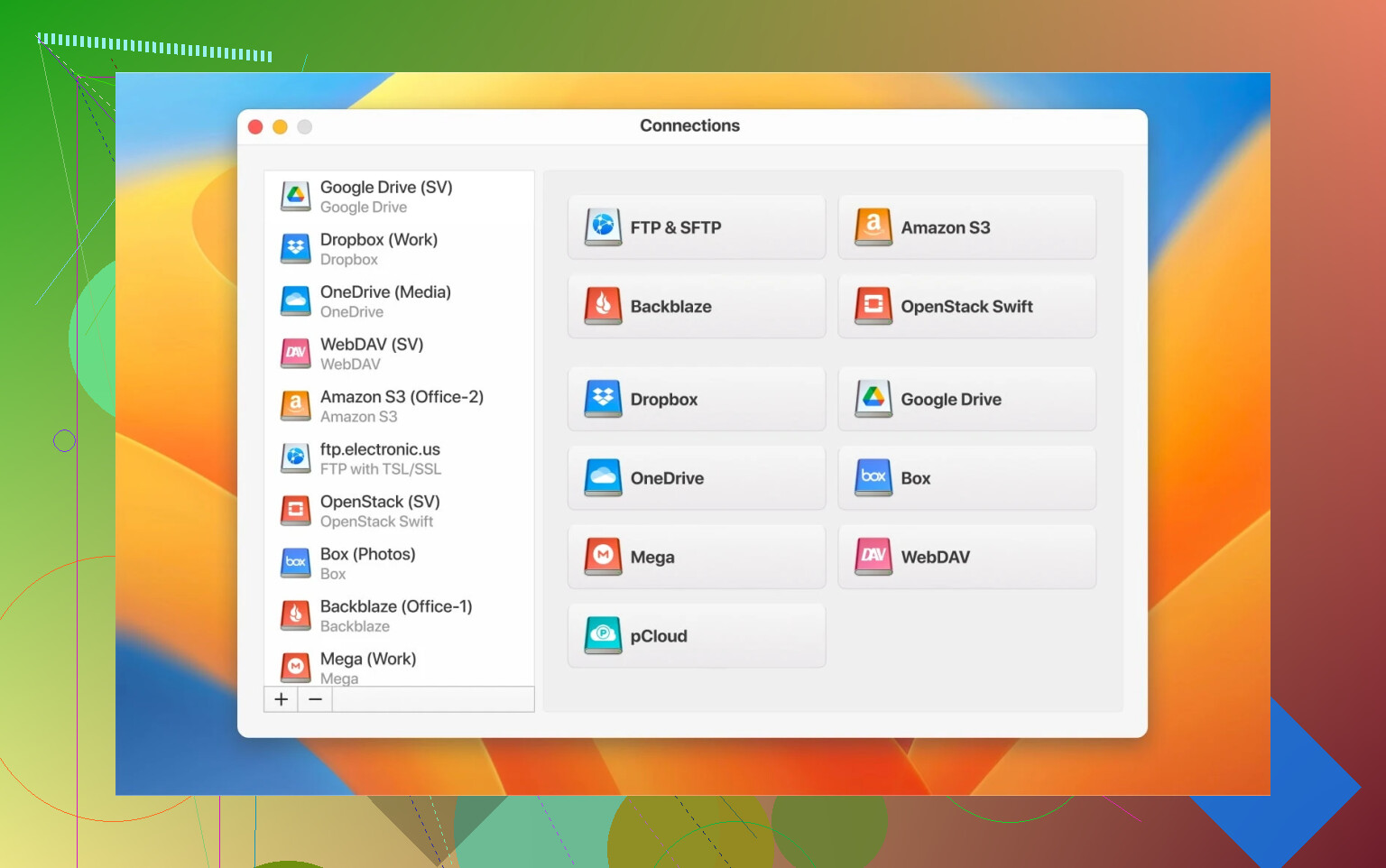
I eventually hit a wall with all those separate apps and started using CloudMounter instead. It basically tricks your computer into thinking all those cloud accounts are just regular external hard drives.
Whether it’s Google Drive, Dropbox, or even a technical server like Amazon S3 or an FTP site, they all just show up in your Finder or File Explorer as folders. You can drag a file from your work OneDrive straight into your personal Dropbox without ever opening a web browser.
The best part is that it doesn’t download everything to your computer. You can see all 2 TB of your files, but they stay in the cloud until you actually double-click to open one. It saves a massive amount of disk space and keeps your computer from slowing down under the weight of five different sync programs.
Cloud storage is a necessity these days, but don’t feel like you have to marry one service. Most of us end up with a bit of everything. If you find yourself juggling more than two accounts, save yourself the frustration and look into something like CloudMounter to keep it all in one place.